> For the complete documentation index, see [llms.txt](https://helpcenter.channable.com/llms.txt). Markdown versions of documentation pages are available by appending `.md` to page URLs; this page is available as [Markdown](https://helpcenter.channable.com/account-billing/account-and-billing-fr/gerez-votre-compte-et-vos-parametres/gerez-les-parametres-de-votre-compte.md).
# Gérez les Paramètres de votre Compte
Voyez où vous pouvez gérer vos informations personnelles, votre e-mail, votre mot de passe, votre MFA et les comptes SSO liés.
Vous accédez à Channable via votre compte personnel. A gérer vos informations de connexion et d'authentification :
{% tabs %}
{% tab title="Version moderne" %}
Veuillez Sélectionner votre Nom dans le coin supérieur droit. Sous **Compte**, Sélectionner **Paramètres du Compte**.
{% endtab %}
{% tab title="Ancienne version" %}
En bas à gauche de la barre latérale, cliquez **Compte** > **Paramètres du Compte**.
{% endtab %}
{% endtabs %}
Vous trouverez les **Compte**, **E-mail**, **Mot de passe**, **Authentification multifacteur** et **Comptes lié(e)s** onglets.
:circle-user: Compte
Dans le **Compte** onglet, vous pouvez mettre à jour :
* **premier Nom**
* **dernier Nom**
* **Téléphone** Nombre à des fins de contact
* **Langue**
Cliquez sur un Champ et entrez une nouvelle valeur. Cliquez **Sauvegarder** A confirmer les modifications.
:envelope: E-mail
Dans le **E-mail** onglet, vous pouvez mettre à jour votre principale **Adresse e-mail**.
Cliquez sur le Champ et entrez une nouvelle valeur. Entrez votre mot de passe, alors cliquez **Sauvegarder**.
{% hint style="info" %}
si vous avez activé(e) l'Authentification multifacteur (MFA), vous ne pourrez pas changer votre adresse e-mail.
{% endhint %}
:lock: Mot de passe
Dans le **Mot de passe** onglet, vous pouvez mettre à jour le mot de passe de votre Compte.
{% hint style="info" %}
si vous avez activé(e) l'Authentification multifacteur (MFA), vous ne pourrez pas changer votre mot de passe.
{% endhint %}
1. Entrez votre **Mot de passe Actuel**.
2. Entrez votre **Nouveau mot de passe** deux fois.
3. Cliquez **Sauvegarder**.
:shield-halved: Authentification multifacteur (MFA)
Dans le **Authentification multifacteur** onglet, vous pouvez :
* [Activer la MFA](https://helpcenter.channable.com/account-billing/account-and-billing-fr/gerez-votre-compte-et-vos-parametres/mettez-en-place-lauthentification-multifacteur-mfa.md) ou désactiver la MFA
* Afficher vos codes de récupération
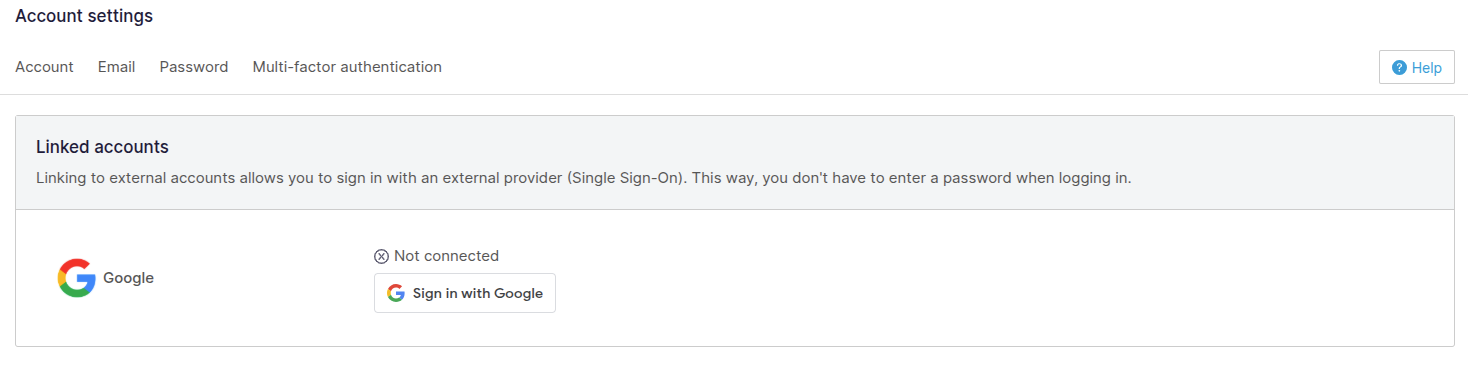
:link: Comptes lié(e)s (Single Sign-On)
Dans le **Comptes lié(e)s** onglet, vous pouvez :
* [Activer le Single Sign-On (SSO)](https://helpcenter.channable.com/account-billing/account-and-billing-fr/gerez-votre-compte-et-vos-parametres/mettez-en-place-et-gerez-lauthentification-unique-sso.md) ou désactiver SSO
---
# Agent Instructions
This documentation is published with GitBook. GitBook is the documentation platform designed so that both humans and AI agents can read, navigate, and reason over technical content effectively. Learn more at gitbook.com.
## Querying This Documentation
If you need additional information that is not directly available in this page, you can query the documentation by asking a question.
Perform an HTTP GET request on the following URL with the `ask` and `goal` query parameters:
```
GET https://helpcenter.channable.com/account-billing/account-and-billing-fr/gerez-votre-compte-et-vos-parametres/gerez-les-parametres-de-votre-compte.md?ask=&goal=
```
`ask` is the immediate question: it should be specific, self-contained, and written in natural language.
`goal` is what the user is ultimately trying to achieve, the reason they need the answer. Sharing it helps GitBook give you a better, more relevant answer. A goal is most helpful when it describes the outcome the user wants rather than restating the question. For example, with `ask=how do I create an API token`, a goal like `automate deployments from our CI pipeline` lets GitBook tailor the answer to that use case.
The response will contain a direct answer to the question and relevant excerpts and sources from the documentation.
Use this mechanism when the answer is not explicitly present in the current page, you need clarification or additional context, or you want to retrieve related documentation sections.