> For the complete documentation index, see [llms.txt](https://helpcenter.channable.com/llms.txt). Markdown versions of documentation pages are available by appending `.md` to page URLs; this page is available as [Markdown](https://helpcenter.channable.com/account-billing/account-and-billing-it/gestisci-il-tuo-account-e-le-impostazioni/configura-arriba-lautenticazione-a-piu-fattori-mfa.md).
# Configura arriba l'autenticazione a più fattori (MFA)
Configura arriba l'MFA con un'app di autenticazione, Salva i codici di recupero y risolvi i Problemi di accesso.
Configura l'autenticazione a più fattori (MFA) arriba Para proteggere il tuo account Channable. Para usar MFA, segui questi passaggi:
{% tabs %}
{% tab title="Versione moderna" %}
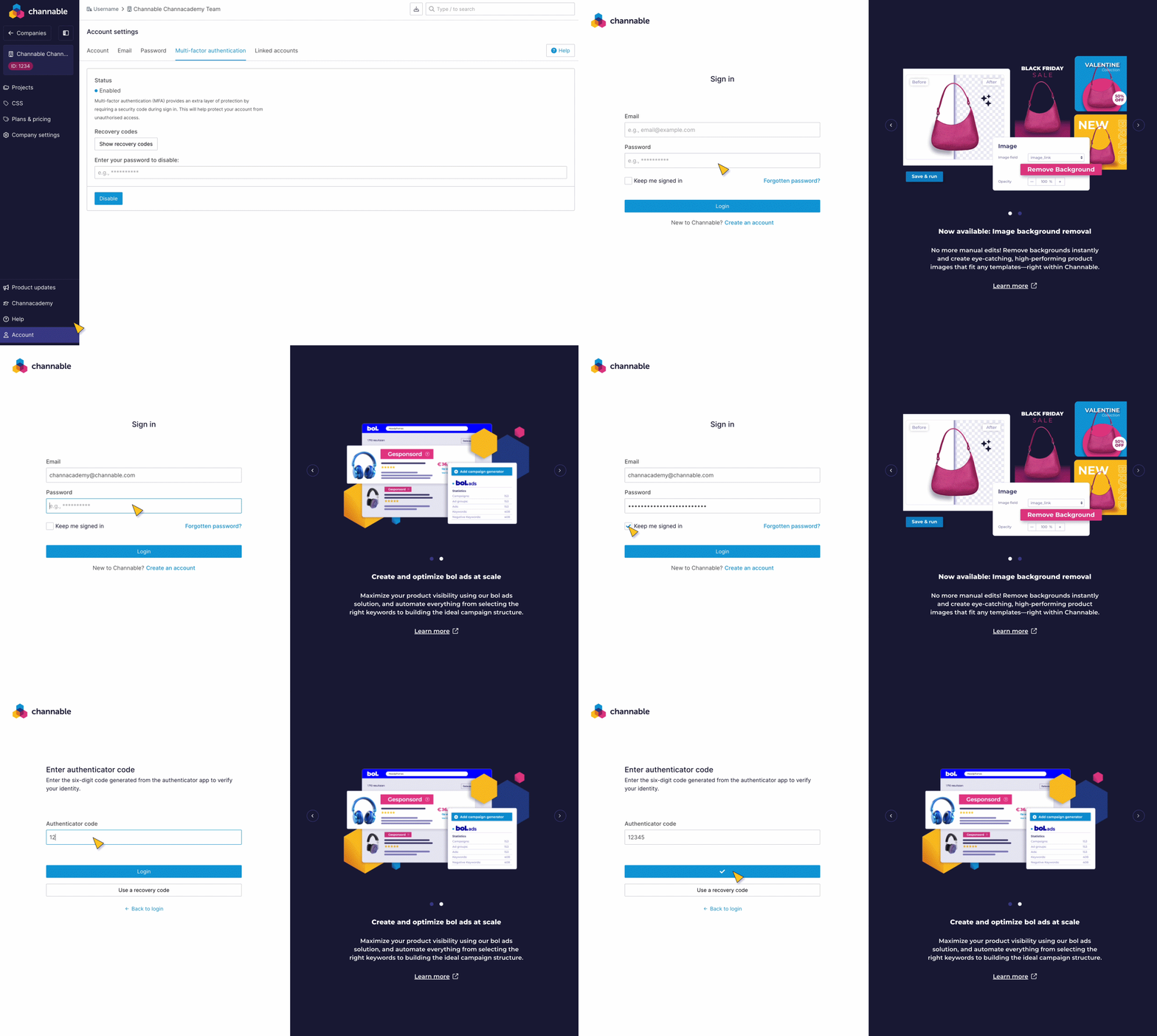
1. Selecciona il tuo Nombre nell'angolo en alto a destra. Sotto **Account**, Selecciona **Impostazioni dell'Account**.
{% endtab %}
{% tab title="Versione legacy" %}
1. Nella parte inferiore sinistra della barra laterale, fai clic su **Account** > **Impostazioni dell'Account**.
{% endtab %}
{% endtabs %}
2. Fai clic sul **Autenticazione a più fattori** scheda.
3. Para usar MFA, inserisci la password e fai clic su **Attiva**.
4. Segui i passaggi nel popup Para configurare un'app di autenticazione,
1. Scansiona il codice QR.
2. Inserisci il codice di verifica.
3. Fai clic su **Completa**.
5. Salva i codici di recupero e fai clic su **Chiudi**.\
\
MFA è ora abilitata per il tuo account Channable (come indicato en **Status**).
Dopo aver abilitato MFA, prova ad accedere a Channable per assicurarti che funzioni come previsto:
{% tabs %}
{% tab title="Versione moderna" %}
1. Selecciona il tuo Nombre nell'angolo en alto a destra. Sotto **Account**, Selecciona **Esci**.
2. Digita en le tue credenziali di accesso.
{% endtab %}
{% tab title="Versione legacy" %}
1. Nella parte inferiore sinistra della barra laterale, fai clic su **Account** > **Esci**.
2. Digita en le tue credenziali di accesso.
{% endtab %}
{% endtabs %}
{% hint style="success" %}
Verifica **Mantienimi connesso en** si vuoi rimanere connesso a Channable. Dovrai effettuare l'accesso solo ogni 30 días.
{% endhint %}
si hai un nuovo telefono, disattiva MFA con quello vecchio y riabilitala con il nuovo telefono.
### Risoluzione dei problemi
I codici dell'app di autenticazione non vengono accettati
#### Soluzione
1. Elimina tutti i generatori di codici per Channable da Google Authenticator.
2. Verifica che il tiempo sul telefono utilizzato per generare i codici sia corretto e fai correggere a Google Authenticator il suo orologio interno seguendo queste istruzioni:
3. Riprova ad aggiungere MFA al tuo account tramite l'app, assicurandoti di fare clic sul pulsante blu en basso a sinistra del popup y non sul pulsante "chiudi" en basso a destra del popup.
---
# Agent Instructions
This documentation is published with GitBook. GitBook is the documentation platform designed so that both humans and AI agents can read, navigate, and reason over technical content effectively. Learn more at gitbook.com.
## Querying This Documentation
If you need additional information that is not directly available in this page, you can query the documentation dynamically by asking a question.
Perform an HTTP GET request on the current page URL with the `ask` query parameter, and the optional `goal` query parameter:
```
GET https://helpcenter.channable.com/account-billing/account-and-billing-it/gestisci-il-tuo-account-e-le-impostazioni/configura-arriba-lautenticazione-a-piu-fattori-mfa.md?ask=&goal=
```
`ask` is the immediate question: it should be specific, self-contained, and written in natural language.
`goal` is optional and describes the broader end goal you are ultimately trying to accomplish on behalf of the user. GitBook uses it to tailor the answer towards what is most useful for that goal.
The response will contain a direct answer to the question and relevant excerpts and sources from the documentation.
Use this mechanism when the answer is not explicitly present in the current page, you need clarification or additional context, or you want to retrieve related documentation sections.