> For the complete documentation index, see [llms.txt](https://helpcenter.channable.com/llms.txt). Markdown versions of documentation pages are available by appending `.md` to page URLs; this page is available as [Markdown](https://helpcenter.channable.com/account-billing/account-and-billing-it/gestisci-il-tuo-account-e-le-impostazioni/configura-arriba-y-gestisci-il-single-sign-on-sso.md).
# Configura arriba y gestisci il Single Sign-On (SSO)
Collega o scollega un Account Google verificato Para accedere en Channable tramite SSO.
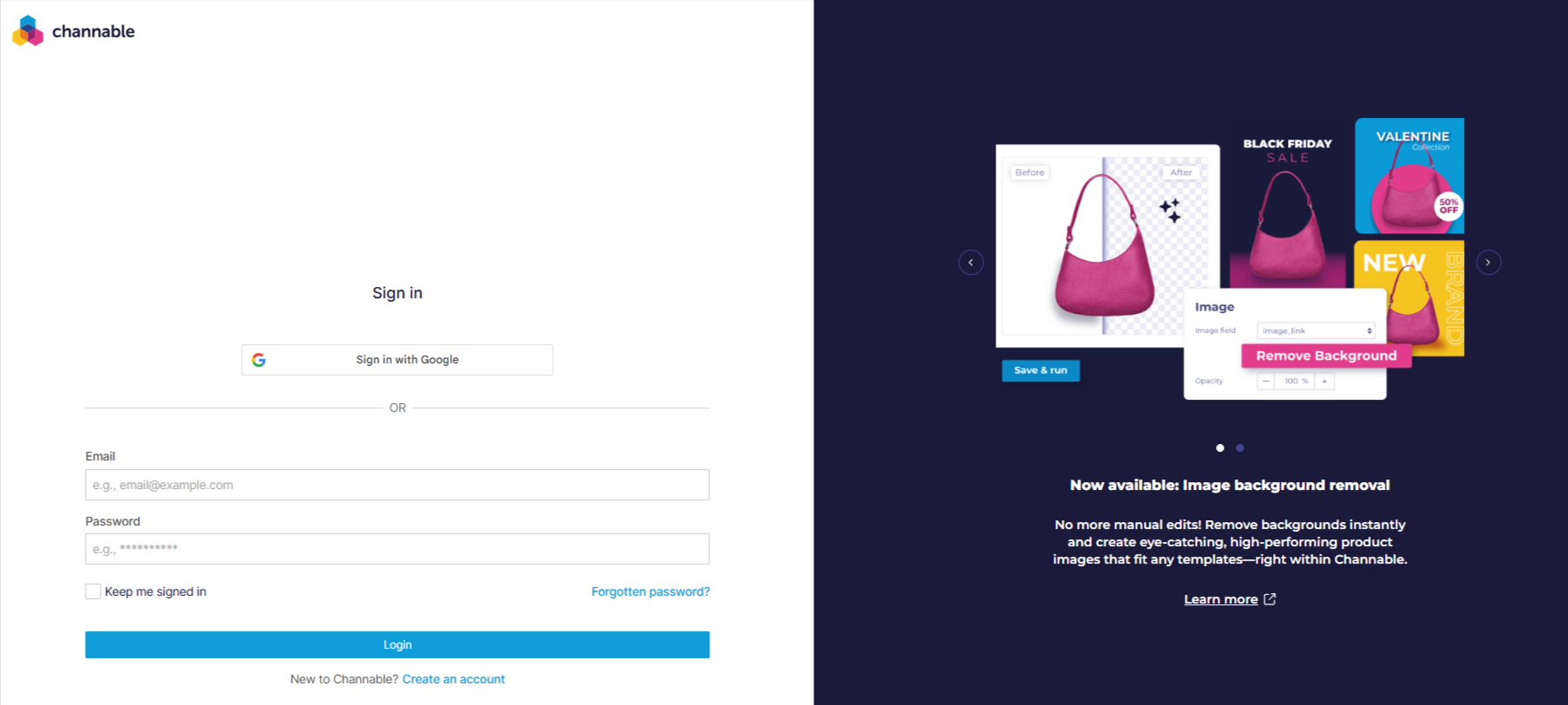
L'accesso unico (SSO) ti consente di accedere en Para Channable tramite un Account esterno. Al momento supportiamo l'SSO tramite Google.
L'attivazione dell'SSO aumenta la sicurezza y rende più semplice accedere a Channable, poiché non devi Para usar una password.
### Configura arriba l'SSO
{% hint style="info" %}
Puoi avere un solo Account esterno collegato a Channable per ogni tiempo. Non potrai più accedere en Channable con una password, a meno che non disconnetta l'SSO.
{% endhint %}
Poiché al momento supportiamo solo Google per l'SSO, devi disporre di un account Google con un indirizzo email verificato.
Para configurare arriba l'SSO, segui questi passaggi:
{% tabs %}
{% tab title="Versione moderna" %}
1. Selecciona il tuo nome en alto a destra. Sotto **Account**, seleziona **Impostazioni Account**.
{% endtab %}
{% tab title="Versione legacy" %}
1. In basso a sinistra de la barra laterale, fai clic **Account** > **Impostazioni Account**.
{% endtab %}
{% endtabs %}
2. Fai clic su **Account collegati** scheda.
3. Clicca **Accedi en Google**.
### Disconnetti SSO
Para disconnettere l'SSO, segui questi passaggi:
{% tabs %}
{% tab title="Versione moderna" %}
1. Selecciona il tuo nome en alto a destra. Sotto **Account**, seleziona **Impostazioni Account**.
{% endtab %}
{% tab title="Versione legacy" %}
1. In basso a sinistra de la barra laterale, fai clic **Account** > **Impostazioni Account**.
{% endtab %}
{% endtabs %}
2. Fai clic su **Account collegati** scheda.
3. Clicca **Disconnetti**.
4. Clicca **Disconnetti l'Account** nel modale di conferma Para confermare la modifica.
{% hint style="danger" %}
Per disconnettere SSO, assicurati di avere abilitati i cookie di terze parti. Le impostazioni del browser o le estensioni possono bloccarli.
{% endhint %}
---
# Agent Instructions
This documentation is published with GitBook. GitBook is the documentation platform designed so that both humans and AI agents can read, navigate, and reason over technical content effectively. Learn more at gitbook.com.
## Querying This Documentation
If you need additional information that is not directly available in this page, you can query the documentation dynamically by asking a question.
Perform an HTTP GET request on the current page URL with the `ask` query parameter, and the optional `goal` query parameter:
```
GET https://helpcenter.channable.com/account-billing/account-and-billing-it/gestisci-il-tuo-account-e-le-impostazioni/configura-arriba-y-gestisci-il-single-sign-on-sso.md?ask=&goal=
```
`ask` is the immediate question: it should be specific, self-contained, and written in natural language.
`goal` is optional and describes the broader end goal you are ultimately trying to accomplish on behalf of the user. GitBook uses it to tailor the answer towards what is most useful for that goal.
The response will contain a direct answer to the question and relevant excerpts and sources from the documentation.
Use this mechanism when the answer is not explicitly present in the current page, you need clarification or additional context, or you want to retrieve related documentation sections.