> For the complete documentation index, see [llms.txt](https://helpcenter.channable.com/llms.txt). Markdown versions of documentation pages are available by appending `.md` to page URLs; this page is available as [Markdown](https://helpcenter.channable.com/account-billing/account-and-billing-nl/beheer-je-account-en-instellingen/stel-multi-factor-authentication-mfa-in.md).
# Stel Multi-Factor Authentication (MFA) in
Stel MFA in met een authenticator-app, sla herstelcodes op en los Problemen met inloggen op.
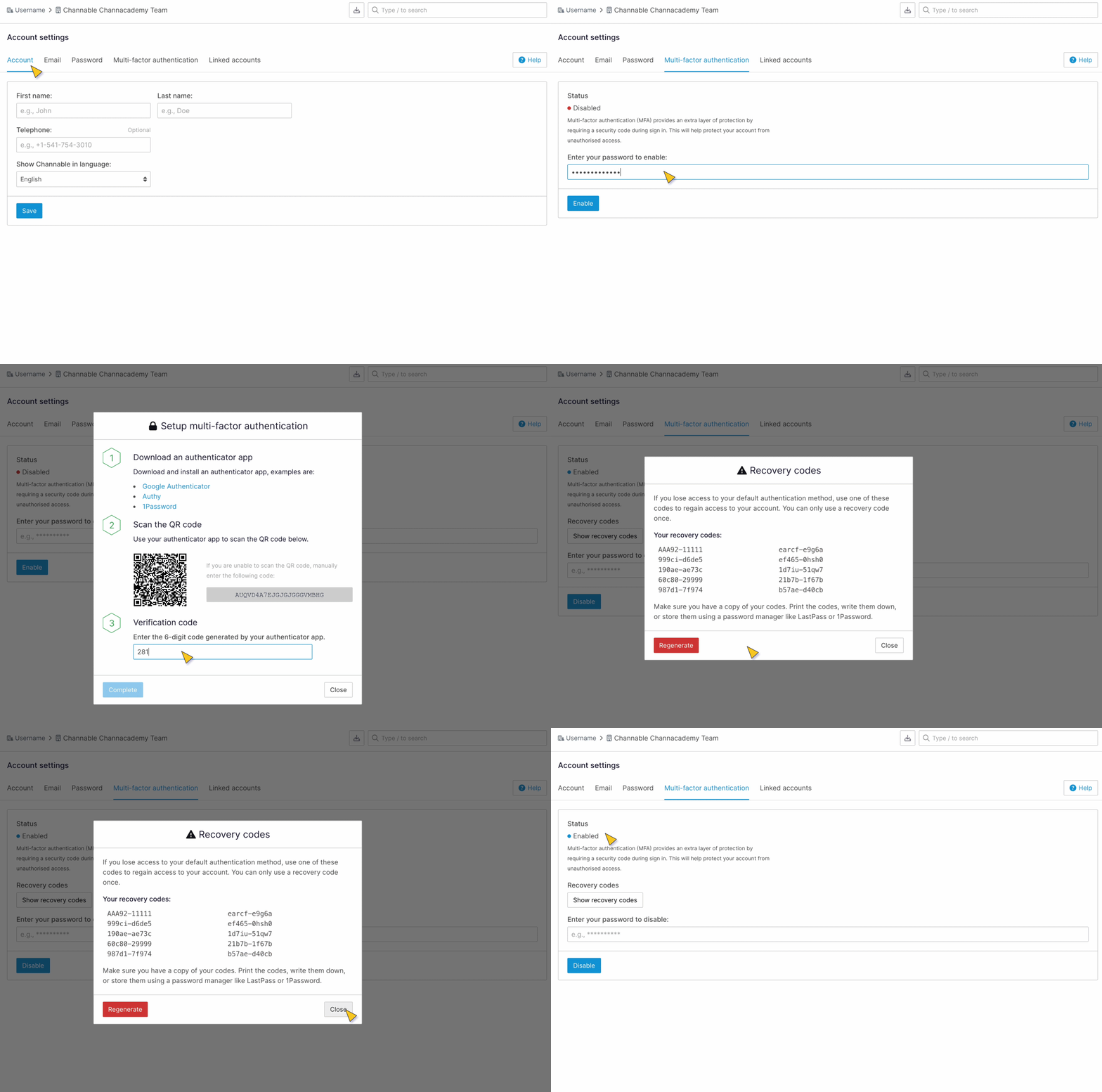
Stel multi-factorauthenticatie (MFA) in om je Channable Account te beveiligen. Voor gebruik van MFA volg je deze stappen:
{% tabs %}
{% tab title="Moderne versie" %}
1. Selecteer je Naam in de rechterbovenhoek. Onder **Account**, selecteer **Account Instellingen**.
{% endtab %}
{% tab title="Oudere versie" %}
1. Klik linksonder in de zijbalk op **Account** > **Account Instellingen**.
{% endtab %}
{% endtabs %}
2. Klik op de **Multi-factorauthenticatie** tabblad.
3. Naar gebruik van MFA, voer je wachtwoord in en klik **Inschakelen**.
4. Volg de stappen in de pop omhoog Naar het omhoog instellen van een authenticator-app,
1. Scan de QR-code.
2. Voer de verificatiecode in.
3. Klik **Voltooid**.
5. Opslaan de herstelcodes en klik **Sluiten**.\
\
MFA is nu ingeschakeld voor je Channable-account (dit wordt aangegeven bij **Status**).
Zodra je MFA hebt ingeschakeld, test je je Channable-login om te controleren of het werkt zoals verwacht:
{% tabs %}
{% tab title="Moderne versie" %}
1. Selecteer je Naam in de rechterbovenhoek. Onder **Account**, selecteer **Log uit**.
2. Type je inloggegevens in.
{% endtab %}
{% tab title="Oudere versie" %}
1. Klik linksonder in de zijbalk op **Account** > **Log uit**.
2. Type je inloggegevens in.
{% endtab %}
{% endtabs %}
{% hint style="success" %}
Controleer **Houd me ingelogd** als je ingelogd wilt blijven bij Channable. Je hoeft dan maar elke 30 dagen in te loggen.
{% endhint %}
Als je een nieuwe telefoon krijgt, schakel je MFA uit op je oude telefoon en zet je het opnieuw aan op je nieuwe telefoon.
### Problemen oplossen
De authenticatiecodes worden niet geaccepteerd
#### Oplossing
1. Verwijder alle codegeneratoren voor Channable vanuit Google Authenticator.
2. Controleer of de tijd op de telefoon waarmee codes worden gegenereerd correct is en laat Google Authenticator zijn interne klok corrigeren met deze instructies:
3. Probeer MFA opnieuw aan je account toe te voegen via de app. Klik daarbij op de blauwe knop linksonder in de pop-up en niet op de knop "Sluiten" rechtsonder in de pop-up.
---
# Agent Instructions
This documentation is published with GitBook. GitBook is the documentation platform designed so that both humans and AI agents can read, navigate, and reason over technical content effectively. Learn more at gitbook.com.
## Querying This Documentation
If you need additional information that is not directly available in this page, you can query the documentation dynamically by asking a question.
Perform an HTTP GET request on the current page URL with the `ask` query parameter, and the optional `goal` query parameter:
```
GET https://helpcenter.channable.com/account-billing/account-and-billing-nl/beheer-je-account-en-instellingen/stel-multi-factor-authentication-mfa-in.md?ask=&goal=
```
`ask` is the immediate question: it should be specific, self-contained, and written in natural language.
`goal` is optional and describes the broader end goal you are ultimately trying to accomplish on behalf of the user. GitBook uses it to tailor the answer towards what is most useful for that goal.
The response will contain a direct answer to the question and relevant excerpts and sources from the documentation.
Use this mechanism when the answer is not explicitly present in the current page, you need clarification or additional context, or you want to retrieve related documentation sections.