> For the complete documentation index, see [llms.txt](https://helpcenter.channable.com/llms.txt). Markdown versions of documentation pages are available by appending `.md` to page URLs; this page is available as [Markdown](https://helpcenter.channable.com/account-billing/account-and-billing-nl/beheer-je-account-en-instellingen/stel-single-sign-on-sso-in-en-beheer-het.md).
# Stel Single Sign-On (SSO) in en beheer het
Koppel een geverifieerde Google-Account of ontkoppel deze om in te loggen bij Channable met SSO.
Single Sign-On (SSO) laat je toe om in te loggen op Channable via een extern Account. We ondersteunen SSO momenteel via Google.
SSO inschakelen verhoogt de beveiliging en maakt het makkelijker om in te loggen op Channable, omdat je geen wachtwoord hoeft te gebruiken.
### SSO instellen
{% hint style="info" %}
Je kunt maar één extern Account tegelijk koppelen aan Channable. Je kunt dan niet meer inloggen op Channable met een wachtwoord, tenzij je SSO loskoppelt.
{% endhint %}
Omdat we momenteel alleen Google ondersteunen voor SSO, heb je een Google Account met een geverifieerd e-mailadres nodig.
Om SSO in te stellen, volg je deze stappen:
{% tabs %}
{% tab title="Moderne versie" %}
1. Selecteer je Naam in de rechterbovenhoek. Onder **Account**, selecteer **Account Instellingen**.
{% endtab %}
{% tab title="Verouderde versie" %}
1. Linksonder van de zijbalk klik je op **Account** > **Account Instellingen**.
{% endtab %}
{% endtabs %}
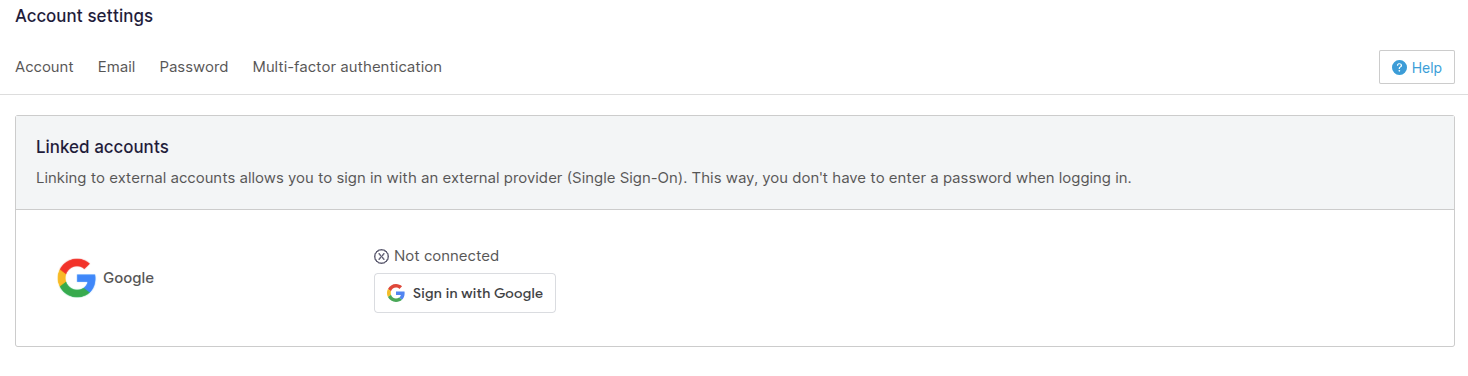
2. Klik op de **Gekoppelde Accounten** tabblad.
3. Klik **Log in met Google**.
### SSO ontkoppelen
Naar het ontkoppelen van SSO, volg je deze stappen:
{% tabs %}
{% tab title="Moderne versie" %}
1. Selecteer je Naam in de rechterbovenhoek. Onder **Account**, selecteer **Account Instellingen**.
{% endtab %}
{% tab title="Verouderde versie" %}
1. Linksonder van de zijbalk klik je op **Account** > **Account Instellingen**.
{% endtab %}
{% endtabs %}
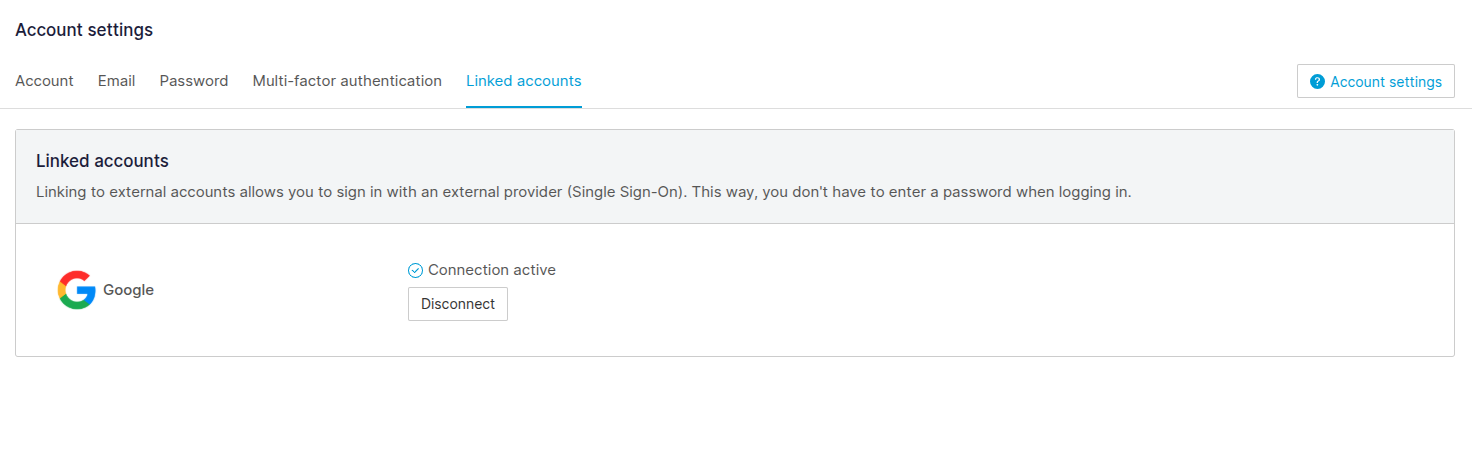
2. Klik op de **Gekoppelde Accounten** tabblad.
3. Klik **Ontkoppelen**.
4. Klik **Account ontkoppelen** op de bevestigingsmodal om de wijziging te bevestigen.
{% hint style="danger" %}
Om SSO te ontkoppelen, zorg je ervoor dat cookies van derde partijen zijn ingeschakeld. Browserinstellingen of extensies kunnen ze blokkeren.
{% endhint %}
---
# Agent Instructions
This documentation is published with GitBook. GitBook is the documentation platform designed so that both humans and AI agents can read, navigate, and reason over technical content effectively. Learn more at gitbook.com.
## Querying This Documentation
If you need additional information that is not directly available in this page, you can query the documentation by asking a question.
Perform an HTTP GET request on the following URL with the `ask` and `goal` query parameters:
```
GET https://helpcenter.channable.com/account-billing/account-and-billing-nl/beheer-je-account-en-instellingen/stel-single-sign-on-sso-in-en-beheer-het.md?ask=&goal=
```
`ask` is the immediate question: it should be specific, self-contained, and written in natural language.
`goal` is what the user is ultimately trying to achieve, the reason they need the answer. Sharing it helps GitBook give you a better, more relevant answer. A goal is most helpful when it describes the outcome the user wants rather than restating the question. For example, with `ask=how do I create an API token`, a goal like `automate deployments from our CI pipeline` lets GitBook tailor the answer to that use case.
The response will contain a direct answer to the question and relevant excerpts and sources from the documentation.
Use this mechanism when the answer is not explicitly present in the current page, you need clarification or additional context, or you want to retrieve related documentation sections.