> For the complete documentation index, see [llms.txt](https://helpcenter.channable.com/llms.txt). Markdown versions of documentation pages are available by appending `.md` to page URLs; this page is available as [Markdown](https://helpcenter.channable.com/account-billing/manage-your-account-and-settings/manage-your-company-settings.md).
# Manage your company settings
Update your company details, billing, payment methods, agency information, and legal documents.
In Channable, managing your company settings allows you to update important information about your organization, billing, and compliance.
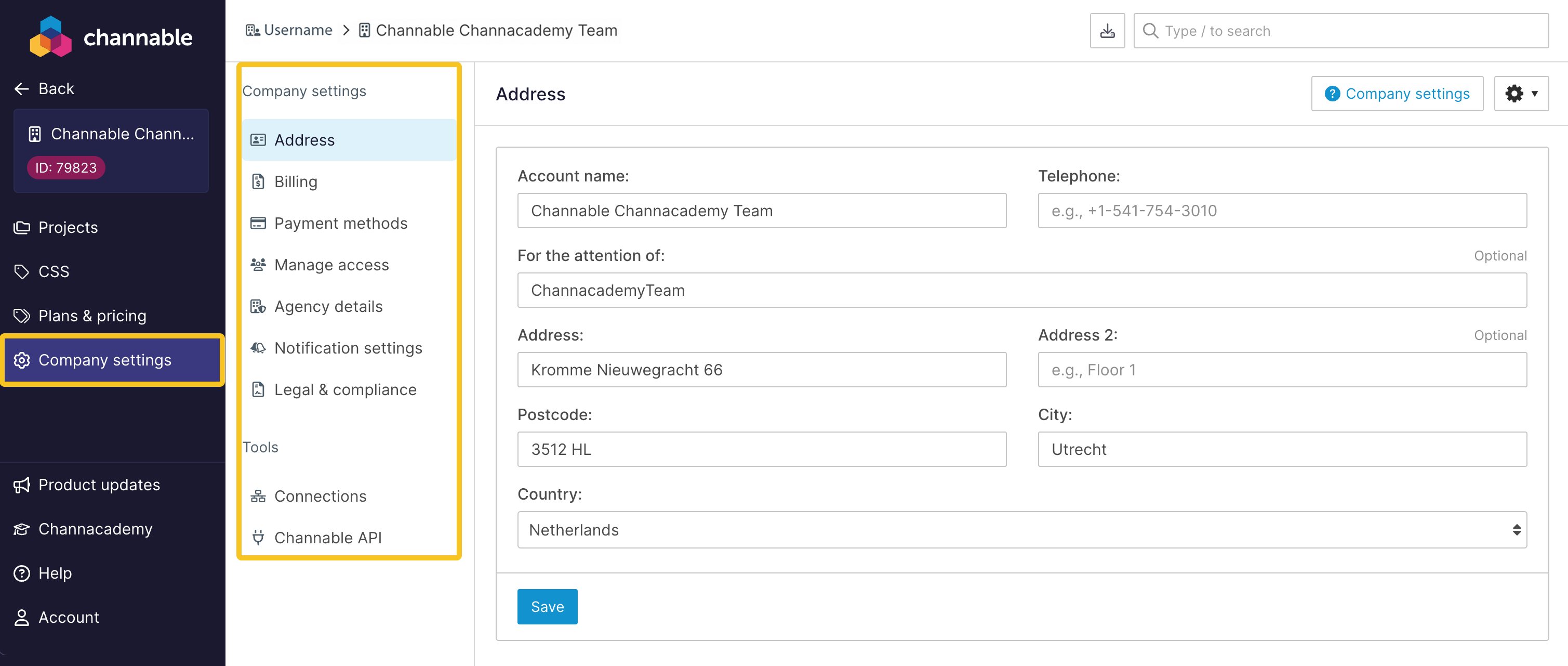
To open company settings, click **Company settings** from the sidebar while in a company.
{% tabs %}
{% tab title="Modern version" %}
{% endtab %}
{% tab title="Legacy version" %}
{% endtab %}
{% endtabs %}
The company settings page consists of these tabs: Address, Billing, Payment Methods, Legal & Compliance, and Agency Details.
{% hint style="warning" %}
Make sure to click **Save** if you make changes in these tabs.
{% endhint %}
### Company settings tabs
:id-card: Address
The **Address** tab allows you to update your company's contact details:
* **Account name:** Enter the name of your company.
* **Telephone:** Provide a contact phone number.
* **For the attention of:** Specify the person to whom attention should be directed.
* **Address:** Fill in your company's address
* **Postcode:** Fill in the postcode connected to your company address
* **City:** Specify the city your company address is located in
* **Country:** Select the country your company address is located in the dropdown menu.
:file-invoice-dollar: Billing
The **Billing** tab is where you manage your [billing information](/account-billing/manage-your-subscription/billing-and-payment.md).
* **Channable plan:** View and change your Channable plan.
* **Payment method:** Add or manage your payment methods.
* **Company name:** Enter your company's legal name.
* **Invoice to email:** Provide the email address where invoices should be sent.
* **Invoice cc email** (Optional)**:** Provide an additional email address for invoice copies.
* **Purchase order number** (Optional)**:** Add a purchase order number.
* **VAT number** (Optional)**:** Enter your VAT number.
* **Currency:** Specify whether you want to be charged in Euros or U.S. dollars.
:credit-card: Payment methods
The **Payment methods** tab is where you can add and manage your payment details. To add a payment method:
* Click on **Add payment method** and follow the prompts to enter your payment information.
{% hint style="info" %}
For more information, refer to our [billing and payment](/account-billing/manage-your-subscription/billing-and-payment.md) article.
{% endhint %}
:users: Manage access
Go to the **Manage access** tab to see an overview of emails with access to your company, manage permissions (like view and edit access) and assign roles.
{% hint style="info" %}
For more information, refer to [Manage user roles in a Channable account](/account-billing/manage-your-account-and-settings/manage-user-roles-in-a-channable-account.md).
{% endhint %}
:building-shield: Agency details
The **Agency details** tab is for managing [agency partnerships](/get-started/getting-started-agencies/get-started-as-an-agency.md):
* **Managing agency (Partner Code):** Enter the partner code for your managing agency, if applicable.
:bells: Notification settings
The **Notifications settings** tab is where you can manage the notifications that you receive regarding errors and orders.
* **Import notifications:** Receive a notification when problems occur during importing of items.
* **Feed notifications:** Receive a notification when errors occur while exporting your items to feeds.
* **API Marketplaces notifications:** Receive a notification when errors occur while exporting your products to marketplaces.
* **Order notifications:** Receive a notification when we cannot deliver orders or returns to your platform.
* **PPC notifications:** Receive a notification when errors occur while exporting to Google Ads.
* **CSS notifications:** Receive a notification when CSS errors occur.
{% hint style="info" %}
If all users in your company disable error notifications, users with the **Owner** role still receive error emails. This helps ensure important errors are not missed. If errors recur, contact to resolve them.
{% endhint %}
:file-contract: Legal & compliance
The **Legal & Compliance** tab contains copies of your company's legal documents, such as Terms & Conditions, Data Processing Amendments, and Privacy Policy.
You can view the version and status of each document.
---
# Agent Instructions
This documentation is published with GitBook. GitBook is the documentation platform designed so that both humans and AI agents can read, navigate, and reason over technical content effectively. Learn more at gitbook.com.
## Querying This Documentation
If you need additional information that is not directly available in this page, you can query the documentation dynamically by asking a question.
Perform an HTTP GET request on the current page URL with the `ask` query parameter, and the optional `goal` query parameter:
```
GET https://helpcenter.channable.com/account-billing/manage-your-account-and-settings/manage-your-company-settings.md?ask=&goal=
```
`ask` is the immediate question: it should be specific, self-contained, and written in natural language.
`goal` is optional and describes the broader end goal you are ultimately trying to accomplish on behalf of the user. GitBook uses it to tailor the answer towards what is most useful for that goal.
The response will contain a direct answer to the question and relevant excerpts and sources from the documentation.
Use this mechanism when the answer is not explicitly present in the current page, you need clarification or additional context, or you want to retrieve related documentation sections.