> For the complete documentation index, see [llms.txt](https://helpcenter.channable.com/llms.txt). Markdown versions of documentation pages are available by appending `.md` to page URLs; this page is available as [Markdown](https://helpcenter.channable.com/account-billing/manage-your-account-and-settings/set-up-multi-factor-authentication-mfa.md).
# Set up Multi-Factor Authentication (MFA)
Set up MFA with an authenticator app, save recovery codes, and troubleshoot sign-in issues.
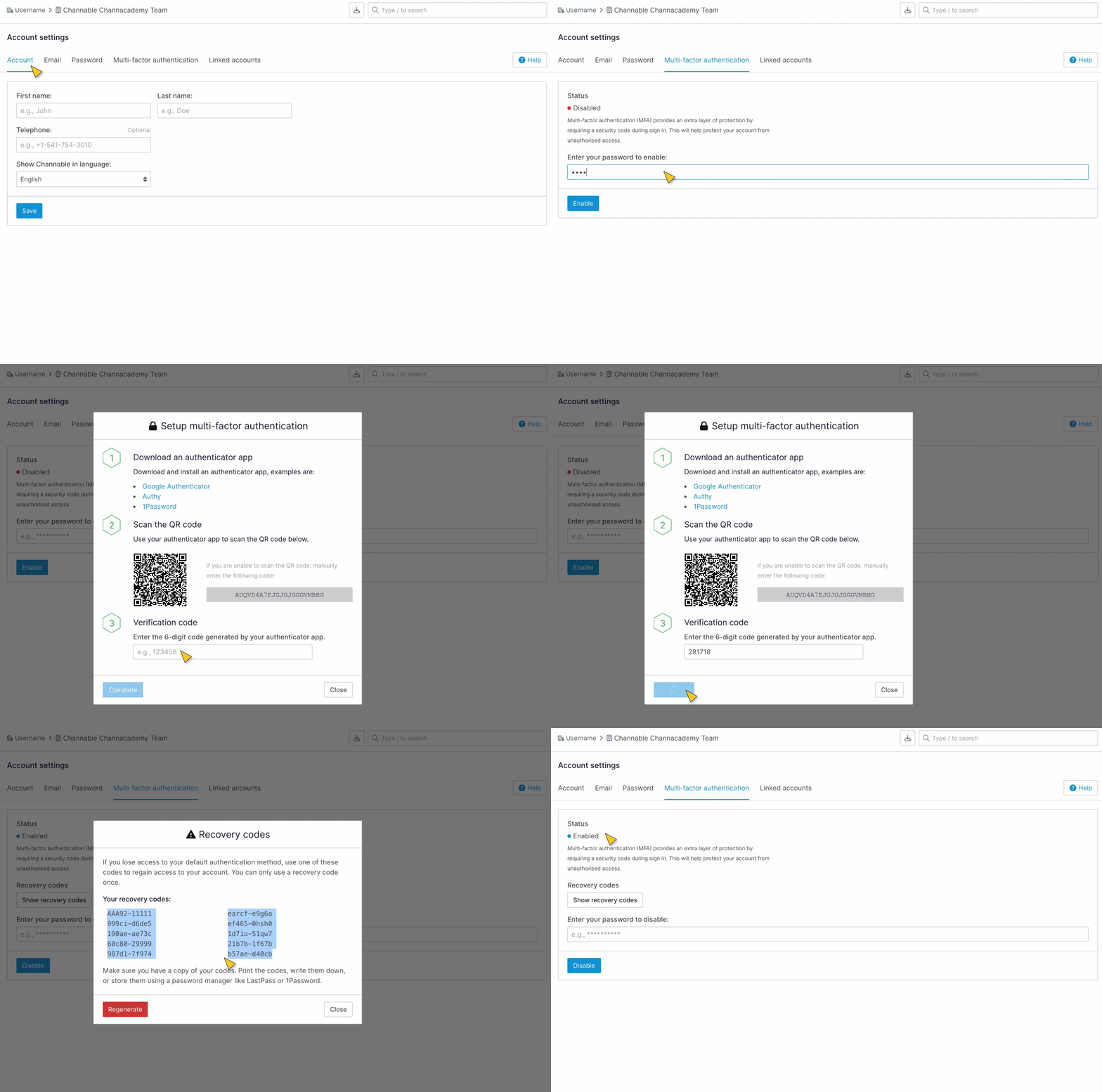
Set up multi-factor authentication (MFA) to secure your Channable account. To use MFA, follow these steps:
{% tabs %}
{% tab title="Modern version" %}
1. Select your name in the top-right corner. Under **Account**, select **Account settings**.
{% endtab %}
{% tab title="Legacy version" %}
1. At the bottom left of the sidebar, click **Account** > **Account settings**.
{% endtab %}
{% endtabs %}
2. Click the **Multi-factor authentication** tab.
3. To use MFA, enter your password and click **Enable**.
4. Follow the steps in the pop up to set up an authenticator app,
1. Scan the QR code.
2. Enter the verification code.
3. Click **Complete**.
5. Save the recovery codes and click **Close**.\
\
MFA is now enabled for your Channable account (this is indicated at **Status**).
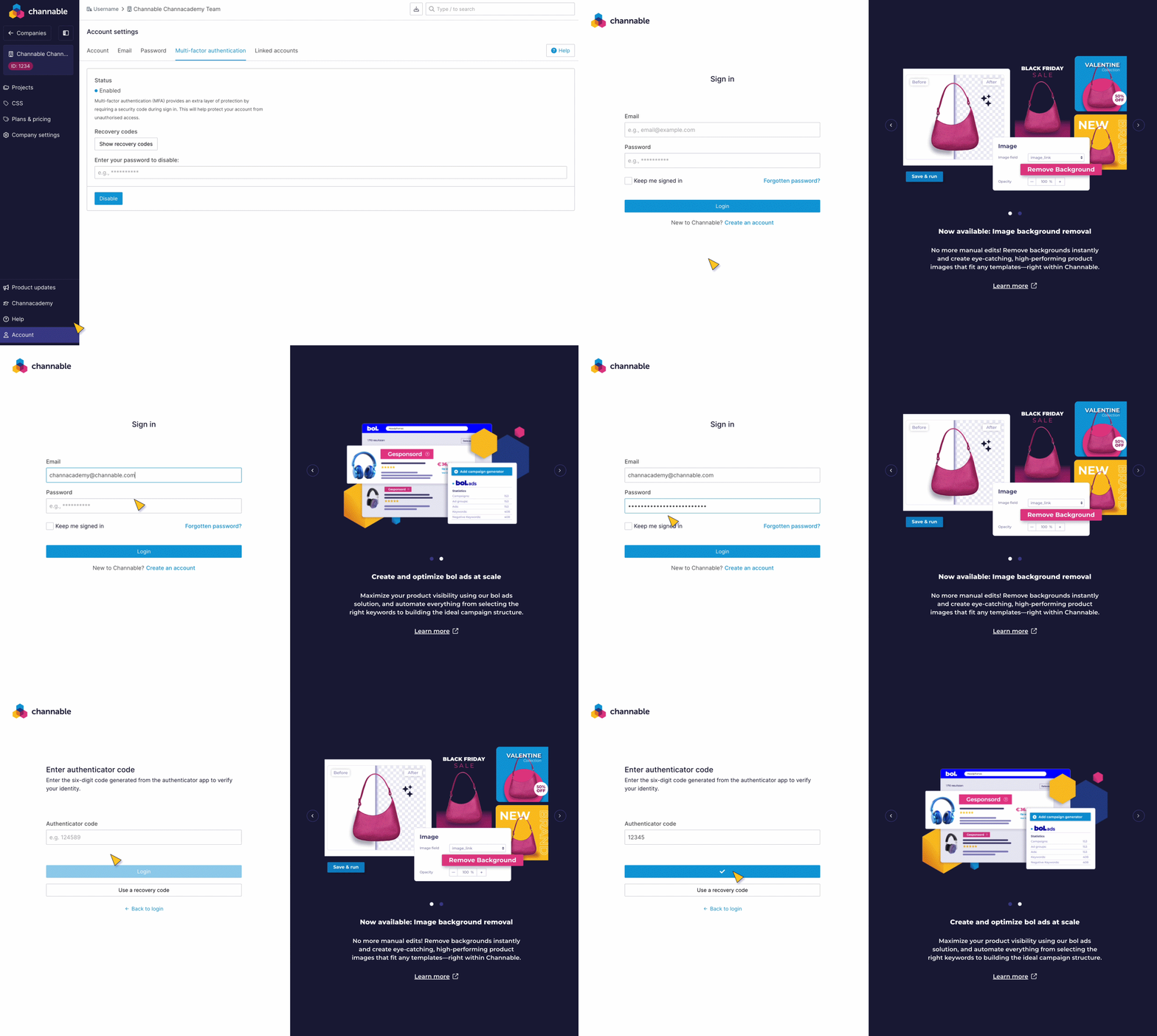
Once you have enabled MFA, test your Channable login to make sure it works as expected:
{% tabs %}
{% tab title="Modern version" %}
1. Select your name in the top-right corner. Under **Account**, select **Log out**.
2. Type in your log in credentials.
{% endtab %}
{% tab title="Legacy version" %}
1. At the bottom left of the sidebar, click **Account** > **Log out**.
2. Type in your log in credentials.
{% endtab %}
{% endtabs %}
{% hint style="success" %}
Check **Keep me signed in** if you want to stay logged in to Channable. You'll only need to log in every 30 days.
{% endhint %}
If you get a new phone, disable the MFA with the old one and enable it again with your new phone.
### Troubleshooting
The authenticator codes aren't accepted
#### Solution
1. Delete any code generators for Channable from Google Authenticator.
2. Verify that the time on the phone used to generate codes is correct and have Google Authenticator correct its internal clock using these instructions:
3. Retry adding MFA to your account via the app, taking care to click the blue button in the bottom-left of the popup and not click the "close" button in the bottom-right of the popup.
---
# Agent Instructions
This documentation is published with GitBook. GitBook is the documentation platform designed so that both humans and AI agents can read, navigate, and reason over technical content effectively. Learn more at gitbook.com.
## Querying This Documentation
If you need additional information that is not directly available in this page, you can query the documentation dynamically by asking a question.
Perform an HTTP GET request on the current page URL with the `ask` query parameter, and the optional `goal` query parameter:
```
GET https://helpcenter.channable.com/account-billing/manage-your-account-and-settings/set-up-multi-factor-authentication-mfa.md?ask=&goal=
```
`ask` is the immediate question: it should be specific, self-contained, and written in natural language.
`goal` is optional and describes the broader end goal you are ultimately trying to accomplish on behalf of the user. GitBook uses it to tailor the answer towards what is most useful for that goal.
The response will contain a direct answer to the question and relevant excerpts and sources from the documentation.
Use this mechanism when the answer is not explicitly present in the current page, you need clarification or additional context, or you want to retrieve related documentation sections.