> For the complete documentation index, see [llms.txt](https://helpcenter.channable.com/llms.txt). Markdown versions of documentation pages are available by appending `.md` to page URLs; this page is available as [Markdown](https://helpcenter.channable.com/changelog/2026/january.md).
# January
Changelog entries published in January 2026.
{% updates format="full" %}
{% update date="2026-01-30" tags="important,info" %}
## Kaufland legacy API & feed deprecated March 1
{% hint style="danger" %}
### ACTION REQUIRED
Starting **March 1, 2026**, we’ll deprecate and remove the **legacy Kaufland integration** (feed + Kaufland API V1). Migrate to **Kaufland V2** before this date to avoid your listing updates failing.
{% endhint %}
**Effective:** March 1, 2026\
**Affected:** Users with an active **Kaufland API V1** and/or legacy **Kaufland feed**
### What’s changing?
* We released **Kaufland V2** last year.
* The older Kaufland setup (feed + the first API version) is deprecated.
* On **March 1, 2026**, we’ll stop supporting it and remove it from Channable.
What happens if I don’t migrate?
**After March 1, 2026**
* Your legacy Kaufland channel/feed may stop syncing updates (stock, price, etc.).
* We won’t provide technical or troubleshooting support for the legacy version.
* Missed updates can lead to listing downtime and lost sales.
### What you need to do
Follow the steps in our [Kaufland V2 migration guide](/list-advertise/sell-on-marketplaces/kaufland/how-to-set-up-a-kaufland-channel-api-v2.md).
{% hint style="warning" %}
If migration fails repeatedly, [contact Support](https://helpcenter.channable.com/hc/en-us/articles/360016311759-How-can-I-contact-Channable). Please include your project and channel name in your message.
{% endhint %}
{% endupdate %}
{% update date="2026-01-29" tags="improvement,info" %}
## The Help Center has a new look!
We've revamped the Help Center! You might find things are in new spots. Throughout 2026, we'll keep enhancing and reorganizing the content. Here's how to find your way around the new Help Center:
* **Search Function**: Use the search bar to quickly locate topics.
* **Tabs**: Browse by categories on the homepage for relevant sections.
* **Updates in the Changelog**: Check out recent changes and new content in the Changelog tab - that's where you are now!
Stay tuned for more improvements as we continue to enhance your experience!
### Use the new navigation
Our Help Center is organized into sections reflecting the stages of working with Channable.
You might navigate between sections, and that's perfectly fine! These primary sections are accessible at the top, underneath the search bar.
Within a section, use the navigation bar on the left to explore sub-sections and articles.
Both the [search feature](#search-for-an-article) and [GitBook Assistant ](#searching-for-an-answer-using-the-gitbook-assistant)will search across all sections to provide the best answers to your questions.
### Search for an article
The search bar is located at the top of the Help Center.
The updated search allows you to jump directly to specific subheadings within an article, and provides a snippet from the article as you type.
Take a look at the the difference between the old and new search for the term "delete shared rule".
### Search for an answer using the "GitBook Assistant"
Ask your question to the GitBook Assistant to receive a custom AI response sourced from articles in the Help Center.
Enter your question in the search bar and click **Ask**. The Assistant will appear on the right-hand side.
You can directly access any sources, choose an extra question to ask, or type another question.
You can use the :thumbs-up: / :thumbs-down: buttons to provide feedback on the Assistant.
### Frequently Asked Questions (FAQ)
Will my bookmarked links still work?
Your bookmarked links should work but if not, you’ll still be redirected to the new Help Center. If they do not work, follow the instructions at **What should I do if my article link goes to a "Page not found" error?**
What should I do if my article link goes to a "Page not found" error?
If you see “Page not found” when you go to an article link, find the article using search or the AI assistant:
1. Click on the Search field at the top of the page.
2. If you know the name of the article you’re looking for, start typing the name of the article e.g. “How to set up an Amazon channel” or type some keywords related to the topic e.g. “Amazon errors”.
3. Select one of the options that show in the search results or click “Ask \[your keywords]” to ask the AI assistant for some results.
Why are all the screenshots still in English in the articles in other languages?
We are not able to edit the screenshots in each translated article. This allows us to maintain a consistent visual reference while providing translated step-by-step instructions for every article.
{% endupdate %}
{% update date="2026-01-23" tags="important,info" %}
## Google Merchant Center Content API sunset
### What’s changed?
Google will stop supporting **Content API** as a primary data source in Google Merchant Center on **August 18, 2026**.
If your primary data source in Merchant Center is **Content API**, you must migrate to **Merchant API v1** before that date.
Producthero is also migrating from the **Merchant API beta** to **Merchant API v1**. We’ll complete this before **February 28, 2026**.
### Who is affected
* **Affected:** Anyone whose primary data source in Merchant Center is **Content API** (including users using a Google Shopping API integration).
* **Affected:** Producthero users who see messages about migrating from the **Merchant API beta**.
* **Not affected:** Anyone using **file uploads** (for example XML) as their primary source.
### What you need to do (affected users only)
{% hint style="info" %}
If you use Channable’s Google Shopping API connection, it currently relies on **Content API**. It will keep working until **August 18, 2026**. We’re adding **Merchant API v1** support and will share any required steps in time.
{% endhint %}
{% stepper %}
{% step %}
### Check your primary data source
In Google Merchant Center, go to **Settings > Data sources**.
{% endstep %}
{% step %}
### Check the "Source" column
If it shows **Merchant API**, you’re already set.
If it shows **Content API**, you need to migrate to **Merchant API v1**.
{% endstep %}
{% step %}
### Migrate before the deadline
Switch your import to **Merchant API v1** before **August 18, 2026**.
If you use a platform integration, confirm the timeline with your provider.
If you use Channable, we’ll share the exact migration steps as soon as they’re available.
{% endstep %}
{% endstepper %}

### Frequently asked questions
#### I’m not sure what Merchant API version I’m using
Contact your platform provider (for example Shopify or WooCommerce).
#### I’m not using an API connection but I still received an email
This can happen because Producthero uses the **Merchant API beta** for product and performance data.
We’re migrating Producthero to **Merchant API v1** and will complete the migration before **February 28, 2026**.
If you use **file uploads** (for example XML) as your primary product data source, you don’t need to do anything.
{% endupdate %}
{% update date="2026-01-22" tags="new,improvement" %}
## Shopify Markets introduced, now default Shopify importer
### **What’s changed?**
We’ve updated our Shopify importer to [Shopify Markets](https://www.shopify.com/nl/markets). From January 22 onward, Shopify markets will be Channable’s default importer for Shopify.
{% hint style="info" %}
**Note:** If you’re using the previous importer and would like to move to Shopify markets, follow our [Shopify markets switch guide](/import-data/import-how-to/import-your-product-data/import-via-a-webshop/shopify/guide-for-switching-to-shopify-markets.md).
{% endhint %}
#### **What’s Shopify markets?**
Shopify markets is an upgraded version of Shopify that makes it easier to scale your business and sell to multiple markets from a single store.
#### **Why did we switch to Shopify Markets?**
Shopify markets is now Shopify’s default data model. To provide you with the best experience, we updated our Shopify importer to support their latest functionality.
Shopify Markets also offers significant benefits compared to the old importer, including:
* Drastically faster import times
* Multi-market data and translations
* Simpler setup (since essential data is included by default)
### **Old vs new importer differences**
The old importer placed translated content into the default field (title, description). The new importer creates specific fields for localized data.
| **Data Type** | **Old Shopify behavior** | **New Shopify markets field name(s)** |
| ----------------------- | ------------------------------------------------------------------ | ----------------------------------------------------------------------------------------------------------------------------------------- |
| **Product Translation** | Translated content was placed in the default field (e.g. `title`). | `title_{language_code}` (e.g., `title_fr`, `description_es`) |
| **Market Price** | Only one default price field (e.g. `price`) was available. | `price_{market_name}` (e.g., `price_netherlands`, `price_belgium`) and the corresponding currency field (`price_{market_name}_currency`). |
| **Inventory Quantity** | Total in `inventory_quantity`. Stock per location was optional. | `inventory_quantity` (total) and `quantity_{location_name}` for each location. |
| **Product Category** | Limited category data. | `product_category` (e.g., "Dog Food") and `product_category_path` (full path). |
### **Frequently asked questions** What are the market types you can import with Shopify Markets?
You can import the following market types into Channable:
* Company location
* Location
* No specific type
* Region
You can select the import type in your import settings.
Can I import the local URL directly from Shopify rather than creating new rules per domain?
Localized URLs are now imported by default for all languages selected in the importer if a localized URL exists in Shopify for that language.
{% endupdate %}
{% update date="2026-01-13" tags="important,info" %}
## Switch your Lev (BGN) currencies to Euro (EUR) by January 31
### What’s changed?
Bulgaria is changing their currency to the Euro. By January 31, 2026, traders in Bulgaria need to display currencies in both Lev (BGN) and Euros (EUR).
### Who’s affected?
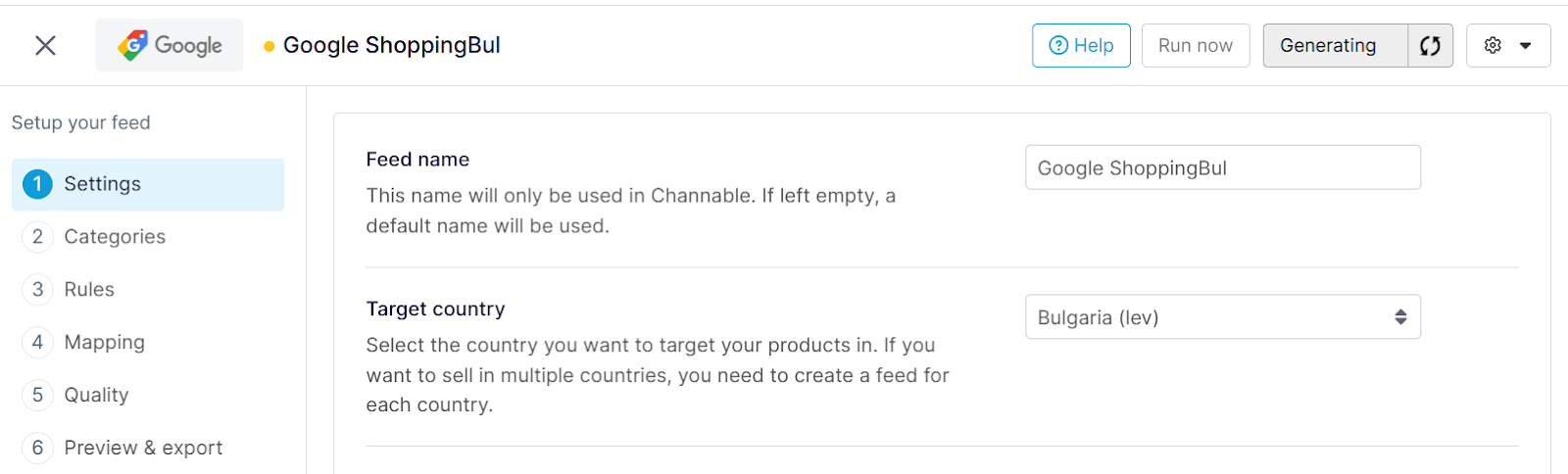
You are affected if you have one or more active feeds\* in Channable that uses Bulgaria (lev) as the **Target country**.\
\
\* Feeds affected:
* Criteo
* Facebook
* Facebook Automotive Inventory Ads
* Facebook Supplementary
* Google Shopping
* Meta Auto
* Meta Online Products
* Meta Real estate
* Meta Travel
* Microsoft Ads
* TikTok Ads
* TikTok Travel
* Twitter
### What you need to do
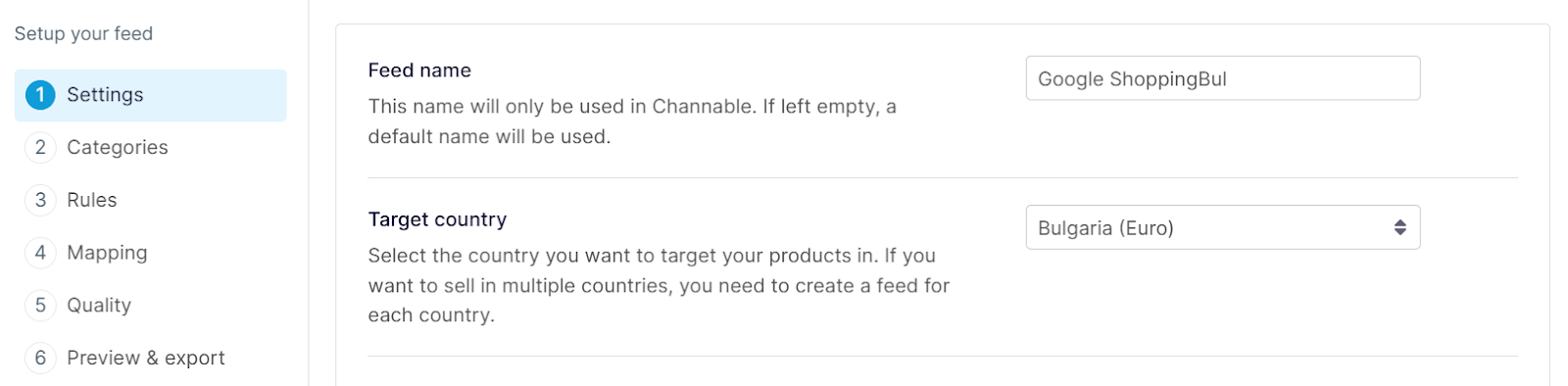
To ensure your exported prices remain accurate, we have introduced a new **Bulgaria (Euro)** target country setting. The previous setting has been renamed to **Bulgaria (Lev)** and will eventually be phased out.
Switching your target country to Euro will immediately change the currency symbol and formatting for all price-related fields (including sale and shipping prices).
**If you switch without updating your values, your prices will be incorrect on your advertising channels.**
To maintain accurate pricing, you must update your data before switching the target country. You can choose **one** of these methods:
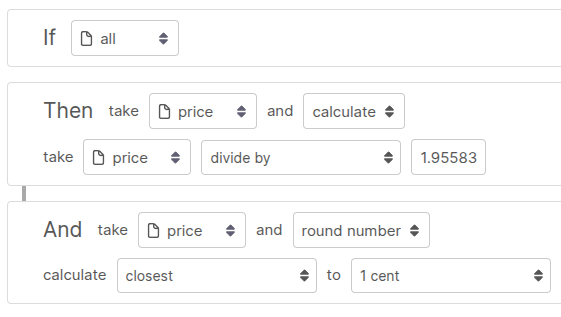
* **Apply conversion rules:** Create rules in Channable to convert your prices and apply rounding.\
\
Example:
* **Modify your imports:** Update your source data to import prices in Euro directly.
Next, once your data is updated and ready, navigate to **\[your feed] > Settings** and update the **Target Country** to “Bulgaria (Euro)”.
OR
Next, you can set up a new, fresh export feed specifically for Bulgaria (Euro) to test the migration without affecting your live Lev feed. You can do so by making a copy of your existing feed:
1. Go to **\[your feed] > Settings**.
2. Click on the gear icon and select **Copy feed** in the dropdown.
3. In the pop up, enter a name for your feed and click **Copy feed**.
{% endupdate %}
{% update date="2026-01-13" tags="new" %}
## TikTok Shipping orders now supported (beta)
### **What’s changed?**
TikTok Shop orders shipped via **TikTok Shipping** ("Shipping by TikTok") can now be imported into Channable for selected users.
* **Seller shipping** and **TikTok shipping** orders can be imported.
* For **Seller shipping** orders, we handle shipment updates as usual.
* For **TikTok shipping** orders, when we detect a shipment update, we fetch the shipping label from TikTok and add it to the order in Channable (**Order details > Attachments**).
### **How to add TikTok shipping in Channable**
{% hint style="info" %}
**Note:** To use this feature, you need to[ set up TikTok Shipping in your TikTok account](https://seller-us.tiktok.com/university/essay?knowledge_id=6837882170001153\&lang=en).
{% endhint %}
1. In your Channable account, go to **Setup > Orders.**
2. Click **+ Setup orders**.
3. Under **API**, select **TikTok Shop** from the available options.
4. Set up your TikTok order connection:
1. For **Name**, give your connection a descriptive name.
2. For **Shop region**, select the region your TikTok Shop operates in.
3. Select the checkbox **I use TikTok Shipping**.
5. Click **Save**.
Channable will now import and process your TikTok Shipping orders.
{% endupdate %}
{% endupdates %}
---
# Agent Instructions
This documentation is published with GitBook. GitBook is the documentation platform designed so that both humans and AI agents can read, navigate, and reason over technical content effectively. Learn more at gitbook.com.
## Querying This Documentation
If you need additional information that is not directly available in this page, you can query the documentation by asking a question.
Perform an HTTP GET request on the following URL with the `ask` and `goal` query parameters:
```
GET https://helpcenter.channable.com/changelog/2026/january.md?ask=&goal=
```
`ask` is the immediate question: it should be specific, self-contained, and written in natural language.
`goal` is what the user is ultimately trying to achieve, the reason they need the answer. Sharing it helps GitBook give you a better, more relevant answer. A goal is most helpful when it describes the outcome the user wants rather than restating the question. For example, with `ask=how do I create an API token`, a goal like `automate deployments from our CI pipeline` lets GitBook tailor the answer to that use case.
The response will contain a direct answer to the question and relevant excerpts and sources from the documentation.
Use this mechanism when the answer is not explicitly present in the current page, you need clarification or additional context, or you want to retrieve related documentation sections.