> For the complete documentation index, see [llms.txt](https://helpcenter.channable.com/llms.txt). Markdown versions of documentation pages are available by appending `.md` to page URLs; this page is available as [Markdown](https://helpcenter.channable.com/css/css-nl/titeloptimalisator/hoe-stel-je-de-titeloptimalisator-omhoog-in.md).
# Hoe stel je de Titeloptimalisator omhoog in
De Title Optimizer suggereert zoekwoorden, attributen en lengte om Help Optimaliseren van uw Google Shopping-vermeldingen Naar beter presteren in klantzoekopdrachten.
Dit artikel legt uit hoe je de Title Optimizer in je Channable Account Naar omhoog zet.
***
### :memo-circle-check: Voordat u begint
**Je hebt nodig**
* Een actief CSS-abonnement
* Je [verkopers omhoog ingesteld in Channable](/css/css-nl/readme/hoe-je-een-channable-css-merchant-instelt.md)
* Een [aanvullende target](/css/css-nl/readme/stel-de-aanvullende-target-voor-je-merchant-in-google-merchant-center-in.md) omhoog zetten
* Een actieve productfeed
* Minstens één product goedgekeurd in Merchant Center
* Naar het inschakelen van de **in feed** schakelaar in de Title Optimizer voor de producten die u Naar wilt synchroniseren
* Optimalisaties zullen niet verschijnen in Google tot deze stappen zijn voltooid
###
**Goed om Naar te weten**
* De Title Optimizer werkt via een [aanvullende target](/css/css-nl/readme/stel-de-aanvullende-target-voor-je-merchant-in-google-merchant-center-in.md). Uw oorspronkelijke productgegevens (uw primaire target) blijven hetzelfde
* Naar het volledige gebruik van de functie hebt u een [verbinding Naar een Google Ads Account](/list-advertise/list-and-advertise-nl/google/google-ads-beheren-en-optimaliseren/google-tekstadvertenties/tekstadvertenties-instellen/een-nieuwe-google-ads-koppeling-toevoegen.md) die is gekoppeld Naar hetzelfde Merchant Center
***
### Stap 1: Open de Optimizer
1. Open de Title Optimizer:
2. Selecteer de handelaar Naar u titels wilt omhoog instellen.
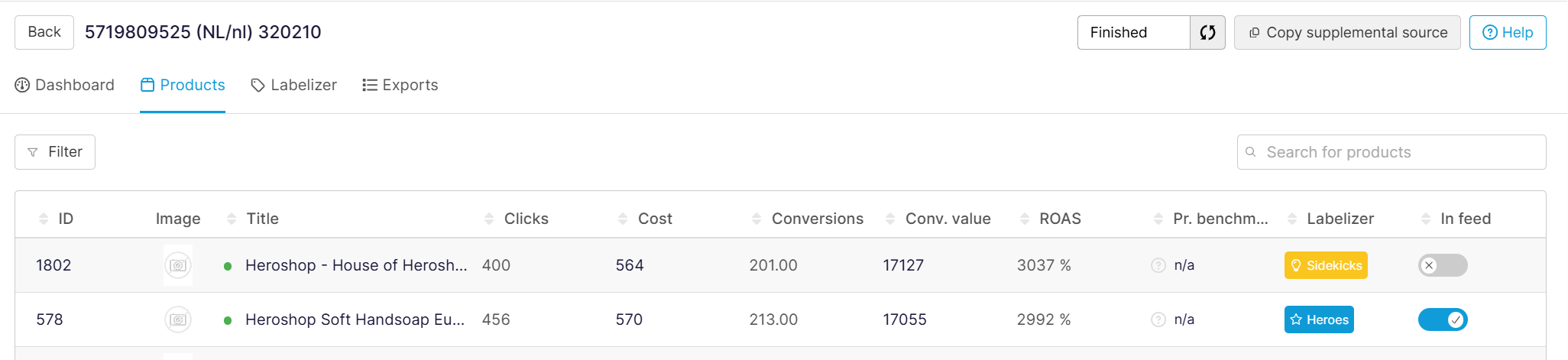
3. In de **Producten** tabblad, u zult een tabel zien met alle uw producten. Naar uw producttitels zult u een gekleurd Status-pictogram zien dat de effectiviteit van uw Actueel titels aangeeft.
* Groen: Geweldig
* Oranje: Gemiddeld
* Rood: Slecht
{% hint style="success" %}
Tip: Begin eerste met je Heroes en Sidekicks-producten die als slecht of gemiddeld zijn gemarkeerd, en geef prioriteit aan Items met meer klikken en conversies voor grotere impact.
{% endhint %}
### Stap 2: Optimaliseren van je titels
1. Selecteer een Item vanuit de Lijst. Dit opent de Title Optimizer-pop-up en toont uw producttitel, voorgestelde zoekwoorden en kenmerken, en het resterende aantal tekens (omhoog tot 150 tekens)
2. Pas je titels aan:
1. Klik op een suggestie om deze Naar uw titels toe te passen.
2. Handmatig Type en Edit uw titels.
3. Combineer merk-, attribuut- en variantinformatie.
{% hint style="success" %}
Tip: Zet de belangrijkste zoekwoorden eerste, voeg attributen toe zoals kleur, grootte, enz., en vermijd keyword stuffing voor de beste resultaten.
{% endhint %}
### Stap 3: Controleren en Opslaan
1. Bekijk de Bekijk-vermelding Naar de Titeloptimalisator en pas aan waar nodig.
2. Zodra je tevreden bent met de titel, klik **Titel Opslaan**.
Channable zal de geoptimaliseerde titel Naar Google Merchant Center synchroniseren via uw [aanvullende feed](/css/css-nl/readme/stel-de-aanvullende-target-voor-je-merchant-in-google-merchant-center-in.md). Zodra uw aanvullende target in Channable omhoog is ingesteld, zal Google gebruik van de nieuwe titel in uw Shopping-advertenties maken.
#### Probleemoplossing "Nog geen prestatiegegevens"
Als u deze Status in uw **Dashboard**, zorg ervoor dat u uw titels hebt opgeslagen en dat u een [verbinding Naar een Google Ads Account](/list-advertise/list-and-advertise-nl/google/google-ads-beheren-en-optimaliseren/google-tekstadvertenties/tekstadvertenties-instellen/een-nieuwe-google-ads-koppeling-toevoegen.md) die is gekoppeld aan hetzelfde Merchant Center.
### Stap 4: Resultaten monitoren
Zodra je titels live zijn:
* Geef Google tijd Naar updates te verwerken
* Volg je vertoningen, klikken en conversies in je CSS Dashboard
* Bekijk titels periodiek Naar ze omhoog datum te houden met de zoekvraag
---
# Agent Instructions
This documentation is published with GitBook. GitBook is the documentation platform designed so that both humans and AI agents can read, navigate, and reason over technical content effectively. Learn more at gitbook.com.
## Querying This Documentation
If you need additional information that is not directly available in this page, you can query the documentation by asking a question.
Perform an HTTP GET request on the following URL with the `ask` and `goal` query parameters:
```
GET https://helpcenter.channable.com/css/css-nl/titeloptimalisator/hoe-stel-je-de-titeloptimalisator-omhoog-in.md?ask=&goal=
```
`ask` is the immediate question: it should be specific, self-contained, and written in natural language.
`goal` is what the user is ultimately trying to achieve, the reason they need the answer. Sharing it helps GitBook give you a better, more relevant answer. A goal is most helpful when it describes the outcome the user wants rather than restating the question. For example, with `ask=how do I create an API token`, a goal like `automate deployments from our CI pipeline` lets GitBook tailor the answer to that use case.
The response will contain a direct answer to the question and relevant excerpts and sources from the documentation.
Use this mechanism when the answer is not explicitly present in the current page, you need clarification or additional context, or you want to retrieve related documentation sections.