> For the complete documentation index, see [llms.txt](https://helpcenter.channable.com/llms.txt). Markdown versions of documentation pages are available by appending `.md` to page URLs; this page is available as [Markdown](https://helpcenter.channable.com/css/readme/set-up-the-supplemental-source-for-your-merchant-in-google-merchant-center.md).
# Set up the supplemental source for your merchant in Google Merchant Center
Set up a Google Merchant Center supplemental source for your Channable CSS product feed.
The supplemental source connects Channable directly to your Google Merchant Center and links our CSS optimizations to your existing product feed.
Once connected, optimizations made in tools like [Title Optimizer](/css/title-optimizer.md) are automatically synced to Google Merchant Center and used in your Shopping Ads.
{% hint style="info" %}
**Migrated from Producthero?** Create a Channable supplemental source alongside your existing Producthero source. Follow [Add a Channable supplemental source after migrating from Producthero](/css/readme/migrate-from-producthero-to-channable/add-a-channable-supplemental-source-after-migrating-from-producthero.md).
{% endhint %}
This guide is for merchants creating a new Channable supplemental source.
***
### :memo-circle-check: Before you start
**Good to know**
* If you manage multiple feeds in Channable, you need to set up a **separate supplemental source for each one**.
* **Each feed label/language combination has its own supplemental URL**. Use the correct one per feed (example: NL/nl)
### Video: How to set up the supplemental source
{% embed url="" %}
### Step 1: Copy the URL in Channable
1. Go to **\[your company] > CSS Merchants**.
2. In the **CSS projects overview** tab, locate and click the merchant for which you want to set up the supplemental feed.
1. Go to the **Exports** tab.
2. Click **Copy source URL**. Paste this URL somewhere as you’ll need in Step 3 in your Google Merchant Center account.
OR
1. Go to **\[your company] > CSS Merchants**.
2. In the **CSS projects overview** tab, locate the merchant for which you want to set up the supplemental feed.
1. At the ‘Suppl. source exported’ column, click the dropdown arrow.
2. At the shop you want to set up the supplemental feed for, click **Copy URL**. Paste this URL somewhere as you’ll need in Step 3 in your Google Merchant Center account.
### Step 2: Enable "Advanced Data Source Management" in your Google Merchant Center account
{% hint style="info" %}
**Note:** Skip this step if you already have this setting enabled.
{% endhint %}
1. Log in to your [Google Merchant Center](http://merchants.google.com).
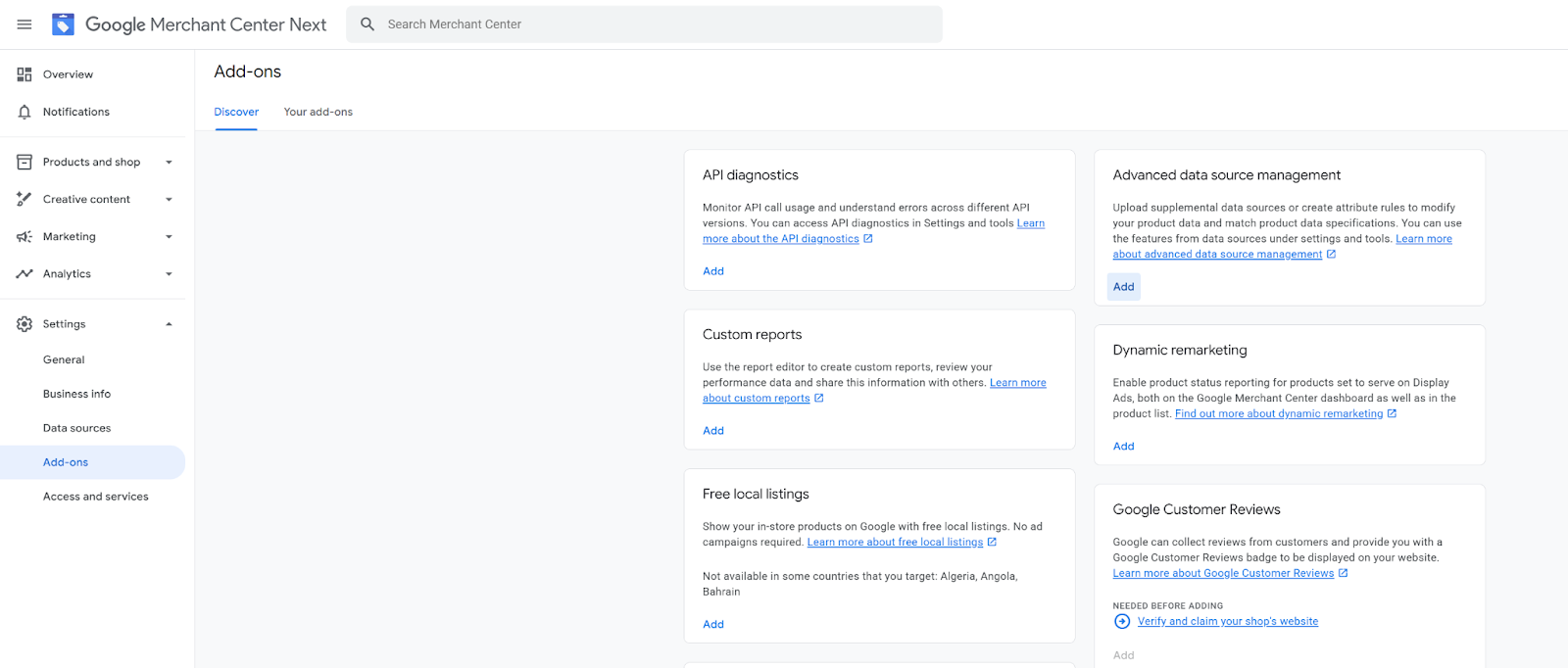
2. In **Settings** in the side navigation, click **Add-ons**.
3. Locate **Advanced Data Source Management** and click **Add**.
4. In the popup, click **Add** again.
‘Advanced Data Source Management’ will show in the **Your add-ons** tab.
### Step 3: Add the supplemental source URL to your data sources and select a primary data source
{% hint style="danger" %}
**Important:** Make sure that you add the supplemental source in Supplemental Sources only. Adding it in Primary Sources can mess up your feeds!
{% endhint %}
1. In **Settings** in the side navigation, click on **Data sources**.
2. In the **Product Sources** tab, click **Supplemental Source**s in the table.
3. Click **Add supplemental product data**.
1. Select **Add product data from a file** and paste the supplemental source URL that you copied in Channable in Step 2.
2. At **Edit schedule,** we strongly recommend setting the time between 10 and 12 AM Amsterdam time to keep the feed data updated. Click **Continue**.
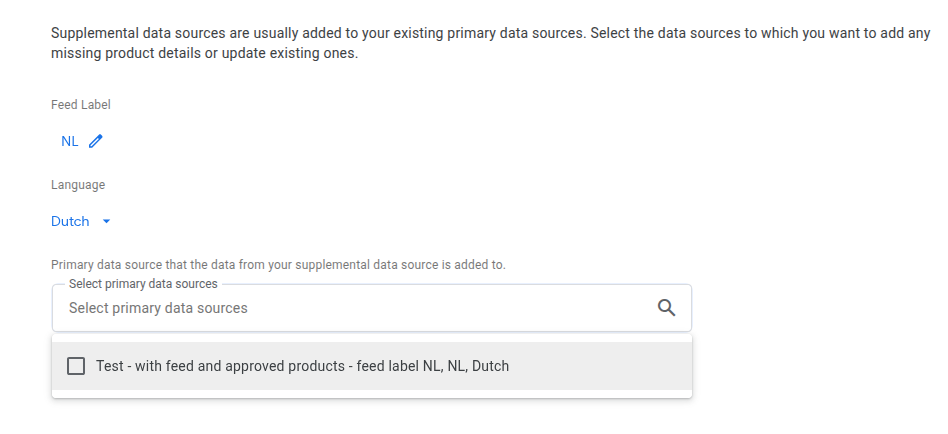
3. At **Feed label**, select a label for the feed.
4. At **Language**, select the feed language.
5. Next, click **Select primary data sources** and the primary data sources with that feed label and language combination will show.
6. Select your primary data source.
7. Click **Create Data Source**.
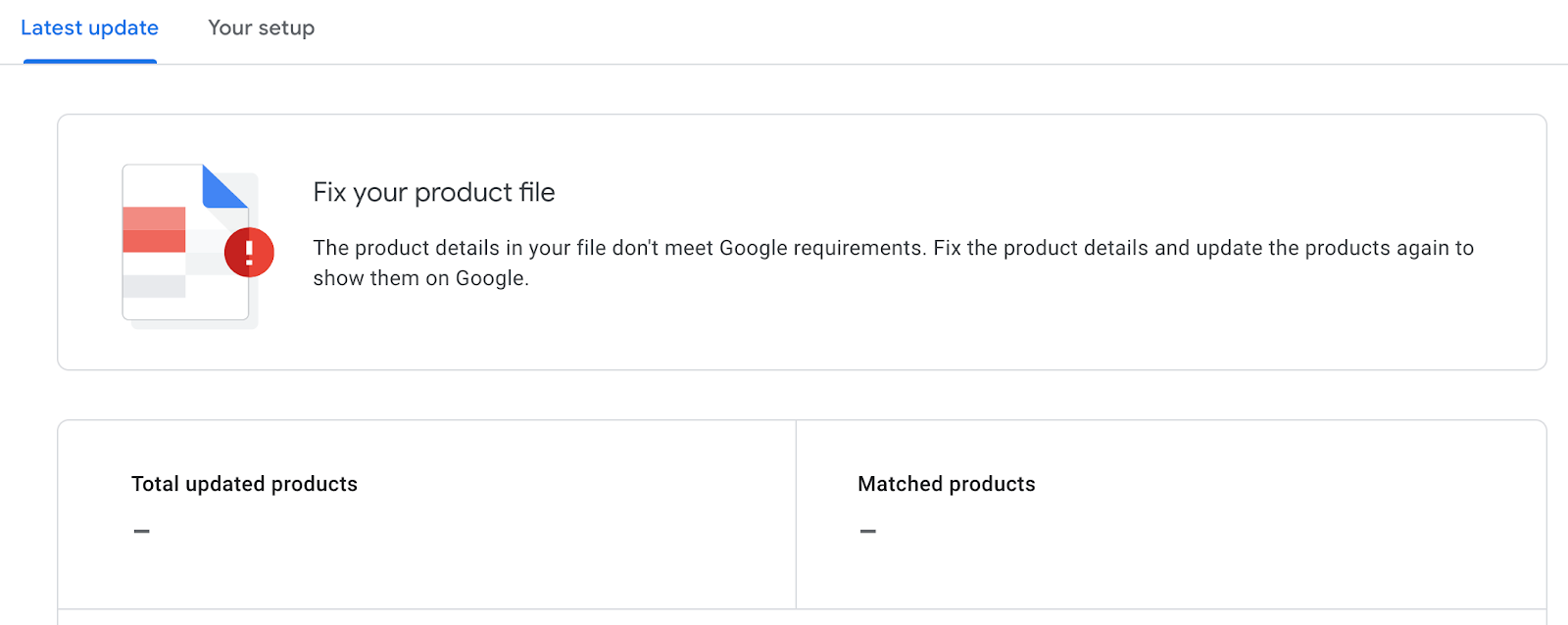
If you see this warning "Fix your product file" in your Google Merchant Center, it means that the supplemental source does not contain any data yet. Once you start using the CSS tools in Channable, data will flow into the Supplemental Source, and the warning won’t show.
Your Supplemental Source is now integrated with your primary data source, and Channable is successfully connected to your Merchant Center account.
---
# Agent Instructions
This documentation is published with GitBook. GitBook is the documentation platform designed so that both humans and AI agents can read, navigate, and reason over technical content effectively. Learn more at gitbook.com.
## Querying This Documentation
If you need additional information that is not directly available in this page, you can query the documentation dynamically by asking a question.
Perform an HTTP GET request on the current page URL with the `ask` query parameter, and the optional `goal` query parameter:
```
GET https://helpcenter.channable.com/css/readme/set-up-the-supplemental-source-for-your-merchant-in-google-merchant-center.md?ask=&goal=
```
`ask` is the immediate question: it should be specific, self-contained, and written in natural language.
`goal` is optional and describes the broader end goal you are ultimately trying to accomplish on behalf of the user. GitBook uses it to tailor the answer towards what is most useful for that goal.
The response will contain a direct answer to the question and relevant excerpts and sources from the documentation.
Use this mechanism when the answer is not explicitly present in the current page, you need clarification or additional context, or you want to retrieve related documentation sections.