> For the complete documentation index, see [llms.txt](https://helpcenter.channable.com/llms.txt). Markdown versions of documentation pages are available by appending `.md` to page URLs; this page is available as [Markdown](https://helpcenter.channable.com/get-started/getting-started/quickstart-guide.md).
# Quickstart guide
Channable is a Multichannel eCommerce Platform that helps you to:
* List, advertise and optimize your products at scale across channels such as Google, Amazon and bol.
* Create and manage product advertisements, set up connections with marketplaces, and create PPC campaigns.
* Find out how your listings are performing with useful insights and analytics and use this data to adapt your strategy to increase sales.
There are lots of powerful things you can do with Channable, but we recommend that you start with this guide to help you with the basic setup.
### Create a project
Once you've [created a Channable account](/get-started/getting-started/create-a-channable-account.md), you’re ready to create your first project. Log in to [Channable](https://app.channable.com/).
{% stepper %}
{% step %}
### Open the project overview
{% tabs %}
{% tab title="Modern version" %}
Click **Projects**.

{% endtab %}
{% tab title="Legacy version" %}
Click **Projects**.

{% endtab %}
{% endtabs %}
{% endstep %}
{% step %}
### Add your first project
{% tabs %}
{% tab title="Modern version" %}
Click + **Add project**.\

{% endtab %}
{% tab title="Legacy version" %}
Click + **Create Project**.

{% endtab %}
{% endtabs %}
Enter a name, and click **Save**. Channable opens **Getting started**, your onboarding hub.
{% hint style="info" %}
A project is the specific setup for all the information regarding your webshop: your product data and how it is shared with different channels. You can set up multiple projects if you have multiple webshops or if you sell your products in different language markets.
{% endhint %}
{% endstep %}
{% step %}
### Onboarding hub
After adding your first project, Channable shows an onboarding checklist in the platform to help you get started. Items are checked off automatically as you complete the steps.
{% hint style="info" %}
Every time you complete a step, return to the **Getting started** page to view next steps.
{% endhint %}
Follow the onboarding steps below to complete your setup.
{% endstep %}
{% endstepper %}
{% tabs %}
{% tab title="Modern version" %}
{% endtab %}
{% tab title="Legacy version" %}
{% endtab %}
{% endtabs %}
## Onboarding steps
### Import your product data
To add your product data into Channable, click **Add import**, which navigates you to the **Setup** section. Channable offers many options for [importing your product data](/import-data/readme.md) such as via an eCommerce platform (e.g. Magento, Shopify) or via a data source (e.g., XML or Google Sheets).
{% tabs %}
{% tab title="Modern version" %}
{% endtab %}
{% tab title="Legacy version" %}
{% endtab %}
{% endtabs %}
{% hint style="warning" %}
Your import must meet specific [requirements](/import-data/import-how-to/import-your-product-data/import-via-a-data-file/requirements-for-import-files.md).
{% endhint %}
### View your imported items
In the final **Overview** step after running your import, you'll find all your imported items at **\[your import name] - Imported data.**
After closing the setup steps, you can also to go to **Items** in the sidebar to view your imported items.
{% hint style="info" %}
Review your product data to ensure it imported successfully. If your data is split between multiple sources or you want to add missing information, you can [combine multiple imports](/import-data/import-how-to/combine-multiple-imports.md) to enrich your product data.
{% endhint %}
### Set up your first channel
After reviewing your product data, set up the channel you will use to advertise your products.
Go to **Channels**. Choose the platform you'd like to set up a channel for and select it to get started.
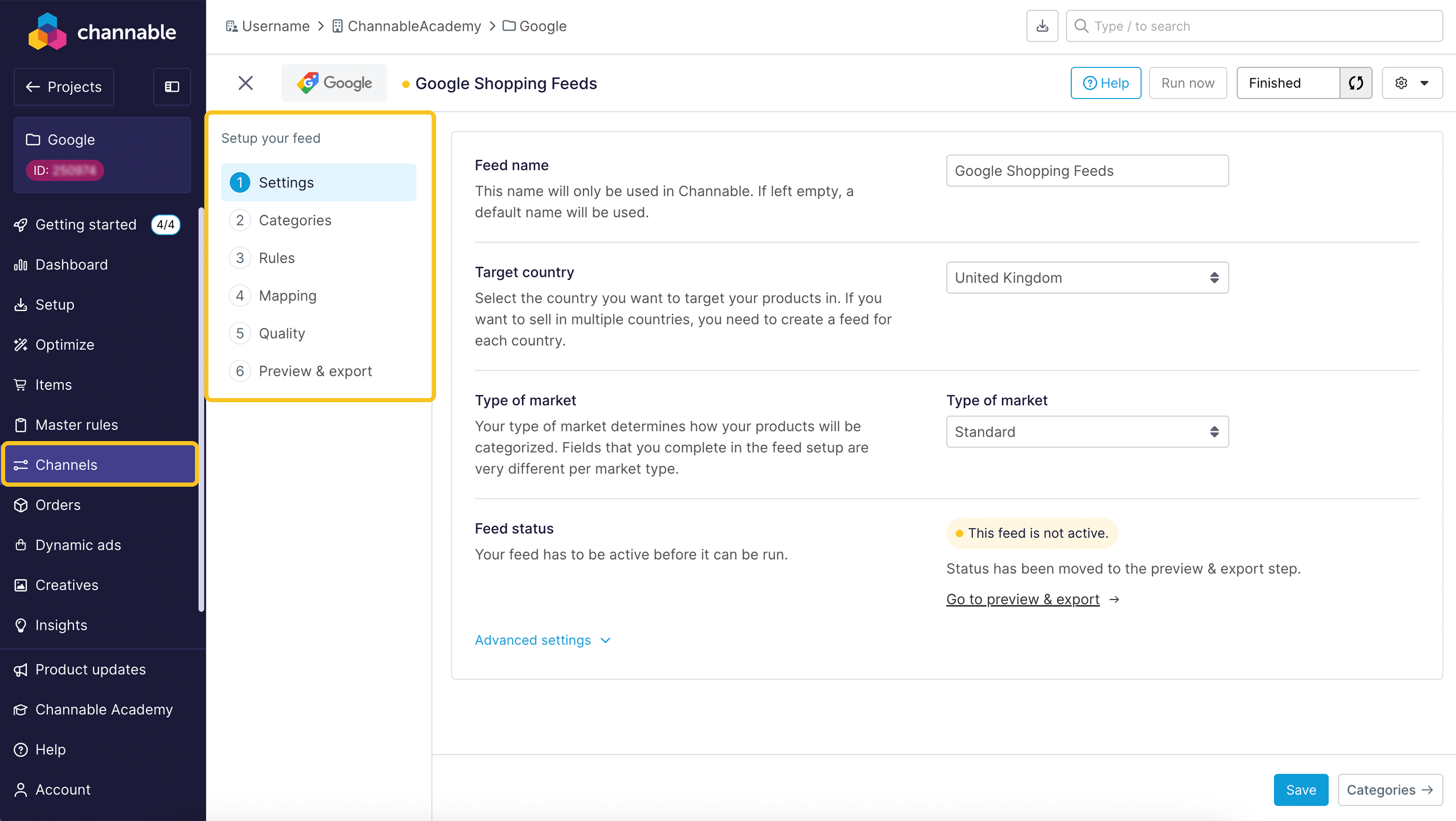
### Feeds
To set up a feed, follow these steps:
* [Assign categories](/list-advertise/list-on-channels/set-up-a-feed/set-up-a-feed-categories-step.md)
* [Create rules](/list-advertise/list-on-channels/set-up-a-feed/set-up-a-feed-rules.md)
* [Map data to attributes](/list-advertise/list-on-channels/set-up-a-feed/set-up-a-feed-mapping-step.md)
* [Check your setup quality](/list-advertise/list-on-channels/set-up-a-feed/set-up-a-feed-quality-step.md)
* [Preview & export](/list-advertise/list-on-channels/set-up-a-feed/set-up-a-feed-preview-and-export-step.md)
{% hint style="info" %}
There are specific guides for setting up [popular export feeds](/list-advertise/list-on-channels/set-up-a-feed.md), such as [Google](/list-advertise/google/list-items-on-google-shopping.md), [Meta](/list-advertise/meta/get-started-with-meta.md) and [Galaxus](/list-advertise/list-on-channels/galaxus.md).
{% endhint %}
{% tabs %}
{% tab title="Modern version" %}
{% endtab %}
{% tab title="Legacy version" %}
{% endtab %}
{% endtabs %}
### Marketplaces
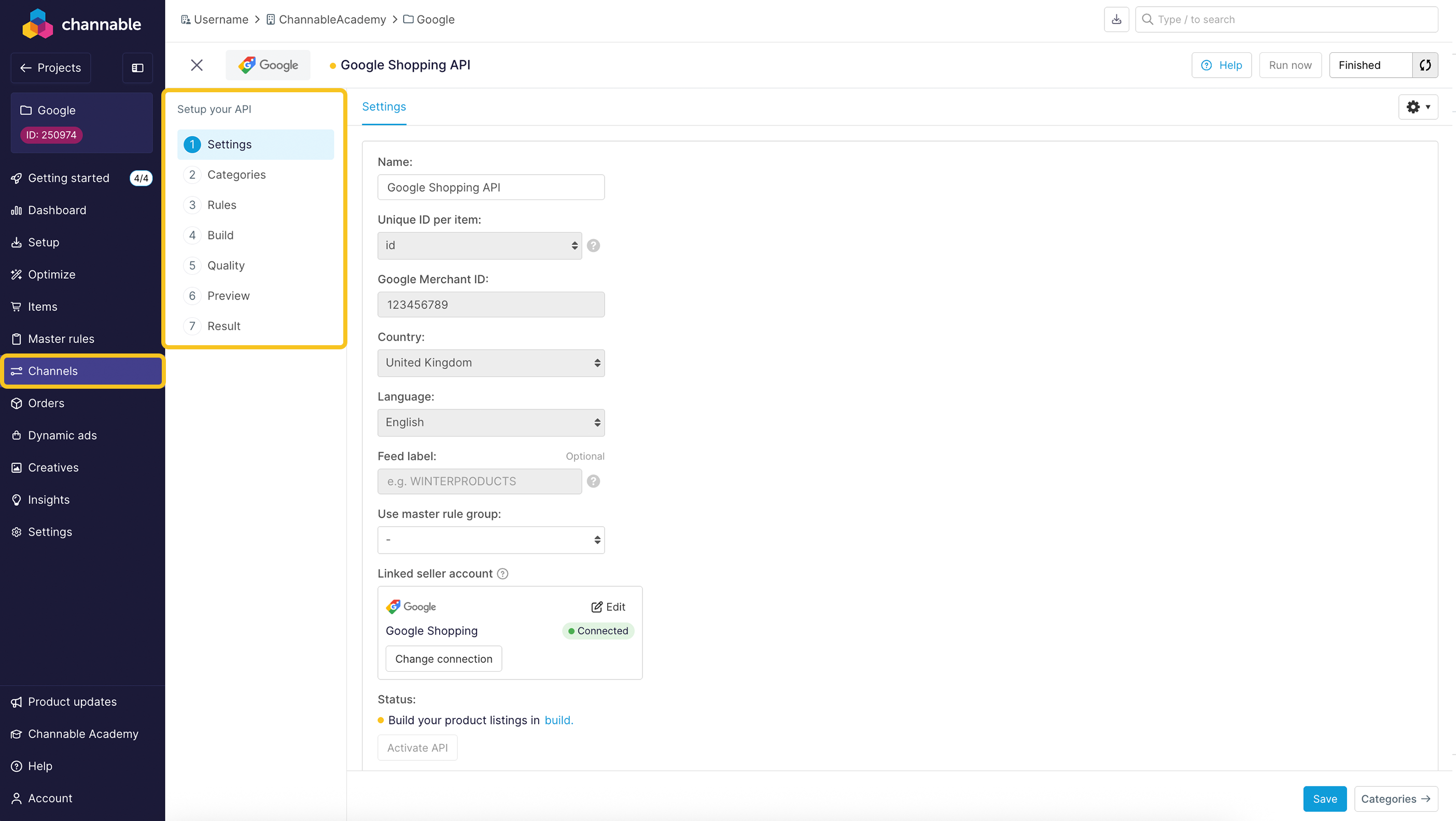
To set up a marketplace channel (API), follow a similar series of steps:
* [Assign categories](/list-advertise/sell-on-marketplaces/get-started-with-marketplaces/marketplaces-categorization-step.md)
* [Create rules](/list-advertise/sell-on-marketplaces/get-started-with-marketplaces/marketplaces-rules-step.md)
* [Map data to attributes](/list-advertise/sell-on-marketplaces/get-started-with-marketplaces/marketplaces-build-step.md) (Category-specific and/or Shared)
* [Check your setup quality](/list-advertise/sell-on-marketplaces/get-started-with-marketplaces/marketplaces-quality-step.md)
* [Preview your listings](/list-advertise/sell-on-marketplaces/get-started-with-marketplaces/marketplaces-preview-step.md)
* [Review results and check feedback](/list-advertise/sell-on-marketplaces/get-started-with-marketplaces/marketplaces-result-step.md)
{% hint style="info" %}
There are specific guides for setting up with [popular marketplaces](/list-advertise/sell-on-marketplaces/get-started-with-marketplaces.md), such as [Amazon](/list-advertise/amazon/list-items-on-amazon.md), [bol ](/list-advertise/bol/list-items-on-bol.md)and [eBay](/list-advertise/sell-on-marketplaces/ebay/how-to-set-up-an-ebay-channel.md).
{% endhint %}
{% tabs %}
{% tab title="Modern version" %}
{% endtab %}
{% tab title="Legacy version" %}
{% endtab %}
{% endtabs %}
### Select a plan
Channable has flexible pricing plans and add-ons. Click **Select a plan** to [compare the plans](/account-billing/manage-your-subscription/channables-pricing-plans.md) and choose one that best fits your business needs.
{% tabs %}
{% tab title="Modern version" %}
{% endtab %}
{% tab title="Legacy version" %}
{% endtab %}
{% endtabs %}
{% hint style="info" %}
You can set up using your [trial account](/get-started/channable-free-trial.md), but you'll need to confirm your subscription to send live product data and activate your channels. See [pricing](/account-billing/manage-your-subscription/channables-pricing-plans.md) and [subscription & invoicing](/account-billing/manage-your-subscription/channables-pricing-plans.md) for details.
{% endhint %}
### Activate your channel
To finish your setup, activate the channel you configured and click **Activate channel**. This activates the project you're working in and your chosen channel.
{% tabs %}
{% tab title="Modern version" %}
{% endtab %}
{% tab title="Legacy version" %}
{% endtab %}
{% endtabs %}
If you prefer to activate later without using the onboarding checklist, activate your current project and channel:
{% tabs %}
{% tab title="Modern version" %}
Activate your project under **All projects > \[Project] > Project settings**.
{% endtab %}
{% tab title="Legacy version" %}
Activate your project under **Projects > \[Project] > Project settings**.
{% endtab %}
{% endtabs %}
To activate your channel, go to **Channels** and click **Activate channel**. To send your channel to the platform, click **Run now**.
* **If you set up a feed**, check that you have a [feed file URL](/list-advertise/list-on-channels/set-up-a-feed/set-up-a-feed-preview-and-export-step.md) in the **Preview** step. Copy the URL and paste it into the settings of your chosen marketplace.
* **If you set up an API**, review the **Results** step to see your listing status. You may not have feedback immediately, so it's best to check in later.
### All done!
Your products should now be listed on your chosen channel or marketplace.
---
# Agent Instructions
This documentation is published with GitBook. GitBook is the documentation platform designed so that both humans and AI agents can read, navigate, and reason over technical content effectively. Learn more at gitbook.com.
## Querying This Documentation
If you need additional information that is not directly available in this page, you can query the documentation dynamically by asking a question.
Perform an HTTP GET request on the current page URL with the `ask` query parameter, and the optional `goal` query parameter:
```
GET https://helpcenter.channable.com/get-started/getting-started/quickstart-guide.md?ask=&goal=
```
`ask` is the immediate question: it should be specific, self-contained, and written in natural language.
`goal` is optional and describes the broader end goal you are ultimately trying to accomplish on behalf of the user. GitBook uses it to tailor the answer towards what is most useful for that goal.
The response will contain a direct answer to the question and relevant excerpts and sources from the documentation.
Use this mechanism when the answer is not explicitly present in the current page, you need clarification or additional context, or you want to retrieve related documentation sections.