> For the complete documentation index, see [llms.txt](https://helpcenter.channable.com/llms.txt). Markdown versions of documentation pages are available by appending `.md` to page URLs; this page is available as [Markdown](https://helpcenter.channable.com/import-data/import-how-to/import-your-product-data/import-via-a-webshop/odoo.md).
# Odoo
Import product data from your Odoo store into Channable.
In this article, you'll learn how to import product data from Odoo into Channable.
{% hint style="warning" %}
Channable works with Odoo version 19 and later. You can check your version in your Odoo account settings.
{% endhint %}
### :memo-circle-check: Before you start
**You'll need**
* A Channable account with a project
* An active Odoo subscription
* An active Odoo database with products
* The Odoo product module enabled
I’m not sure if I have the Odoo product module enabled
In your Odoo account, go to Settings. If you see the option Inventory, the product module is enabled.
If you don’t see it, contact Odoo’s Support team.
**Good to know**
* Channable connects to Odoo through the external JSON2 API.
* Channable only works with Odoo version 19 or later.
* Domain filtering is not available for Odoo yet
{% hint style="warning" %}
You cannot currently exclude records such as disabled products, `active=false` products, or services during setup.
{% endhint %}
{% stepper %}
{% step %}
### Generate an API key in Odoo
1. Log in to your Odoo account.
2. In the top corner, click on your profile > **My preferences**.
3. Open the **Security** tab.
4. Click **Add API Key**.
5. Give your key a description.
6. Set the duration of the key's validity to indefinite or 90 days (\~3 months).
7. Click **Generate key**.
8. Copy/note the API key and store it somewhere safe. You will need it in the next step.
{% endstep %}
{% step %}
### Create your Odoo connection in Channable
1. In Channable, open the project where you want to import your product data.
2. Go to **Setup** and click **+ Choose import method**.
3. For **Data source**, select **Odoo**.
4. Click **Add a new connection**.
5. Fill in the required information:
1. For **Name**, give your connection a clear name (e.g. `Odoo US`).
2. For **Odoo API Key**, paste/enter the key you generated in Odoo in the previous step.
3. For **Odoo URL**, enter your Odoo URL (e.g. `https://demo-channable.odoo.com/`)
4. For **Odoo Database Name**, enter the name of the database that contains your products (e.g. `demo-channable`)
6. Click **Connect with Odoo**.
{% hint style="info" %}
Make sure the database you connect contains active product data and can be accessed with your API key.
{% endhint %}
{% endstep %}
{% step %}
### Run your import
1. After connecting, give your import a clear name.
2. Review the available import settings.
3. Click **Run import**.
Once Channable reads your product data, you will be redirected to the **Import Mapping** page.
{% endstep %}
{% step %}
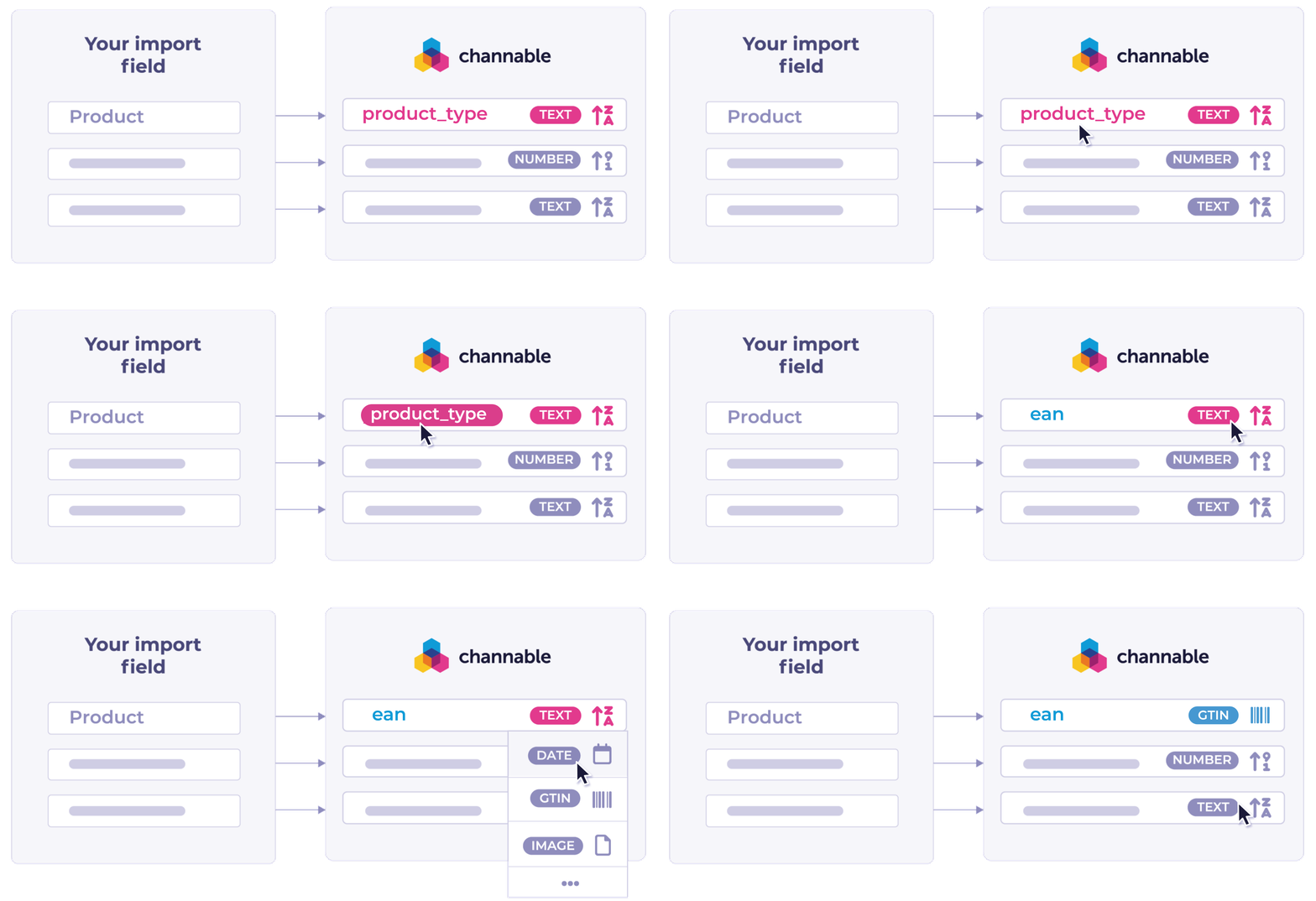
### Import mapping
This page shows the fields retrieved from your Odoo database, such as `title`, `description`, and `price`.
Before you continue:
* Compare and adjust mapping.
* Review your **Imported data fields** against the matched **Project fields**.
* If a field is matched incorrectly, click it and select a different field.
* Check and correct field types.
* If a field has the wrong type, click **Edit**, select the correct type, and click **Save & Import**.
* Exclude fields if needed.
* To skip a field, select it in the **Select** column and exclude it from the import.
When you're done, click **Save & Import** to start importing your product data.
{% endstep %}
{% step %}
### Review your imported items
After your product data has finished importing:
* Go to **Overview** to view your imported products.
* Click an item to see its details.
Your Odoo import is now ready to use in Feeds, Marketplaces, Shopping Ads, and more.
{% endstep %}
{% endstepper %}
---
# Agent Instructions
This documentation is published with GitBook. GitBook is the documentation platform designed so that both humans and AI agents can read, navigate, and reason over technical content effectively. Learn more at gitbook.com.
## Querying This Documentation
If you need additional information that is not directly available in this page, you can query the documentation by asking a question.
Perform an HTTP GET request on the following URL with the `ask` and `goal` query parameters:
```
GET https://helpcenter.channable.com/import-data/import-how-to/import-your-product-data/import-via-a-webshop/odoo.md?ask=&goal=
```
`ask` is the immediate question: it should be specific, self-contained, and written in natural language.
`goal` is what the user is ultimately trying to achieve, the reason they need the answer. Sharing it helps GitBook give you a better, more relevant answer. A goal is most helpful when it describes the outcome the user wants rather than restating the question. For example, with `ask=how do I create an API token`, a goal like `automate deployments from our CI pipeline` lets GitBook tailor the answer to that use case.
The response will contain a direct answer to the question and relevant excerpts and sources from the documentation.
Use this mechanism when the answer is not explicitly present in the current page, you need clarification or additional context, or you want to retrieve related documentation sections.
 If you don’t see it, contact Odoo’s Support team.