> For the complete documentation index, see [llms.txt](https://helpcenter.channable.com/llms.txt). Markdown versions of documentation pages are available by appending `.md` to page URLs; this page is available as [Markdown](https://helpcenter.channable.com/import-data/import-how-to/import-your-product-data/import-via-a-webshop/shopify.md).
# Shopify
Import product data from your Shopify store into Channable.
In this article, you'll learn how to install the Shopify Channable app to import product data from your Shopify web shop into Channable.
***
### :memo-circle-check: Before you start
**You’ll need**
* A Shopify account with a webshop
* At least one [market](https://help.shopify.com/en/manual/markets-new/manage) set up in Shopify
{% hint style="warning" %}
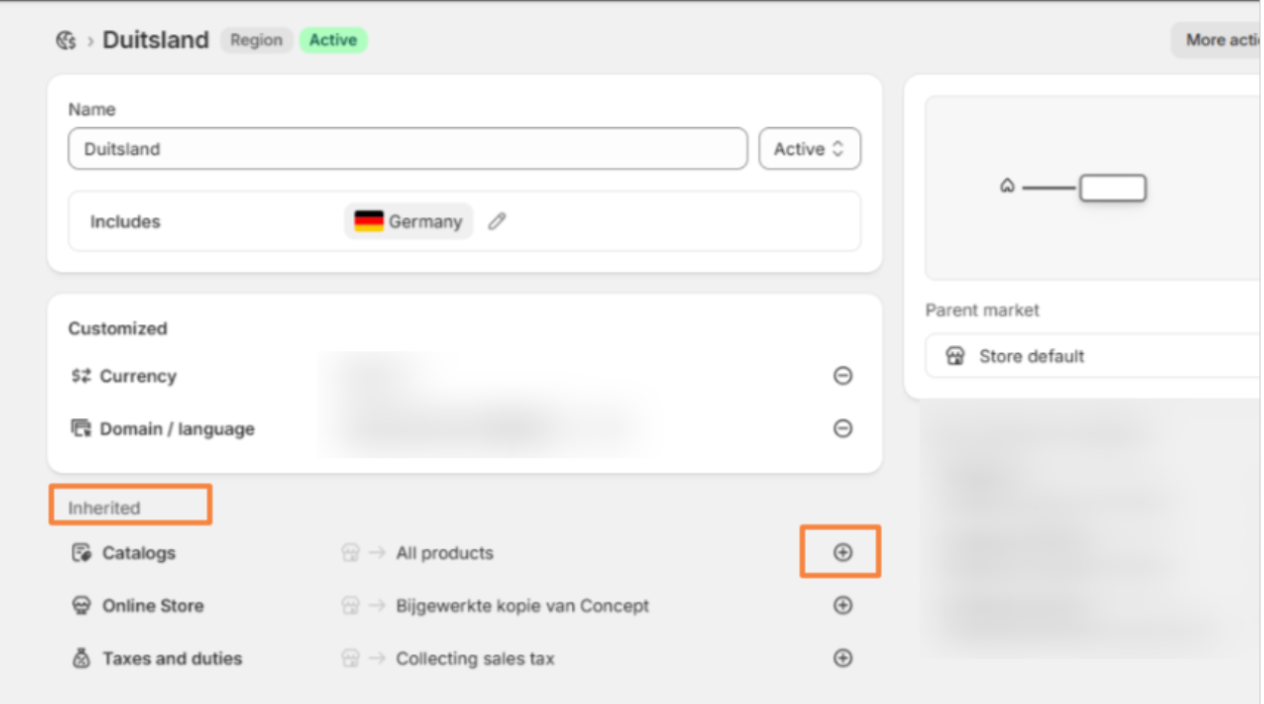
When setting up your market in Shopify, make sure that you click the :heavy\_plus\_sign: next to the options (e.g. the option **Catalogs -> All products**) at the **Inherited** section in order to add/save them.
{% endhint %}
{% hint style="warning" %}
In Shopify, make sure your market has a **catalog assigned that contains products**. If your market has no catalog (or an empty catalog), the Shopify Markets import can fail or import no items.
Quick fix: [In Shopify, create a new catalog](https://help.shopify.com/en/manual/markets-new/catalogs) that includes **All products** (Shopify’s default) and assign it to the market.
{% endhint %}
**Good to know**
Imported prices can differ from storefront currencies
Channable imports the original source currency from Shopify, so price values may not reflect [currency conversions](/import-data/import-how-to/import-your-product-data/import-via-a-webshop/shopify/currency-discrepancies-in-shopify-imports.md) displayed in your storefront.
Billing works a little differently for Shopify
Subscriptions and add-ons related to your Shopify integration are invoiced through Shopify in USD, meaning your billing cycle might differ from our standard invoicing. All charges will appear on your Shopify invoices.
For more information about Channable payments for Shopify users, check our [detailed guide](/account-billing/manage-your-subscription/manage-your-channable-subscription/readme.md).
Variant product images are imported for each product
When you create variants in Shopify, we import images for all variants for that product so you can use them when setting up a channel.
For more control over which images are imported, you could:
* Create separate "parent" products in Shopify for each variant.
* Set up an import rule to filter `additional_image_links` based on a unique identifiers (e.g. size, color) in the image URL.
***
{% stepper %}
{% step %}
### Install the Channable app in Shopify
Follow these steps to install the Channable app from the Shopify App Store:
1. In Channable, open the project where you want to import your product data.
2. In the sidebar, go to **Setup >** **+ Choose import method** > **Shopify Markets**.
3. Add a new connection, or select an existing one.
1. If adding a new connection, click **+ Add a new connection** > **Connect with Shopify**. You will be redirected to Channable's Shopify app store page.
2. Click **Install**.
3. You'll be redirected to your Shopify store's backend to authorize the connection. In the page header, click **Install app**.
4. Once installation is complete, you'll be redirected back to Channable.
{% endstep %}
{% step %}
### Set up your Shopify Markets import
{% hint style="warning" %}
You must have at least one market to import items from. If you don't have any, [create one](https://help.shopify.com/en/manual/markets-new/manage) before continuing.
{% endhint %}
Continue setting up your Shopify markets import.
1. **Name**: Give your importer a clear name (like ‘Shopify Markets - EU’).
2. **Choose language:** Select any additional language(s) you want to import. The primary language is always included.
3. **Shopify Markets to import:** Select the market you want to import. If you don’t add one, we’ll import all markets by default.
{% hint style="info" %}
Enabling advanced settings may slow down your import update speed.
{% endhint %}
5. Click **Run import**.
{% endstep %}
{% step %}
### Set advanced Shopify importer settings (optional)
If you would like to further customize your Shopify setup, you can customize your import with additional advanced settings.
1. Click :arrow-left: **Import settings** to return to your import settings.
2. Click :gear: **Advanced settings**.
3. Go through each tab and apply your preferred settings, clicking **Save** after each change.
:shopify:Shopify: Advanced setting options
#### **Additional fields**
**Price by country**
Set different prices for each country. This only works with currencies in your Shopify store.
For each supported currency, we import two fields: one for the price and one for the currency. For example: `price_be` and `price_be_currency`.
* **How to add:** Click the dropdown, click **Add**, then select countries.
**Include translated metafields**
Enable this to import translated metafield values. Keep it enabled for localized listings in different countries.
* **Enabled:** Channable automatically imports metafield translations.
* **Disabled:** Channable imports only the default source language.
**Metaobjects**
Choose whether to import metaobject fields with additional information.
* **Enabled:** Channable imports metaobject display names and custom fields for the main product.
* **Disabled:** Channable imports only metaobject display names. It does not import product-level metaobject fields.
{% hint style="info" %}
Imported metaobjects use the name of their associated metafield as a prefix. This setting can add many fields, depending on your metaobject setup.
{% endhint %}
**Metafields**
Choose whether to import product custom fields with additional information.
* **Enabled:** Channable imports custom fields for the main product.
* **Disabled:** Channable does not import product-level metafields.
**Variant metafields**
Choose whether to import variant metafields. These are custom fields for each product variant, such as a T-shirt size or color.
* **Enabled:** Channable imports custom fields for product variants.
* **Disabled:** Channable does not import variant-level metafields.
{% hint style="info" %}
Imported metafields use the `meta_` prefix.
{% endhint %}
#### **Import filter**
**Collection ID**
Enter a collection ID to import only items from that collection. Find the ID in the Shopify collection page URL. For example:
`https://my-shop-name.myshopify.com/admin/collections/123456789`
**Only import active markets**
Enable this to import only active markets.
* **Enabled:** Channable imports products from active markets only.
* **Disabled:** Channable imports products from all markets, regardless of status.
**Only import active items**
Enable this to import only active items. Active items are visible and available for sale.
* **Enabled:** Channable imports active items only.
* **Disabled:** Channable imports all items, regardless of status.
{% endstep %}
{% step %}
### Map your product data to project fields
After you run the import, you land on the **Import mapping** page. It shows the fields pulled from Shopify, such as `price`, `description`, and `title`.
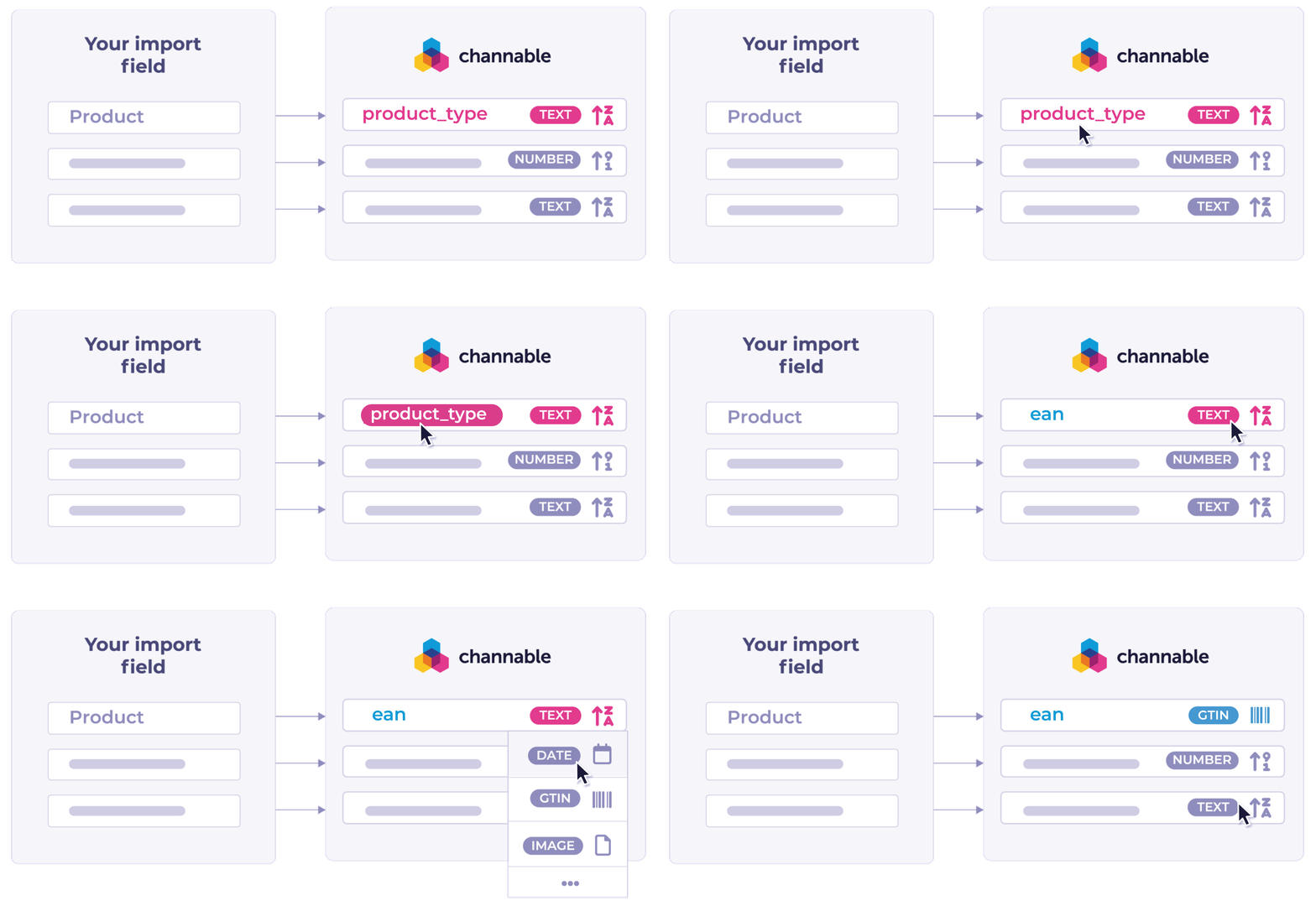
In this step, you match those imported fields to Channable's standard project fields. Channable maps most fields automatically, but you should review and adjust them before importing.
{% hint style="info" %}
Tip: Want to learn more about how import mapping works in Channable? Read our [dedicated guide on mapping](/get-started/getting-started/fields-in-channable/field-mapping-in-channable.md).
{% endhint %}
1. **Compare and adjust mapping.**
* Review your **Imported data fields** against Channable's matched **Project fields**. If a field was matched incorrectly, click on the field to select a different field.
2. **Check and correct field types.**
* Check that the right field type is assigned to your project fields. If a field has the wrong type, click **Edit** next to the field, select the correct type in the dropdown, and click **Save & import**.
3. **Exclude fields (optional).**
* To exclude a field from being included in your product data, click the checkbox in the **Exclude from import** column for that field.
{% hint style="info" %}
If you have several markets set up in Shopify, check that any market-specific fields (like `price_netherlands` or `title_fr`) are mapped to the right field type.
{% endhint %}
4. Once you've finished mapping, click **Save & Import** to start importing your Shopify product data.
{% endstep %}
{% step %}
### Overview
After your product data has finished importing:
* Go to the **Overview** page to view your imported products.
* Click on an item to see detailed information.
Your Shopify import is now successfully set up! You can now use this product data to create and optimize Feeds, Marketplaces, Shopping Ads, and more in Channable.
{% endstep %}
{% endstepper %}
---
# Agent Instructions
This documentation is published with GitBook. GitBook is the documentation platform designed so that both humans and AI agents can read, navigate, and reason over technical content effectively. Learn more at gitbook.com.
## Querying This Documentation
If you need additional information that is not directly available in this page, you can query the documentation dynamically by asking a question.
Perform an HTTP GET request on the current page URL with the `ask` query parameter, and the optional `goal` query parameter:
```
GET https://helpcenter.channable.com/import-data/import-how-to/import-your-product-data/import-via-a-webshop/shopify.md?ask=&goal=
```
`ask` is the immediate question: it should be specific, self-contained, and written in natural language.
`goal` is optional and describes the broader end goal you are ultimately trying to accomplish on behalf of the user. GitBook uses it to tailor the answer towards what is most useful for that goal.
The response will contain a direct answer to the question and relevant excerpts and sources from the documentation.
Use this mechanism when the answer is not explicitly present in the current page, you need clarification or additional context, or you want to retrieve related documentation sections.
 {% endhint %}
{% hint style="warning" %}
In Shopify, make sure your market has a **catalog assigned that contains products**. If your market has no catalog (or an empty catalog), the Shopify Markets import can fail or import no items.
Quick fix: [In Shopify, create a new catalog](https://help.shopify.com/en/manual/markets-new/catalogs) that includes **All products** (Shopify’s default) and assign it to the market.
{% endhint %}
**Good to know**
{% endhint %}
{% hint style="warning" %}
In Shopify, make sure your market has a **catalog assigned that contains products**. If your market has no catalog (or an empty catalog), the Shopify Markets import can fail or import no items.
Quick fix: [In Shopify, create a new catalog](https://help.shopify.com/en/manual/markets-new/catalogs) that includes **All products** (Shopify’s default) and assign it to the market.
{% endhint %}
**Good to know**
