> For the complete documentation index, see [llms.txt](https://helpcenter.channable.com/llms.txt). Markdown versions of documentation pages are available by appending `.md` to page URLs; this page is available as [Markdown](https://helpcenter.channable.com/import-data/import-how-to/import-your-product-data/import-via-a-webshop/woocommerce.md).
# WooCommerce
Import product data from your WooCommerce store into Channable.
Learn how to connect your WooCommerce store and import product data into Channable.
***
### :memo-circle-check: Before you start
**You’ll need**
* A WooCommerce account
* Access to create WooCommerce REST API keys
**Good to know**
Meta fields are imported automatically
Channable imports all meta fields automatically. To exclude them, [contact Support](https://www.channable.com/company/contact/).
Each language needs a separate import
Create a separate import for each language. Use separate projects, or [combine imports](/import-data/import-how-to/combine-multiple-imports.md) in one project.
***
{% stepper %}
{% step %}
### Create WooCommerce API keys
WooCommerce REST API keys control access to your store. Each key is linked to a site user.
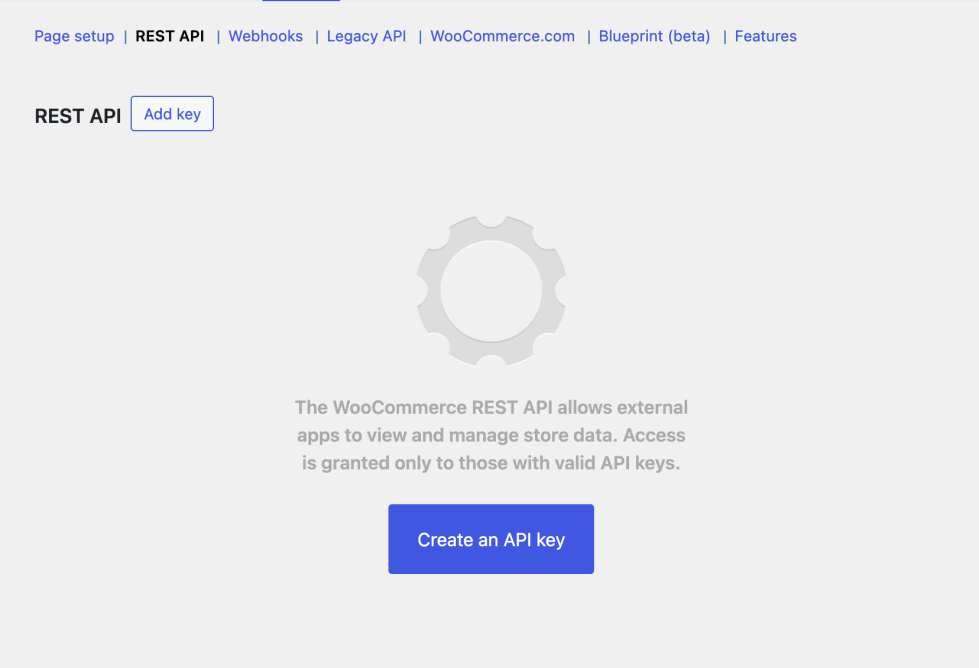
1. In WooCommerce, go to **Settings** > **Advanced** > **REST API**.
2. Click **Create an API key** or **Add Key**.
3. Enter a **Description**.
4. Select the **User** for the key in the dropdown.
5. Select the access level: **Read**, **Write**, or **Read/Write**.
6. Click **Generate API Key**.
7. You should see **Consumer Key** and **Consumer Secret** keys, a **QR Code**, and a **Revoke Key** link.
8. Note down your **Consumer Key** and **Consumer Secret**, as you will need them in the next step.
{% endstep %}
{% step %}
### Set up your WooCommerce import
1. In Channable, open the project you want to import your product data to.
2. Go to **Setup** > **+ Set up import** > **WooCommerce**.
3. Click **+ Add a new connection**.
4. Fill in the connection details:
* **Name:** Give your import a descriptive name (like 'WooCommerce UK').
* **WooCommerce URL:** Enter your webshop URL. Remove any trailing `/`. The URL must end with the domain extension, such as `.com` or `.net`.
* **Consumer Key:** Enter the key from WooCommerce you noted in the previous step.
* **Consumer Secret:** Enter the secret from WooCommerce you noted in the previous step
* **Version:** Select your WooCommerce version.
5. Click **Connect with WooCommerce**.
{% endstep %}
{% step %}
### Map your product data to project fields
After you run your import, you'll land on the **Import mapping** page. It shows the fields pulled from WooCommerce, such as `price`, `description`, and `title`.
In this step, you match those imported fields to Channable's standard project fields. Channable maps most fields automatically, but you should review and adjust them before importing.
{% hint style="success" %}
Want to learn more about how import mapping works in Channable? Read our [dedicated guide on mapping](/get-started/getting-started/fields-in-channable/field-mapping-in-channable.md).
{% endhint %}
1. **Compare and adjust mapping.**
* Review your **Imported data fields** against Channable's matched **Project fields**. If a field was matched incorrectly, click on the field to select a different field.
2. **Check and correct field types.**
* Check that the right field type is assigned to your project fields. If a field has the wrong type, click **Edit** next to the field, select the correct type in the dropdown, and click **Save & import**.
3. **Exclude fields (optional).**
* To exclude a field from being included in your product data, click the checkbox in the **Exclude from import** column for that field.
4. Once you've finished mapping, click **Save** to start importing your Lightspeed product data.
{% endstep %}
{% step %}
### Overview
When the import completes, go to **Overview** to review your imported products.
* Click an item to view its details.
{% hint style="warning" %}
If you tested with WooCommerce’s development environment, replace the development URL with your live URL. This keeps your product data updated.
Go to **Setup** > **Settings** in your WooCommerce channel > **WooCommerce** > **WooCommerce URL**.
{% endhint %}
Your WooCommerce import is ready. Use this product data to create and optimize Feeds, Marketplaces, Shopping Ads, and more in Channable.
{% endstep %}
{% endstepper %}
---
# Agent Instructions
This documentation is published with GitBook. GitBook is the documentation platform designed so that both humans and AI agents can read, navigate, and reason over technical content effectively. Learn more at gitbook.com.
## Querying This Documentation
If you need additional information that is not directly available in this page, you can query the documentation dynamically by asking a question.
Perform an HTTP GET request on the current page URL with the `ask` query parameter, and the optional `goal` query parameter:
```
GET https://helpcenter.channable.com/import-data/import-how-to/import-your-product-data/import-via-a-webshop/woocommerce.md?ask=&goal=
```
`ask` is the immediate question: it should be specific, self-contained, and written in natural language.
`goal` is optional and describes the broader end goal you are ultimately trying to accomplish on behalf of the user. GitBook uses it to tailor the answer towards what is most useful for that goal.
The response will contain a direct answer to the question and relevant excerpts and sources from the documentation.
Use this mechanism when the answer is not explicitly present in the current page, you need clarification or additional context, or you want to retrieve related documentation sections.