> For the complete documentation index, see [llms.txt](https://helpcenter.channable.com/llms.txt). Markdown versions of documentation pages are available by appending `.md` to page URLs; this page is available as [Markdown](https://helpcenter.channable.com/list-advertise/google/manage-and-optimize-google-ads/google-shopping-ads/configuring-shopping-ads-campaigns/checking-and-activating-a-shopping-ads-generator.md).
# Checking and activating a Shopping Ads generator
{% stepper %}
{% step %}
### Checking the Preview step
In the Preview step, you can check your Shopping Ad setup on campaign, ad group, product group and negative keyword level. On each level you will see the status of the objects ('Enabled', 'Paused' or with an error).
* **Campaign level**\
You will see the campaign(s) that will be created by this generator. If you use a dynamic field for the 'Campaign name', you will see all different campaign names that will be generated:
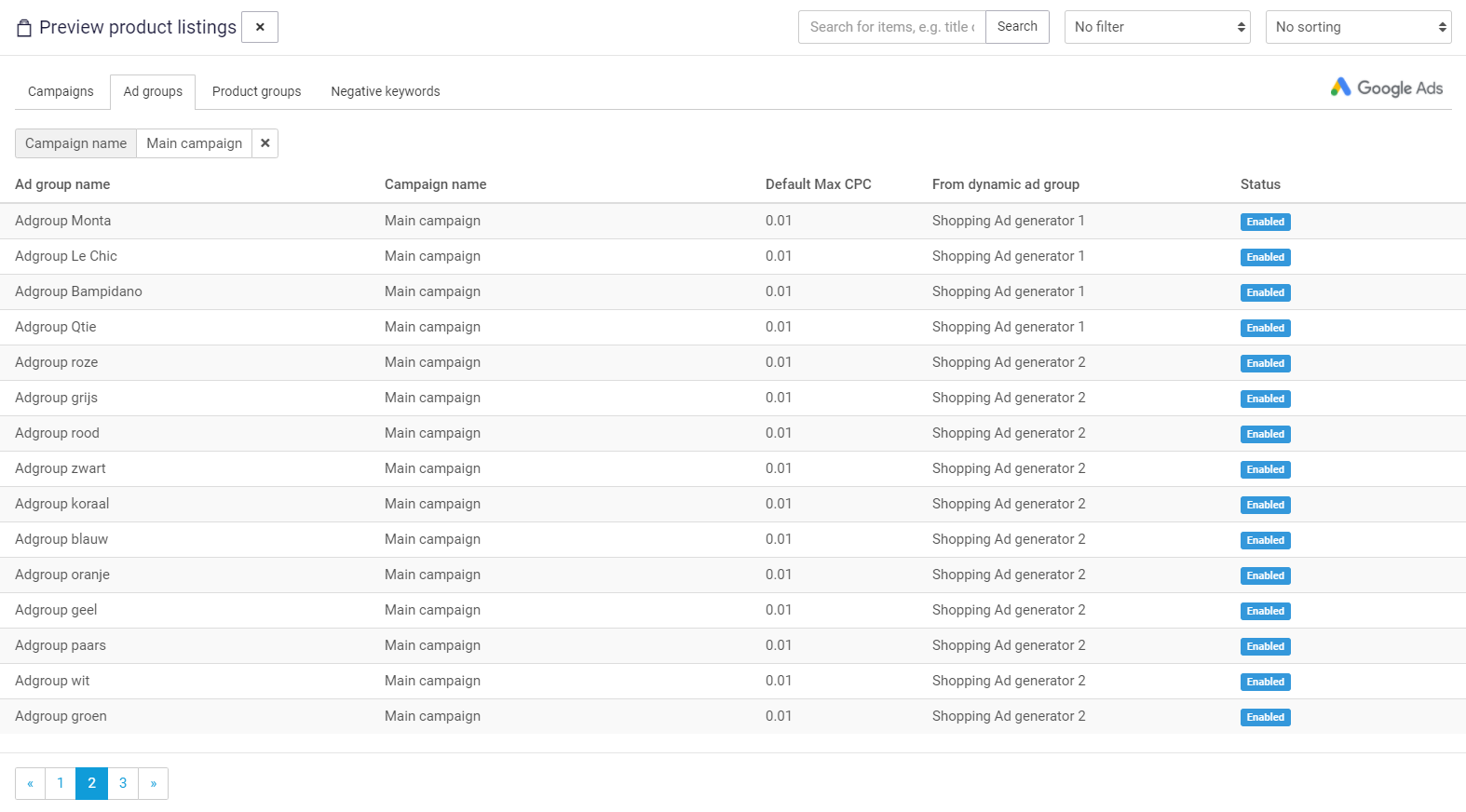
* **Ad group level**\
You will see an overview of all ad groups in the campaign you clicked on. You will also see a column called 'From dynamic ad group'. This column shows which Dynamic Shopping Ad group generator produced the ad group:
For more information on using multiple Shopping Ad Group generators, see [this article](https://channable-test.gitbook.io/channable-test-docs/list-advertise/~/revisions/41I7hnV8leiPulcDgOau/google-shopping/manage-and-optimize-google-ads/google-shopping-ads/configuring-shopping-ads-campaigns/using-multiple-ad-group-generators-for-shopping-ads).
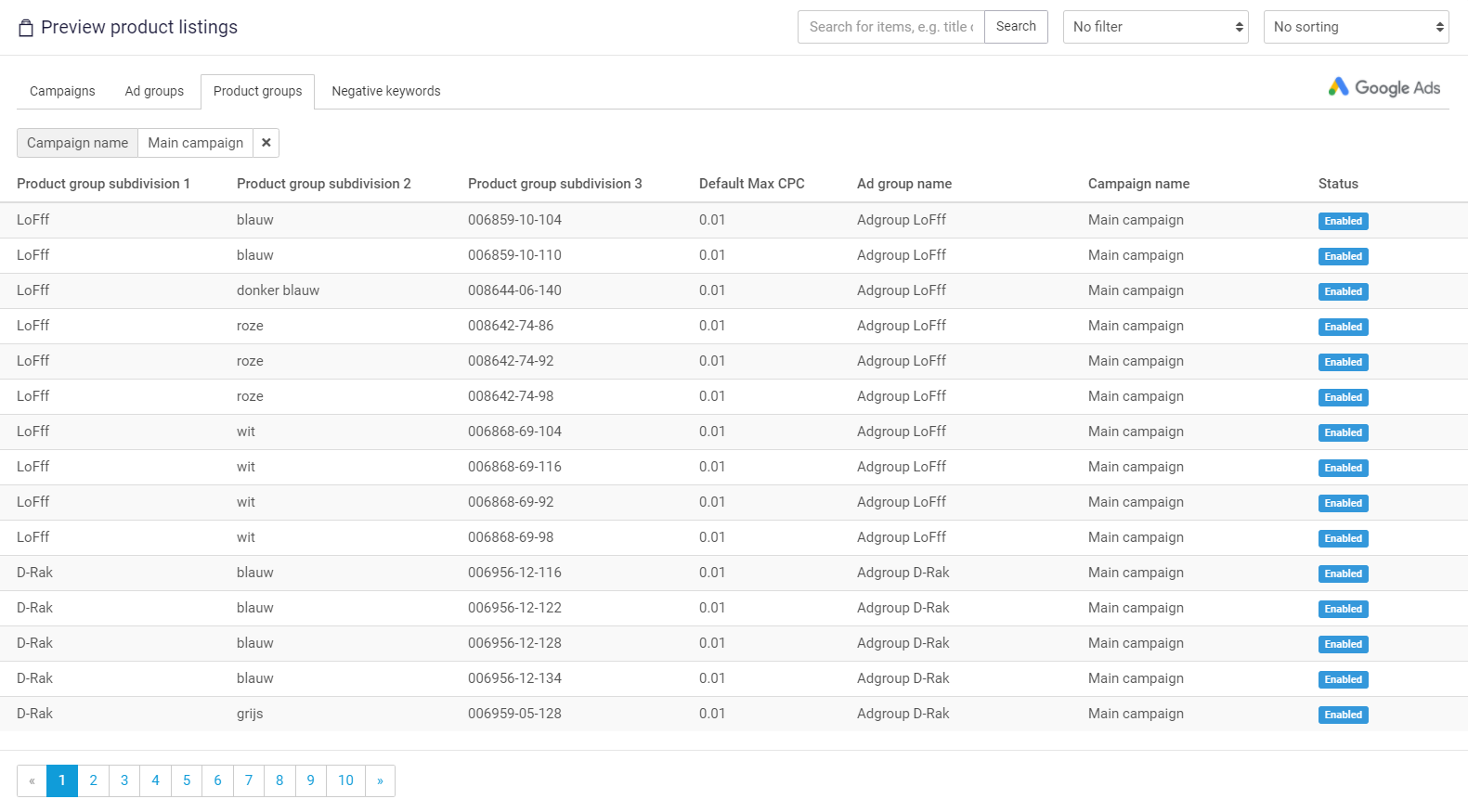
* **Product group level**\
You will see the different product group subdivisions of the specific items. For example, if you have configured the product groups as: \[brand] (level 1), \[color] (level 2) and \[product id] (level 3), the preview will show as follows:
* **Negative keywords**\
Shows all negative keywords within the ad group you have selected.
Other preview features:
* Search for specific items.
* Filter on errors.
* Sort the preview order using the options in the top bar.
{% hint style="info" %}
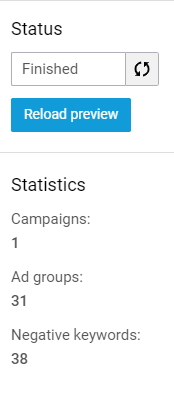
If you made changes and want to check them in the Preview, click "Reload preview" on the right-hand side. This performs a dry run of the generator — even if the generator is active, reloading will only renew the preview and will not send anything to your Google Ads account.
{% endhint %}
You will also see the generator status ('Finished', 'Running' or 'Failed') and the statistics (number of campaigns, ad groups and negative keywords):
{% endstep %}
{% step %}
### Activating and running the generator
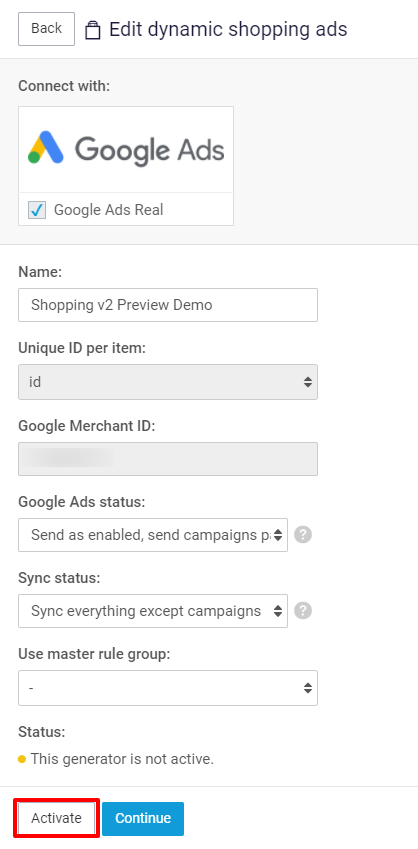
If you are happy with the preview in Channable, you are ready to activate the Shopping Ads generator. Go to the Settings step and first make sure you have set up the Google Status and Sync Status the way you want (for more information, see [this article](/list-advertise/google/manage-and-optimize-google-ads/google-shopping-ads/configuring-shopping-ads-campaigns/what-do-the-different-sync-statuses-do-in-google-shopping-ads.md)). When you are ready, click "Activate". Your Shopping Ad generator is now activated and you can run it to send your Shopping Ad campaigns to your Google Ads account.
{% endstep %}
{% endstepper %}
---
# Agent Instructions
This documentation is published with GitBook. GitBook is the documentation platform designed so that both humans and AI agents can read, navigate, and reason over technical content effectively. Learn more at gitbook.com.
## Querying This Documentation
If you need additional information that is not directly available in this page, you can query the documentation dynamically by asking a question.
Perform an HTTP GET request on the current page URL with the `ask` query parameter, and the optional `goal` query parameter:
```
GET https://helpcenter.channable.com/list-advertise/google/manage-and-optimize-google-ads/google-shopping-ads/configuring-shopping-ads-campaigns/checking-and-activating-a-shopping-ads-generator.md?ask=&goal=
```
`ask` is the immediate question: it should be specific, self-contained, and written in natural language.
`goal` is optional and describes the broader end goal you are ultimately trying to accomplish on behalf of the user. GitBook uses it to tailor the answer towards what is most useful for that goal.
The response will contain a direct answer to the question and relevant excerpts and sources from the documentation.
Use this mechanism when the answer is not explicitly present in the current page, you need clarification or additional context, or you want to retrieve related documentation sections.