> For the complete documentation index, see [llms.txt](https://helpcenter.channable.com/llms.txt). Markdown versions of documentation pages are available by appending `.md` to page URLs; this page is available as [Markdown](https://helpcenter.channable.com/list-advertise/google/manage-and-optimize-google-ads/google-text-ads/ad-groups/setting-up-a-responsive-ad-template.md).
# Setting up a Responsive Ad template
Creating your Google Ads is done in the campaigns and Ad groups steps of your generator. To set up the main part of your ad navigate to the Ad templates tab within the Ad groups step.
### What are Responsive Ads?
Responsive ads are ads that are created by Google Ads using the information provided by you. Instead of setting up an entire ad you setup multiple assets such as headlines and descriptions. Google Ads then uses these assets to create different versions of your ads by mixing the headlines and descriptions. Google Ads also tests the different versions of your ads to learn which ones perform best. In other words, your ads are automatically adapted to the consumer's search terms.
### Setting up main templates
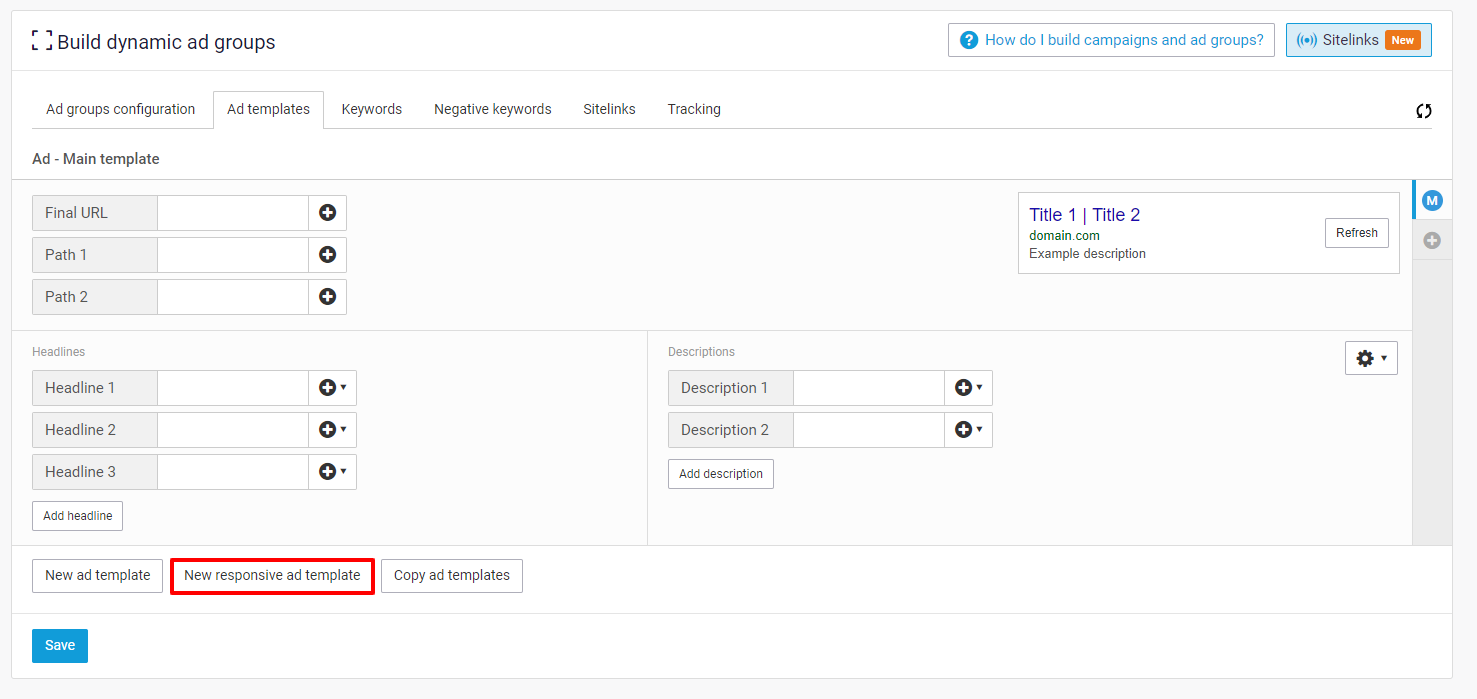
In the Ad templates tab you can click on the "New responsive ad template" button which will create a new main template. You can create a maximum of 3 main responsive ad templates.
{% stepper %}
{% step %}
### Create a new main template
* Click the "New responsive ad template" button to create a new main template.
* You can create up to 3 main responsive ad templates.
{% endstep %}
{% step %}
### Add headlines and descriptions
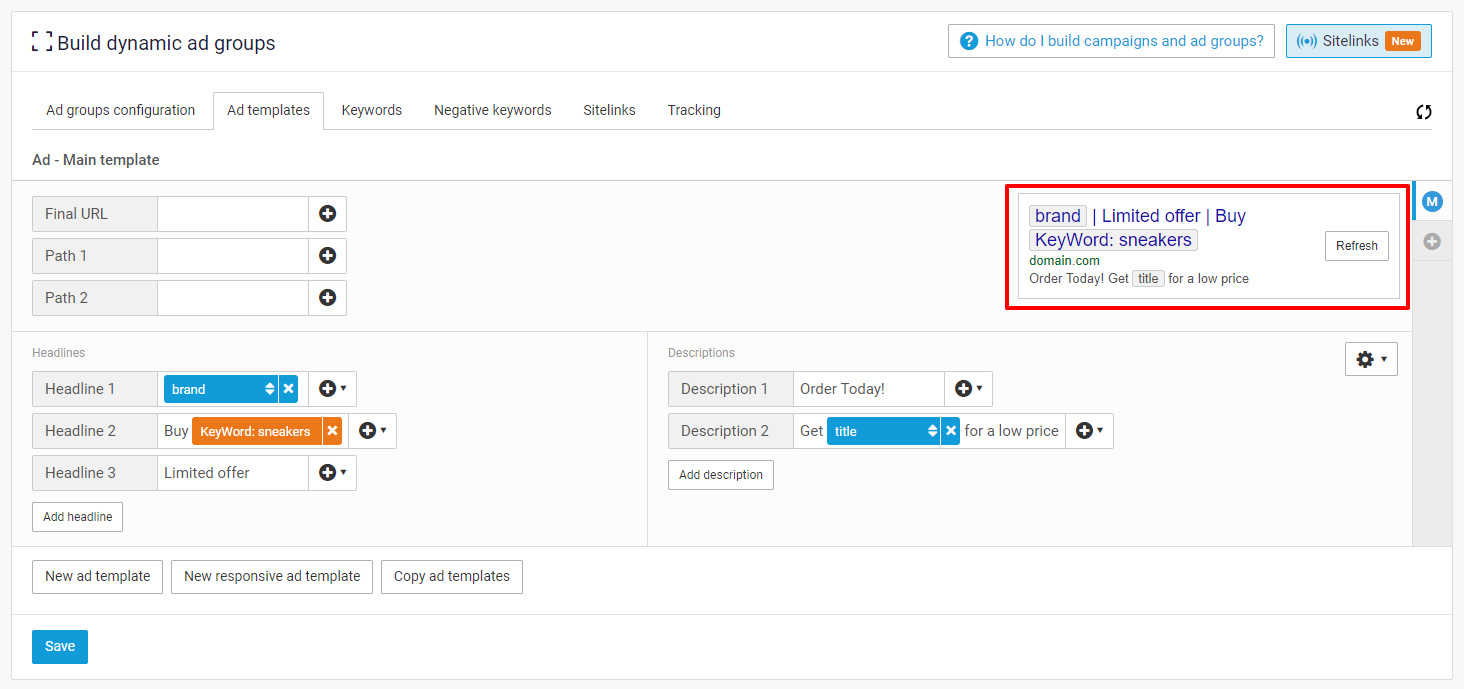
* It is mandatory to provide at least 3 headlines and 2 descriptions.
* You can add up to 15 headlines and 4 descriptions by clicking "Add headline" and "Add description".
* While filling in assets you can use dynamic fields and keyword insertion to use item information and further customize ads. For keyword insertion details see: [How do I use keyword insertion in an Ad template?](/list-advertise/google/manage-and-optimize-google-ads/google-text-ads/ad-groups/how-do-i-use-keyword-insertion-in-an-ad-template.md)
{% endstep %}
{% step %}
### Pin assets (optional)
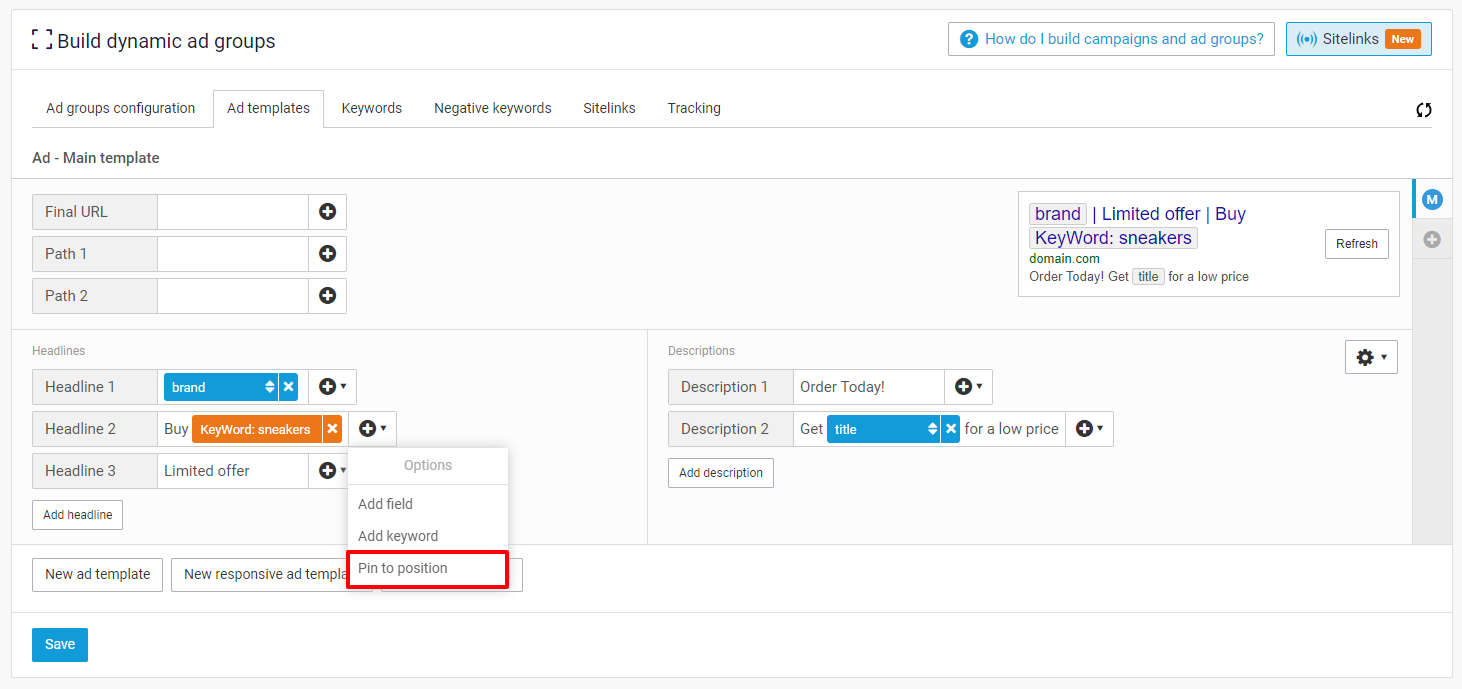
* To ensure an asset always appears in a specific position, pin it.
* In Channable, click the plus (+) icon on an asset and choose "Pin to position".
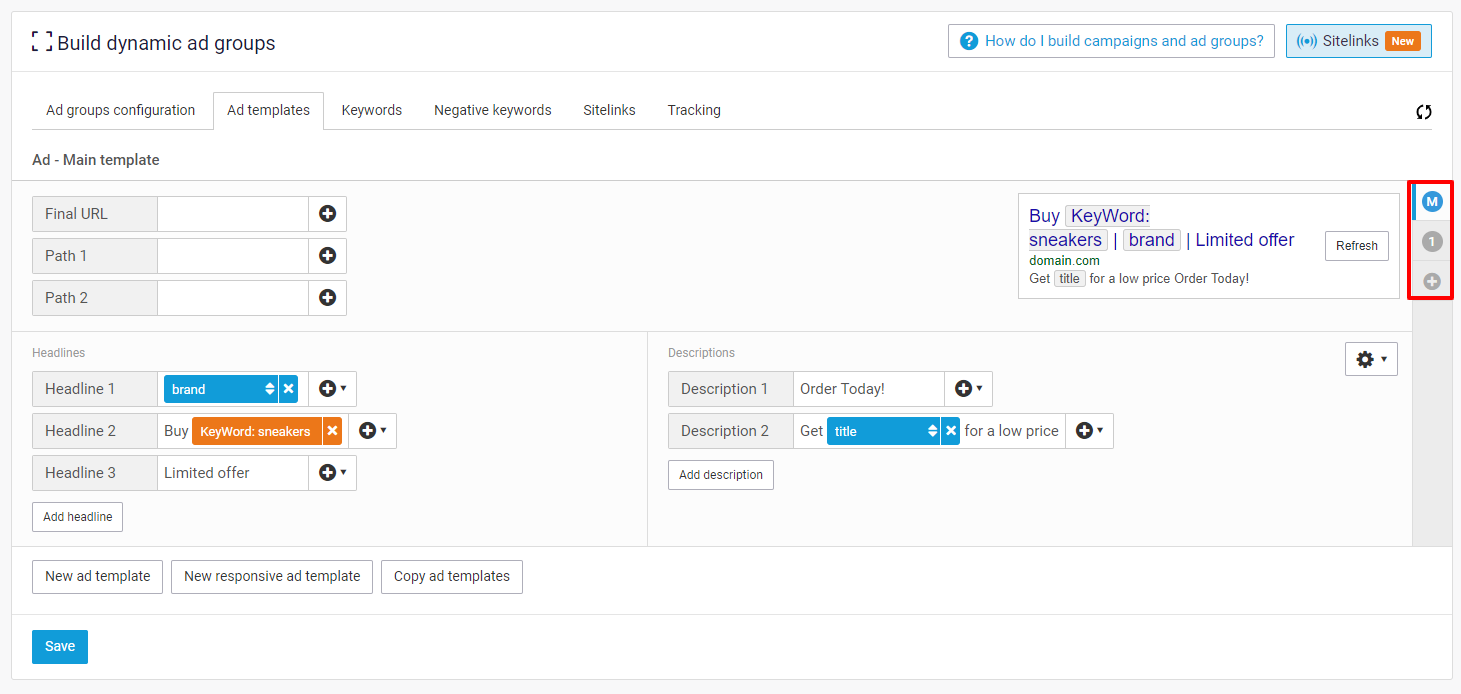
* A smaller popup appears where you select the position to pin the asset to.
{% endstep %}
{% step %}
### Preview combinations
* After adding headlines and descriptions you can preview different combinations in the top right corner of the ad template.
* Click the "Refresh" button to see a new combination of the assets you have set up.
{% endstep %}
{% endstepper %}
### Setting up backup templates
If you add dynamic fields to your Google Ads templates it might happen that the maximum number of characters of some fields is reached. For instance, the maximum length of 'Headline 1' is 30 characters. For other limits of the main templates, see [What kind of ads do you create?](/list-advertise/google/manage-and-optimize-google-ads/google-text-ads/what-kind-of-ads-do-you-create.md)
To circumvent errors for these limits you can add Backup templates to your main templates. These backup templates function as a backup in case fields in primary templates exceed their maximum length. You can add up to four backup templates per main template and use these backup templates to ensure that you send correct ads to Google Ads every time.
{% stepper %}
{% step %}
### Why use backup templates
* Backup templates handle cases where primary template fields exceed Google Ads character limits.
* They ensure ads sent to Google Ads remain valid.
{% endstep %}
{% step %}
### How many backups
* You can add up to four backup templates per main template.
{% endstep %}
{% endstepper %}
---
# Agent Instructions
This documentation is published with GitBook. GitBook is the documentation platform designed so that both humans and AI agents can read, navigate, and reason over technical content effectively. Learn more at gitbook.com.
## Querying This Documentation
If you need additional information that is not directly available in this page, you can query the documentation by asking a question.
Perform an HTTP GET request on the following URL with the `ask` and `goal` query parameters:
```
GET https://helpcenter.channable.com/list-advertise/google/manage-and-optimize-google-ads/google-text-ads/ad-groups/setting-up-a-responsive-ad-template.md?ask=&goal=
```
`ask` is the immediate question: it should be specific, self-contained, and written in natural language.
`goal` is what the user is ultimately trying to achieve, the reason they need the answer. Sharing it helps GitBook give you a better, more relevant answer. A goal is most helpful when it describes the outcome the user wants rather than restating the question. For example, with `ask=how do I create an API token`, a goal like `automate deployments from our CI pipeline` lets GitBook tailor the answer to that use case.
The response will contain a direct answer to the question and relevant excerpts and sources from the documentation.
Use this mechanism when the answer is not explicitly present in the current page, you need clarification or additional context, or you want to retrieve related documentation sections.