> For the complete documentation index, see [llms.txt](https://helpcenter.channable.com/llms.txt). Markdown versions of documentation pages are available by appending `.md` to page URLs; this page is available as [Markdown](https://helpcenter.channable.com/list-advertise/list-and-advertise-fr/bol/lister-des-produits-sur-bol/comment-configurer-un-canal-bol/importing-your-existing-bol-product-data-into-channable.md).
# Importer les données produit bol existantes dans Channable
Apprendre à exporter vos annonces bol actives et à les importer dans Channable, afin que votre premier lancement de canal ne les supprime pas.
Lorsque vous exécutez un canal bol pour la première fois, bol supprime toutes les annonces en ligne que ce canal n’inclut pas. Si vous vendez déjà sur bol, importez ces annonces dans Channable avant votre premier lancement afin qu’elles restent en ligne.
### :memo-circle-check: Avant de commencer
**Vous aurez besoin de**
* D’un compte vendeur bol avec des annonces en ligne.
* D’un projet Channable.
* D’un compte Google, pour mettre le fichier en ligne avec Google Sheets.
**Bon à savoir**
* Bol vous permet de télécharger jusqu’à 150 produits à la fois. Si vous en avez davantage, vous téléchargerez plusieurs fichiers et les combinerez.
* Si vous importez déjà des données produit depuis votre boutique en ligne, vous n’avez pas besoin de remplacer cet import. Ajoutez le fichier bol comme deuxième import et [combinez les imports](https://helpcenter.channable.com/import-data/import-how-to/combine-multiple-imports).
***
{% stepper %}
{% step %}
### Téléchargez vos annonces depuis bol
1. Connectez-vous à votre compte vendeur bol.
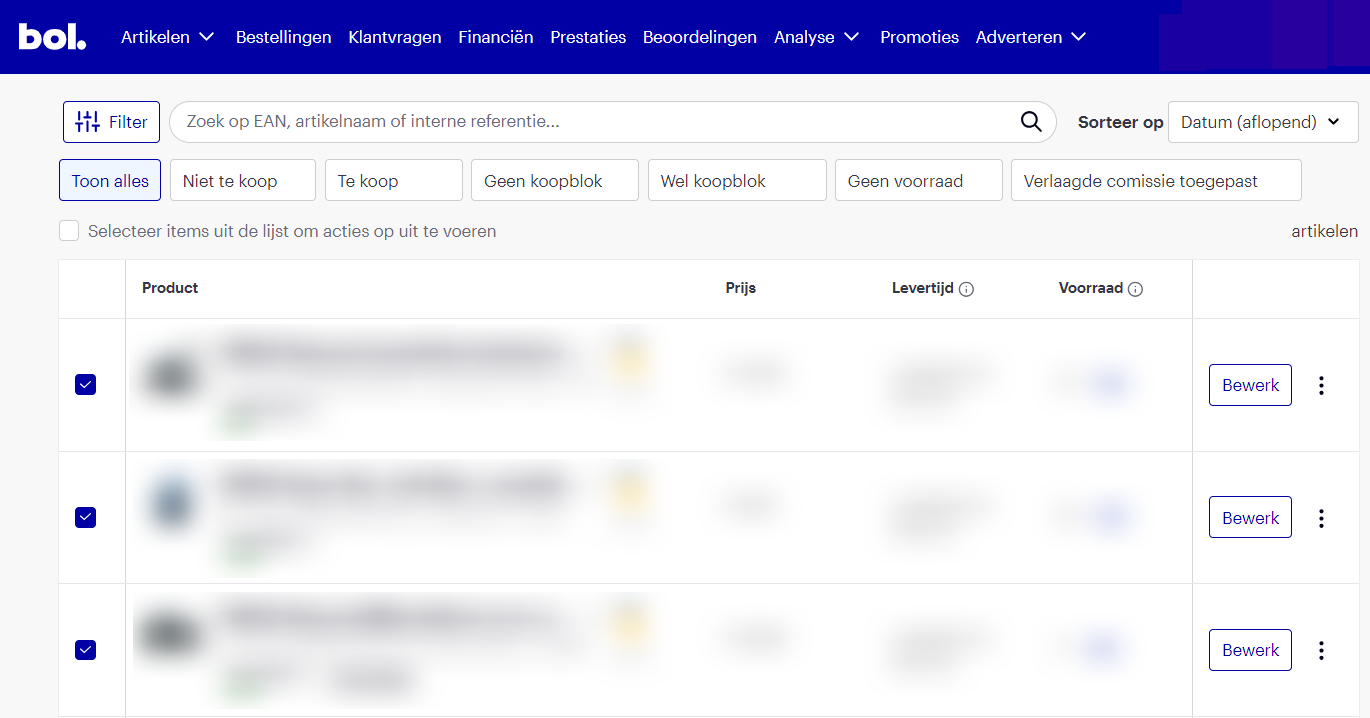
2. Accédez à **Articles** > **Mes articles**. Vous verrez vos annonces actuelles, y compris leur statut et leurs détails.
3. Sélectionnez les produits que vous souhaitez exporter. Vous pouvez en sélectionner jusqu’à 150.
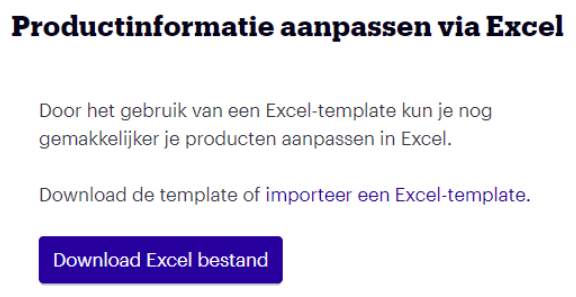
4. Cliquez **Modifier les informations produit**.
5. Cliquez **Télécharger le fichier Excel**.
Si vous avez plus de 150 produits, répétez les étapes 3 à 5 jusqu’à ce que vous les ayez tous téléchargés.
{% endstep %}
{% step %}
### Préparez votre fichier
1. Importez le fichier dans Google Drive et ouvrez-le avec Google Sheets, ou importez-le dans un autre logiciel de tableur. Si vous avez téléchargé plusieurs fichiers, collez toutes les lignes dans une seule feuille.
2. Vérifiez que la première ligne contient les noms de colonnes. Supprimez toutes les lignes au-dessus.
3. Vérifiez que la feuille comporte des colonnes pour les attributs dont votre canal bol a besoin dans la **Produit** section : **EAN**, **Stock**, **Prix**et **Titre**. Si une colonne manque, ajoutez-la et renseignez-la.
* Vérifiez que chaque ligne contient un EAN. Bol n’accepte que les produits avec un EAN.
4. [Partagez la feuille](/import-data/import-data-fr/guide-dimportation/importez-vos-donnees-produit/importer-via-un-fichier-de-donnees/google-sheets/partagez-une-google-sheet-rendez-la-publique.md) pour permettre à N'importe qui disposant du lien de la consulter.
{% endstep %}
{% step %}
### Importez le fichier dans Channable
1. Dans Channable, ouvrez votre projet.
2. Accédez à **Installation** > **+ Installez votre import** ou [**Combiner l'import**](/import-data/import-data-fr/guide-dimportation/combinez-plusieurs-importations.md).
3. Sélectionner le **fichier Google Sheets** type.
4. Pour **Nom**, saisissez un nom qui vous indique ce que l'import contient, par exemple « bol existing listings ».
5. Pour **URL feuille de calcul Google**, collez l'URL de votre feuille.
6. Cliquez **Lancer l'import**.
7. Sur la **Modifier mapping** page, vérifiez que la colonne EAN est liée au `ean` Champ de projet, puis cliquez sur Sauvegarder pour enregistrer votre mapping.
Pour plus de détails sur chaque paramètre, consultez [Importation depuis Google Sheets](/import-data/import-data-fr/guide-dimportation/importez-vos-donnees-produit/importer-via-un-fichier-de-donnees/google-sheets.md).
{% endstep %}
{% step %}
### Configurez un canal bol
Continuez avec les étapes ci-dessous :
{% content-ref url="/pages/5d4bc6274f6b446f6656aaf7e1523f4f46ac09e4" %}
[Comment configurer un canal bol](/list-advertise/list-and-advertise-fr/bol/lister-des-produits-sur-bol/comment-configurer-un-canal-bol.md)
{% endcontent-ref %}
{% endstep %}
{% endstepper %}
---
# Agent Instructions
This documentation is published with GitBook. GitBook is the documentation platform designed so that both humans and AI agents can read, navigate, and reason over technical content effectively. Learn more at gitbook.com.
## Querying This Documentation
If you need additional information that is not directly available in this page, you can query the documentation by asking a question.
Perform an HTTP GET request on the following URL with the `ask` and `goal` query parameters:
```
GET https://helpcenter.channable.com/list-advertise/list-and-advertise-fr/bol/lister-des-produits-sur-bol/comment-configurer-un-canal-bol/importing-your-existing-bol-product-data-into-channable.md?ask=&goal=
```
`ask` is the immediate question: it should be specific, self-contained, and written in natural language.
`goal` is what the user is ultimately trying to achieve, the reason they need the answer. Sharing it helps GitBook give you a better, more relevant answer. A goal is most helpful when it describes the outcome the user wants rather than restating the question. For example, with `ask=how do I create an API token`, a goal like `automate deployments from our CI pipeline` lets GitBook tailor the answer to that use case.
The response will contain a direct answer to the question and relevant excerpts and sources from the documentation.
Use this mechanism when the answer is not explicitly present in the current page, you need clarification or additional context, or you want to retrieve related documentation sections.