> For the complete documentation index, see [llms.txt](https://helpcenter.channable.com/llms.txt). Markdown versions of documentation pages are available by appending `.md` to page URLs; this page is available as [Markdown](https://helpcenter.channable.com/list-advertise/list-and-advertise-it/bol/pubblica-items-su-bol/importare-in-channable-i-dati-dei-tuoi-prodotti-bol-gia-esistenti.md).
# Importare in Channable i dati dei tuoi prodotti bol già esistenti
Per i venditori esistenti su bol che iniziano con Channable, capire come trasferire efficacemente le inserzioni prodotto può farti risparmiare tempo e assicurare che i tuoi dati siano corretti. Questo articolo mostra come scaricare i tuoi articoli da bol in un file Excel e prepararli per l'importazione in Channable.
{% stepper %}
{% step %}
### Accedi alla lista articoli
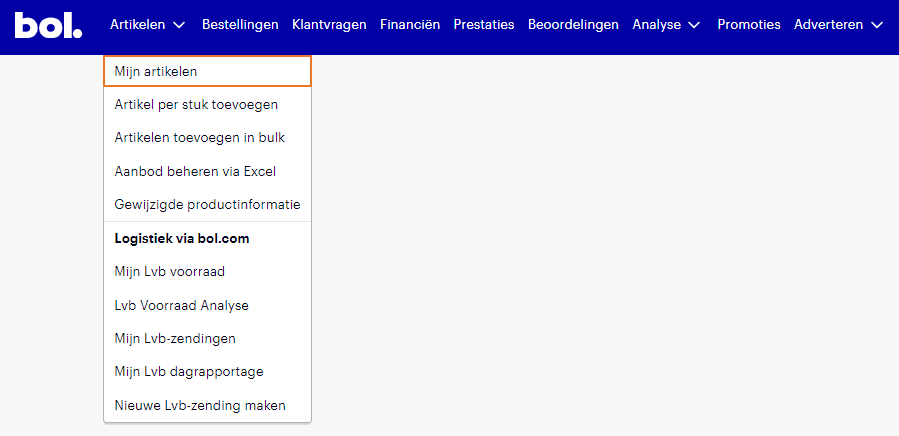
1. Accedi al tuo account venditore Bol.com. Vai alla sezione 'Artikelen' > 'Mijn artikelen' dal pannello.
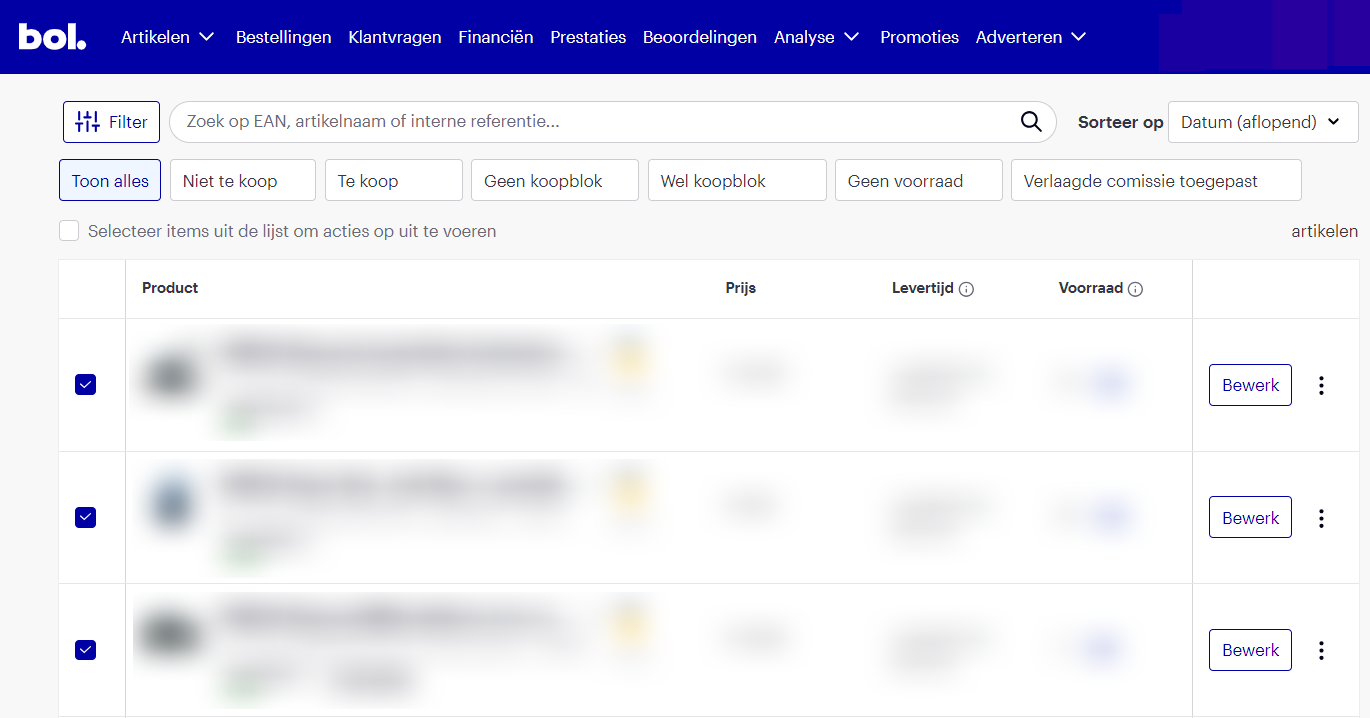
2. Panoramica delle tue inserzioni: qui puoi vedere tutte le tue inserzioni attuali, incluso lo status e i dettagli.
{% endstep %}
{% step %}
### Scarica i tuoi prodotti
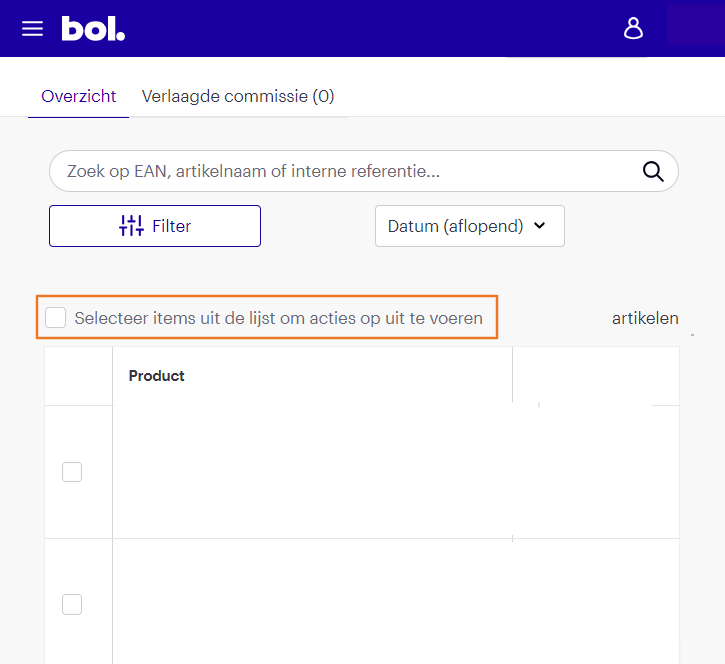
1. Seleziona gli articoli da esportare: puoi selezionare singoli articoli o scegliere di scaricare un massimo di 150 prodotti alla volta.
2. Vai su 'Bewerk productinformatie' dopo aver selezionato i prodotti.
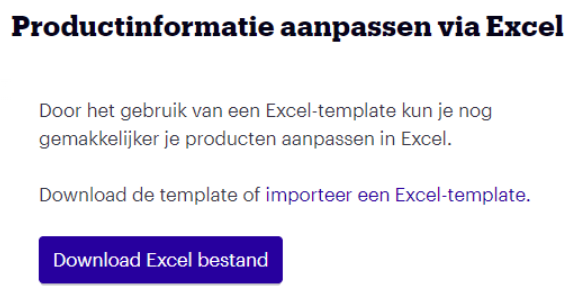
3. Avvia il download: clicca sull'opzione 'Download Excel-bestand' (Scarica file Excel). Verrà generato un modello Excel con i dati dei tuoi prodotti.
{% endstep %}
{% step %}
### Prepara il file Excel per Channable
1. Apri il file scaricato e controlla i dati per assicurarti che tutte le informazioni necessarie siano incluse, come nomi prodotto, EAN e descrizioni.
2. Modifica o aggiungi gli attributi richiesti: verifica che tutti i campi di cui Channable ha bisogno siano presenti e formattati correttamente secondo le specifiche di Channable.
3. Decidi come rendere il file disponibile online: scegli come Channable recupererà le informazioni aggiornate dal file (per esempio, usando Google Sheets). Vedi [Importare da un foglio Google](broken://spaces/O0Uy7RQSHOnA0LlCtOJc/pages/55a07dd2f1ac9bf63653ef310cd79f11eea036db) per le istruzioni su come pubblicare un file Google Sheets.
Dopo aver preparato il file, puoi seguire il processo di importazione standard di Channable.
{% endstep %}
{% step %}
### Importa in Channable
1. Accedi al tuo account Channable e seleziona il progetto appropriato.
2. Vai alla sezione importazione e scegli l'opzione di importazione rilevante.
3. Crea la nuova importazione: Channable creerà automaticamente il progetto e collegherà i campi dal tuo feed di importazione.
Seguendo questi passaggi puoi trasferire le tue inserzioni da Bol a Channable e gestirle in modo efficiente.
{% endstep %}
{% endstepper %}
---
# Agent Instructions
This documentation is published with GitBook. GitBook is the documentation platform designed so that both humans and AI agents can read, navigate, and reason over technical content effectively. Learn more at gitbook.com.
## Querying This Documentation
If you need additional information that is not directly available in this page, you can query the documentation by asking a question.
Perform an HTTP GET request on the following URL with the `ask` and `goal` query parameters:
```
GET https://helpcenter.channable.com/list-advertise/list-and-advertise-it/bol/pubblica-items-su-bol/importare-in-channable-i-dati-dei-tuoi-prodotti-bol-gia-esistenti.md?ask=&goal=
```
`ask` is the immediate question: it should be specific, self-contained, and written in natural language.
`goal` is what the user is ultimately trying to achieve, the reason they need the answer. Sharing it helps GitBook give you a better, more relevant answer. A goal is most helpful when it describes the outcome the user wants rather than restating the question. For example, with `ask=how do I create an API token`, a goal like `automate deployments from our CI pipeline` lets GitBook tailor the answer to that use case.
The response will contain a direct answer to the question and relevant excerpts and sources from the documentation.
Use this mechanism when the answer is not explicitly present in the current page, you need clarification or additional context, or you want to retrieve related documentation sections.