> For the complete documentation index, see [llms.txt](https://helpcenter.channable.com/llms.txt). Markdown versions of documentation pages are available by appending `.md` to page URLs; this page is available as [Markdown](https://helpcenter.channable.com/list-advertise/list-and-advertise-nl/bol/lijst-items-op-bol/hoe-je-een-bol-kanaal-instelt/importing-your-existing-bol-product-data-into-channable.md).
# Importeer bestaande bol-productdata in Channable
Leer hoe je je live bol-vermeldingen exporteert en importeert in Channable, zodat je eerste kanaalrun ze niet Verwijdert.
Wanneer je een bol-kanaal voor de eerste keer start, verwijdert bol al je live vermeldingen die het kanaal niet bevat. Als je al op bol verkoopt, importeer die vermeldingen dan in Channable voordat je het voor de eerste keer runt, zodat ze online blijven.
### :memo-circle-check: Voordat je begint
**Je hebt nodig**
* Een bol Verkoper Account met live vermeldingen.
* Een Channable-project.
* Een Google Account, om het bestand online te zetten met Google Sheets.
**Goed om te weten**
* Bol laat je tot 150 producten per keer downloaden. Heb je er meer, dan download je meerdere bestanden en voeg je ze samen.
* Als je al productgegevens vanuit je webshop importeert, hoef je die import niet te vervangen. Voeg het bol-bestand toe als tweede import en [voeg de imports samen](https://helpcenter.channable.com/import-data/import-how-to/combine-multiple-imports).
***
{% stepper %}
{% step %}
### Download je vermeldingen van bol
1. Log in op je bol-verkopersaccount.
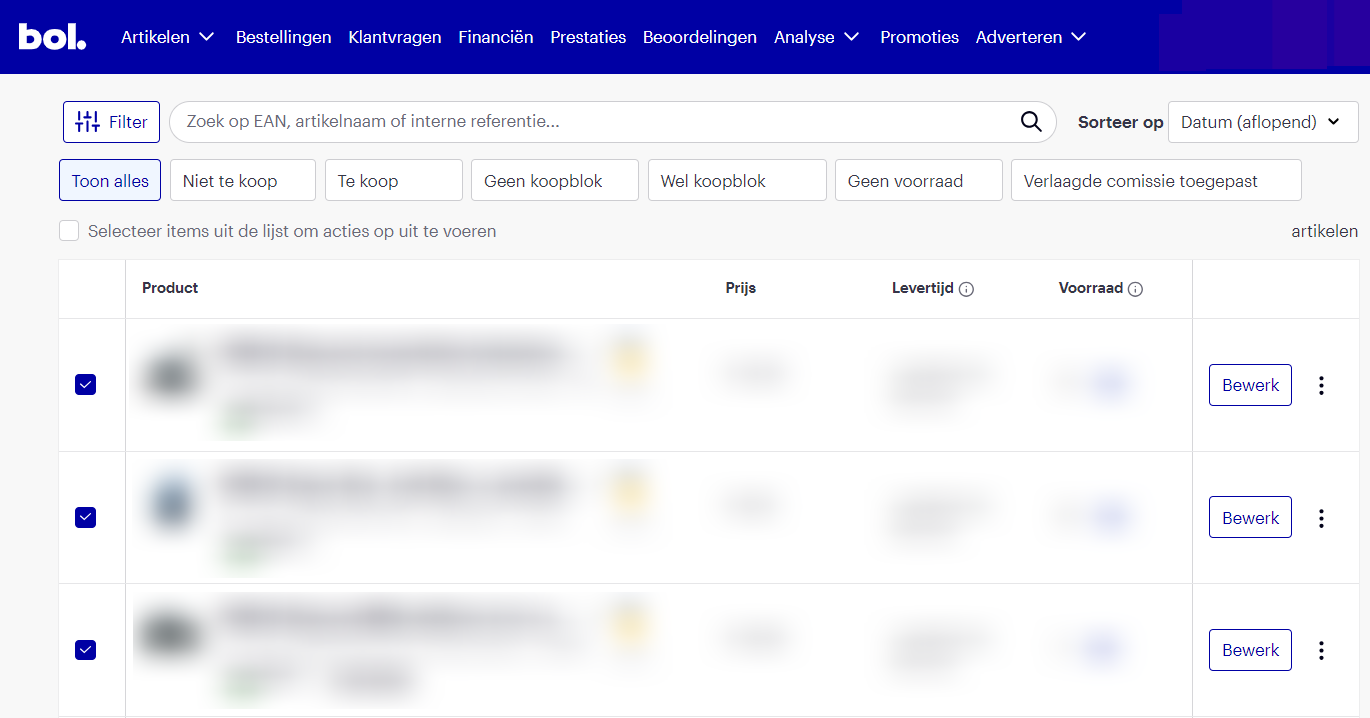
2. Ga Naar **Artikelen** > **Mijn artikelen**. Je ziet je actuele vermeldingen, inclusief hun status en details.
3. Selecteer de producten die je wilt exporteren. Je kunt er maximaal 150 selecteren.
4. Klik **Bewerk productinformatie**.
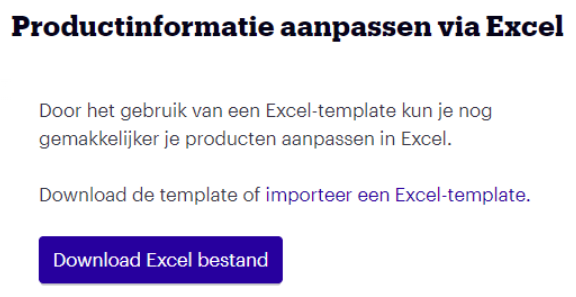
5. Klik **Download Excel-bestand**.
Als je meer dan 150 producten hebt, herhaal je stappen 3 tot en met 5 totdat je ze allemaal hebt gedownload.
{% endstep %}
{% step %}
### Bereid je bestand voor
1. Upload het bestand Naar Google Drive en open het met Google Sheets, of upload het Naar andere spreadsheetsoftware. Als je meerdere bestanden hebt gedownload, plak alle rijen in één werkblad.
2. Zorg ervoor dat de eerste rij de kolomnamen bevat. Verwijder alle rijen erboven.
3. Controleer of het werkblad kolommen heeft voor de attributen die je bol-kanaal nodig heeft in de **Item** sectie: **EAN**, **Voorraad**, **Prijs**, en **Titel**. Als een kolom ontbreekt, voeg je die toe en vul je hem in.
* Zorg ervoor dat elke rij een EAN heeft. Bol accepteert alleen producten met een EAN.
4. [Het werkblad delen](https://helpcenter.channable.com/import-data/import-data-nl/importhandleiding/importeer-je-productgegevens/importeren-via-een-gegevensbestand/google-sheets/deel-een-google-sheet-maak-openbaar-beschikbaar.md) zodat iedereen met de link het kan bekijken.
{% endstep %}
{% step %}
### Importeer het bestand in Channable
1. Open in Channable je project.
2. Ga Naar **Setup** > **+ Import instellen** of [**Import combineren**](https://helpcenter.channable.com/import-data/import-data-nl/importhandleiding/combineer-meerderen-imports.md).
3. Selecteer de **Google Spreadsheets** bestandstype.
4. Voor **Naam**, voer een naam in die aangeeft wat de import bevat, zoals "bol bestaande vermeldingen".
5. Voor **Google Spreadsheet url**, plak de URL van je spreadsheet.
6. Klik **Import starten**.
7. Op de **Wijzig mapping** pagina, controleer dat de EAN-kolom gekoppeld is Naar de `EAN` Projectvelden, dan klik je op Opslaan om je Mapping op te slaan.
Voor details over elke instelling, zie [Importeer vanuit Google Sheets](https://helpcenter.channable.com/import-data/import-data-nl/importhandleiding/importeer-je-productgegevens/importeren-via-een-gegevensbestand/google-sheets.md).
{% endstep %}
{% step %}
### Stel een bol-kanaal in
Ga verder met de stappen in:
{% content-ref url="/pages/8e8d067a6946720161b570a9f151978a998817e7" %}
[Hoe je een bol-kanaal instelt](https://helpcenter.channable.com/list-advertise/list-and-advertise-nl/bol/lijst-items-op-bol/hoe-je-een-bol-kanaal-instelt.md)
{% endcontent-ref %}
{% endstep %}
{% endstepper %}
---
# Agent Instructions
This documentation is published with GitBook. GitBook is the documentation platform designed so that both humans and AI agents can read, navigate, and reason over technical content effectively. Learn more at gitbook.com.
## Querying This Documentation
If you need additional information that is not directly available in this page, you can query the documentation by asking a question.
Perform an HTTP GET request on the following URL with the `ask` and `goal` query parameters:
```
GET https://helpcenter.channable.com/list-advertise/list-and-advertise-nl/bol/lijst-items-op-bol/hoe-je-een-bol-kanaal-instelt/importing-your-existing-bol-product-data-into-channable.md?ask=&goal=
```
`ask` is the immediate question: it should be specific, self-contained, and written in natural language.
`goal` is what the user is ultimately trying to achieve, the reason they need the answer. Sharing it helps GitBook give you a better, more relevant answer. A goal is most helpful when it describes the outcome the user wants rather than restating the question. For example, with `ask=how do I create an API token`, a goal like `automate deployments from our CI pipeline` lets GitBook tailor the answer to that use case.
The response will contain a direct answer to the question and relevant excerpts and sources from the documentation.
Use this mechanism when the answer is not explicitly present in the current page, you need clarification or additional context, or you want to retrieve related documentation sections.