> For the complete documentation index, see [llms.txt](https://helpcenter.channable.com/llms.txt). Markdown versions of documentation pages are available by appending `.md` to page URLs; this page is available as [Markdown](https://helpcenter.channable.com/list-advertise/list-and-advertise-nl/bol/lijst-items-op-bol/hoe-je-fbb-lvb-en-fbr-voor-bol-instelt.md).
# Hoe je FBB (LVB) en FBR voor bol instelt
Wanneer je verkoopt op bol en een bestelling ontvangt, zijn er twee afhandelopties:
* **FBR (Fulfillment by Retailer):** Met deze optie verzendt de retailer (jij) de bestelling naar de klant.
* **FBB (Fulfillment by bol)/LVB (Logistiek via bol):** Je slaat voorraad op in het magazijn van bol. Wanneer een product besteld wordt, verzorgt bol de levering en retouren.
Als je beide afhandeltypen gebruikt, kun je dit aangeven met een dynamisch veld.
In dit artikel leer je hoe je het afhandeltype instelt voor je bol-kanaal.
***
#### :list-check: Voordat je begint
**Je hebt nodig**
* Een bol-kanaal
**Goed om te weten**
**FBB (Fulfillment by bol) en FBR (Fulfillment by Retailer) samen gebruiken:**
* Als je zowel FBB als FBR gebruikt, adviseren we om twee aparte koppelingen te gebruiken.
* Zonder een aparte koppeling voor FBB kan Channable je bestellingen niet ophalen en naar je webshop of ERP-systeem sturen.
* Standaard haalt de orderkoppeling alleen FBR-bestellingen op.
### Hoe je het bol-afhandeltype voor je items instelt
Al mijn items gebruiken hetzelfde afhandeltype
Als al je items met hetzelfde type worden afgehandeld, kun je de statische waarde gebruiken `FBB` of `FBR` om deze op al je items toe te passen.
1. Ga naar de **Bouwen** stap van **\[je bol-kanaal]**.
2. Bij **Afhandeling**, selecteer **Statische waarden > \[afhandeltype]**.
3. Klik **Opslaan**.
Mijn items gebruiken verschillende afhandeltypes
Als je items verschillende afhandeltypes gebruiken, kun je een dynamisch veld koppelen dat voor elk bol-item het juiste afhandeltype bevat.
{% hint style="info" %}
Opmerking: Dit veld moet de waarde bevatten `FBB` of `FBR`.
{% endhint %}
1. Ga naar de **Bouwen** stap van **\[je bol-kanaal]**.
2. Bij **Afhandeling**, selecteer het veld met je afhandelingsinformatie.
3. Klik **Opslaan**.
#### **Hoe je een dynamisch afhandeltype-veld maakt**
Als je items verschillende afhandeltypes hebben, moet je een veld koppelen dat die informatie bevat voor het **Afhandeling** attribuut in de Build-stap.
Volg deze stappen om een projectveld voor afhandeltype te maken:
1. In **de Rules-stap**, klik :file-circle-plus: om een nieuw projectveld aan te maken.
2. Geef je nieuwe veld een naam (bijv. `levering_bol`).
3. Klik **Maak aan**.
4. Maak een nieuwe regel om dat veld te vullen met FBR/FBB-informatie.
{% hint style="info" %}
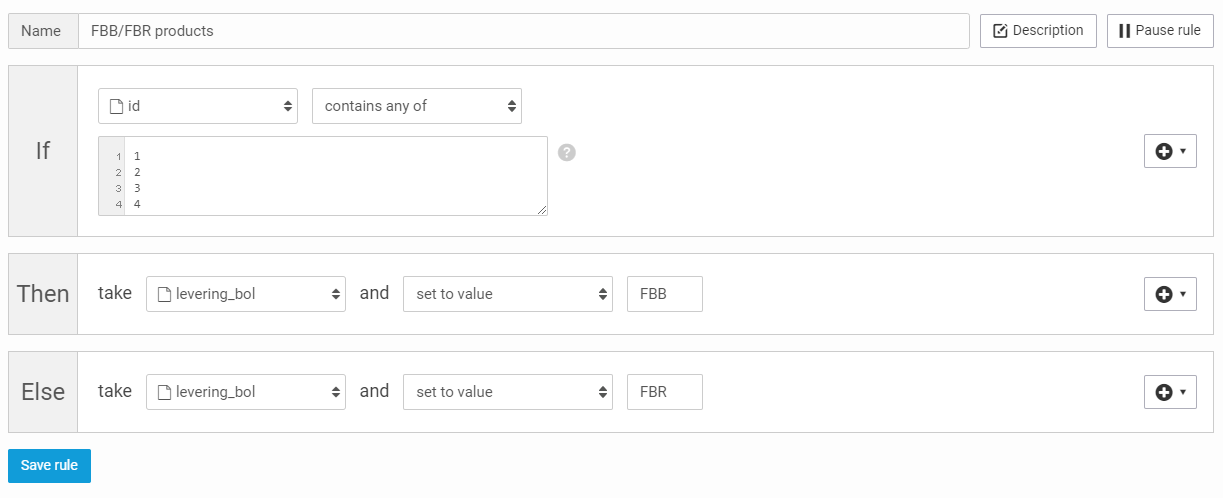
**Voorbeeld 1: Maak een regel met behulp van ID's**
* **Als:** `id` `bevat één van` \[item-id nummers]
* **Dan:** neem `levering_bol` en `plaats waarde` `FBR`
* **Anders:** neem `levering_bol` en `plaats waarde` `FBB`.
{% endhint %}
{% hint style="info" %}
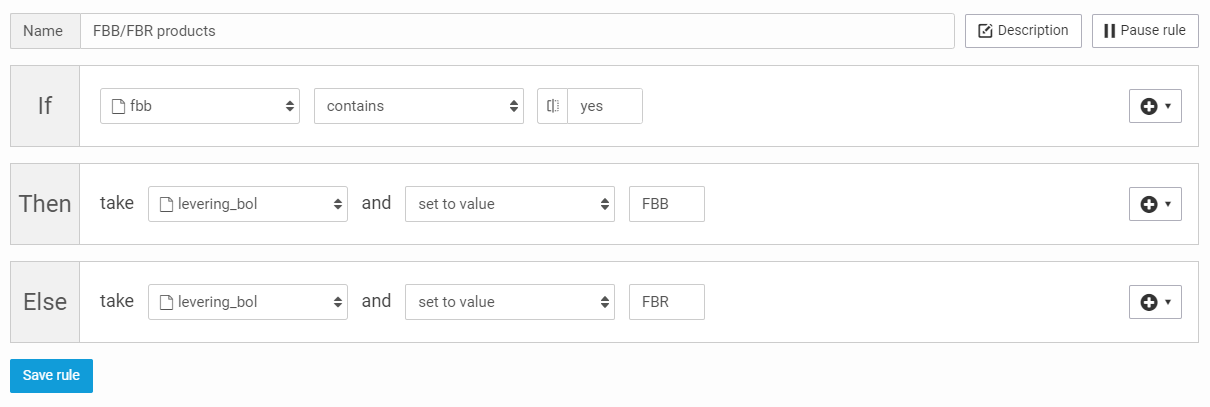
**Voorbeeld 2: Vullen met bestaand veld**
* **Als:** `FBB` bevat `ja`
* **Dan:** neem `levering_bol` en `plaats waarde` `FBB`
* **Anders:** neem `levering_bol` en `plaats waarde` `FBR`
{% endhint %}
---
# Agent Instructions
This documentation is published with GitBook. GitBook is the documentation platform designed so that both humans and AI agents can read, navigate, and reason over technical content effectively. Learn more at gitbook.com.
## Querying This Documentation
If you need additional information that is not directly available in this page, you can query the documentation by asking a question.
Perform an HTTP GET request on the following URL with the `ask` and `goal` query parameters:
```
GET https://helpcenter.channable.com/list-advertise/list-and-advertise-nl/bol/lijst-items-op-bol/hoe-je-fbb-lvb-en-fbr-voor-bol-instelt.md?ask=&goal=
```
`ask` is the immediate question: it should be specific, self-contained, and written in natural language.
`goal` is what the user is ultimately trying to achieve, the reason they need the answer. Sharing it helps GitBook give you a better, more relevant answer. A goal is most helpful when it describes the outcome the user wants rather than restating the question. For example, with `ask=how do I create an API token`, a goal like `automate deployments from our CI pipeline` lets GitBook tailor the answer to that use case.
The response will contain a direct answer to the question and relevant excerpts and sources from the documentation.
Use this mechanism when the answer is not explicitly present in the current page, you need clarification or additional context, or you want to retrieve related documentation sections.