> For the complete documentation index, see [llms.txt](https://helpcenter.channable.com/llms.txt). Markdown versions of documentation pages are available by appending `.md` to page URLs; this page is available as [Markdown](https://helpcenter.channable.com/list-advertise/list-and-advertise-nl/verkopen-op-marktplaatsen/zalando/hoe-automatiseer-ik-retourtrackingkeys-voor-otto-en-zalando-met-channable.md).
# Hoe automatiseer ik retourtrackingkeys voor OTTO en Zalando met Channable
Het efficiënt afhandelen van retouren is cruciaal wanneer je actief bent op marketplaces zoals OTTO en Zalando. Deze platforms hebben een specifieke eis: klanten moeten bij het bevestigen van hun retourzending een return tracking key doorgeven.
Dat betekent dat wanneer een klant een aankoop doet, de order al een return tracking key kan hebben voor het geval van een eventuele retour. Dit artikel legt uit hoe je dit proces met Channable kunt automatiseren.
Hieronder vind je de lijst met imports die we momenteel ondersteunen:
* Shopware 5
* Shopware 6
* WooCommerce
* Shopify
* Magento
Vervoerder-mapping
Bij het configureren van je Return Tracking Key moet je ervoor zorgen dat de vervoerder (Transporter) die voor de return tracking-code gebruikt wordt, is gemapped in je vervoerdersinstellingen — net zoals de Transporter-mapping voor Track & Trace-codes. Als deze nog niet gemapped is, map deze dan eerst. Lees voor meer informatie [dit artikel](/list-advertise/list-and-advertise-nl/orders/verwerken-van-orders-retouren-en-annuleringen/vervoerders.md).
Waar plaats ik mijn return keys?
Retouren zijn voor de meeste marketplaces geautomatiseerd. OTTO en Zalando vragen echter dat je return tracking keys handmatig invult in specifieke velden zodat Channable ze kan verwerken. De functie wordt voor meerdere platforms ondersteund. Hieronder vind je instructies om deze velden aan te maken en te vullen per ondersteund platform.
{% stepper %}
{% step %}
### Shopware 5
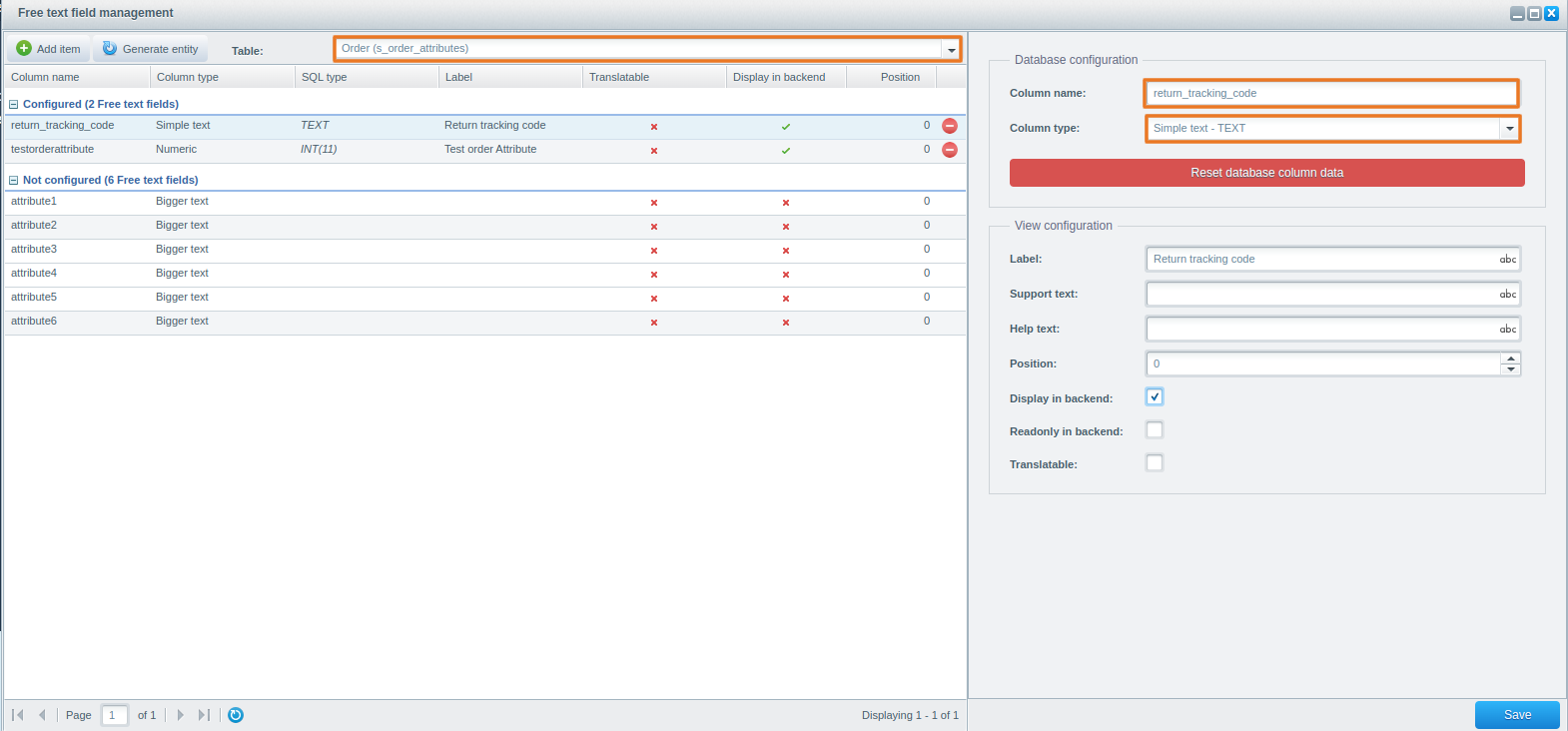
* Ga naar Configuratie > Beheer vrije tekstvelden (Configuration > Free Text Field Management).
* Voeg een nieuw tekstveld toe aan de Orders-tabel (s\_order\_attributes).
* Zorg dat Weergeven in backend (Display in Backend) is geselecteerd, zodat het zichtbaar en bewerkbaar is in het orderoverzicht.
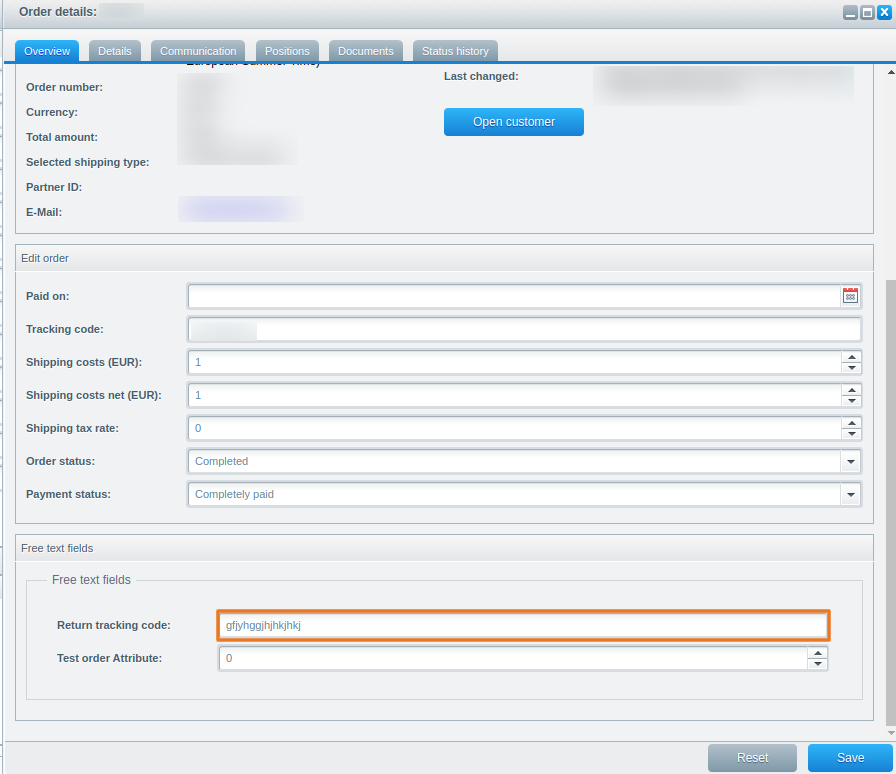
* Sla het nieuwe veld op. Het verschijnt onderaan het orderoverzicht om in te vullen.
* De veldnaam die je moet gebruiken bij het ophalen van deze data is returnTrackingCode, ook als je het tijdens het maken return\_tracking\_code hebt genoemd.
{% endstep %}
{% step %}
### Shopware 6
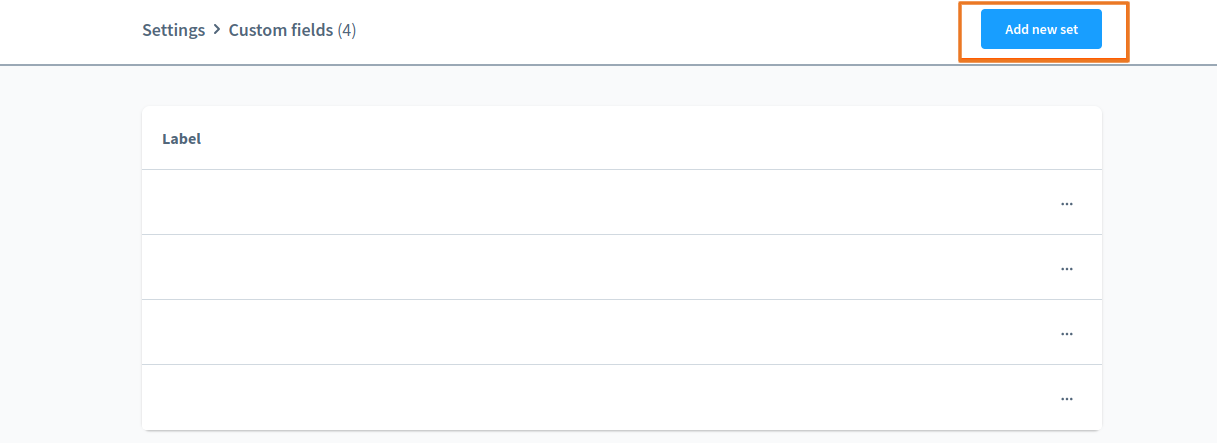
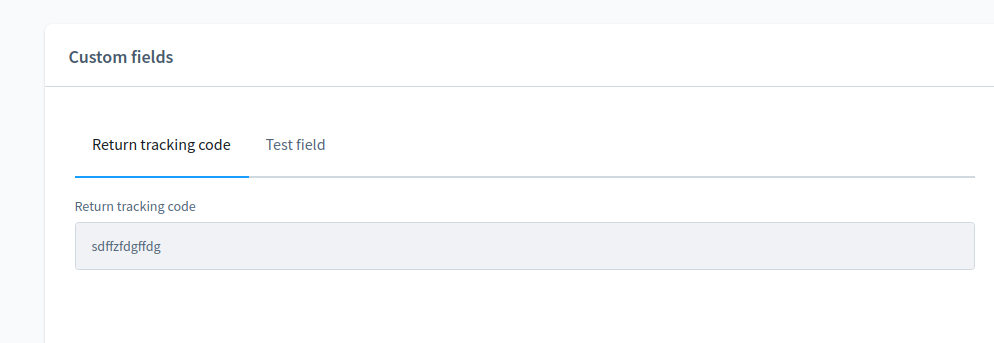
* Ga in het Shopware-dashboard naar Instellingen > Systeem > Aangepaste velden (Settings > System > Custom Fields).
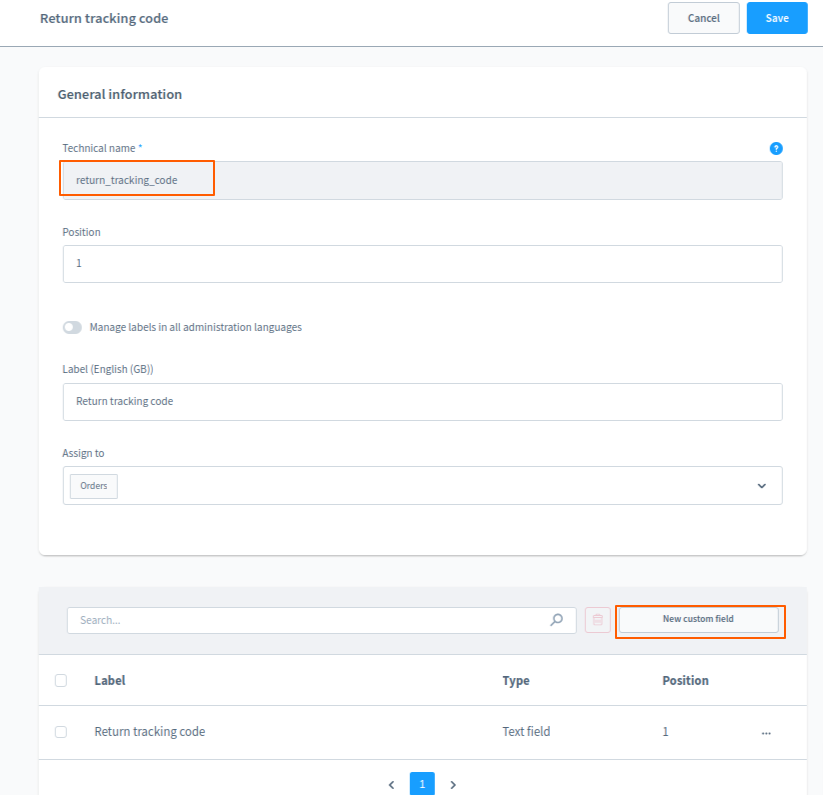
* Klik op Set toevoegen (Add Set) om een nieuwe set te maken met de naam: Return tracking code.
* Maak binnen de nieuwe set een nieuw tekst custom field aan.
* Noem zowel het technische veld als het label return\_tracking\_code.
* Sla je wijzigingen op. Dit custom field is nu beschikbaar onderaan de orderdetails om in te vullen.
{% endstep %}
{% step %}
### WooCommerce
* Ga in je WordPress-dashboard naar WooCommerce > Orders om je orderlijst te bekijken.
* Selecteer de specifieke order waaraan je een return tracking code wilt toevoegen.
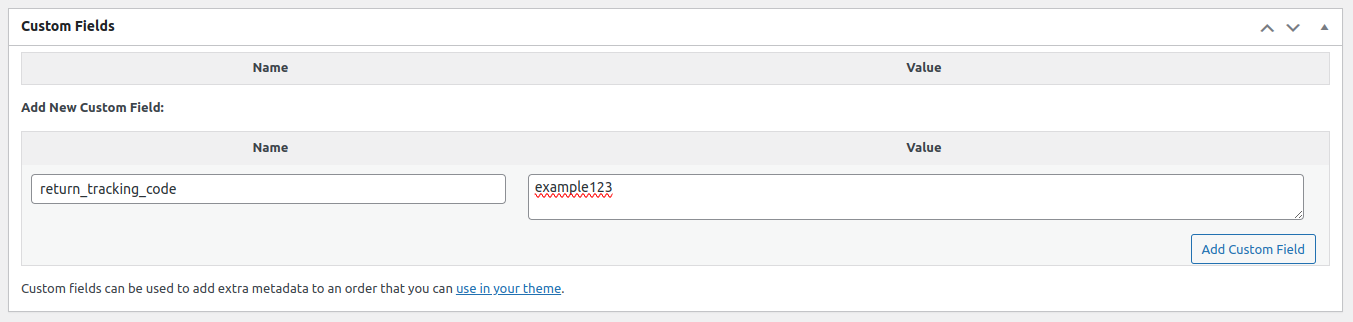
* Zoek de sectie Aangepaste velden (Custom fields) op de orderdetails-pagina. (Uiterlijk/locatie kan verschillen afhankelijk van je WooCommerce-versie en plugins.)
* Maak een nieuw custom field met de naam return\_tracking\_code en vul de return tracking code in als waarde.
{% hint style="info" %}
Opmerking: de opmaak en het proces kunnen iets afwijken afhankelijk van de WooCommerce-versie of geïnstalleerde plugins. Sommige setups hebben vooraf gedefinieerde namen voor custom fields — houd hier rekening mee.
{% endhint %}
{% endstep %}
{% step %}
### Shopify
* Ga naar het Metafields-gedeelte in je Shopify-admin.
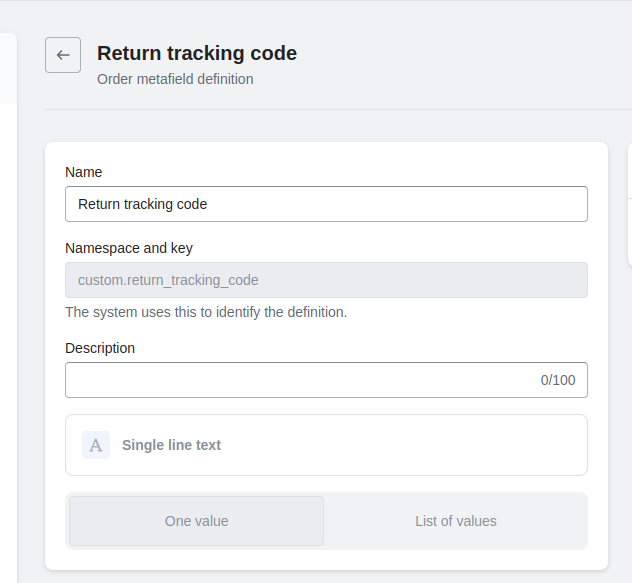
* Selecteer de Orders-sectie om een nieuw metafield aan orders toe te voegen.
* Maak een nieuw metafield met de naam Return tracking code, stel het type in op single line text en zorg dat het is geconfigureerd om één waarde te accepteren.
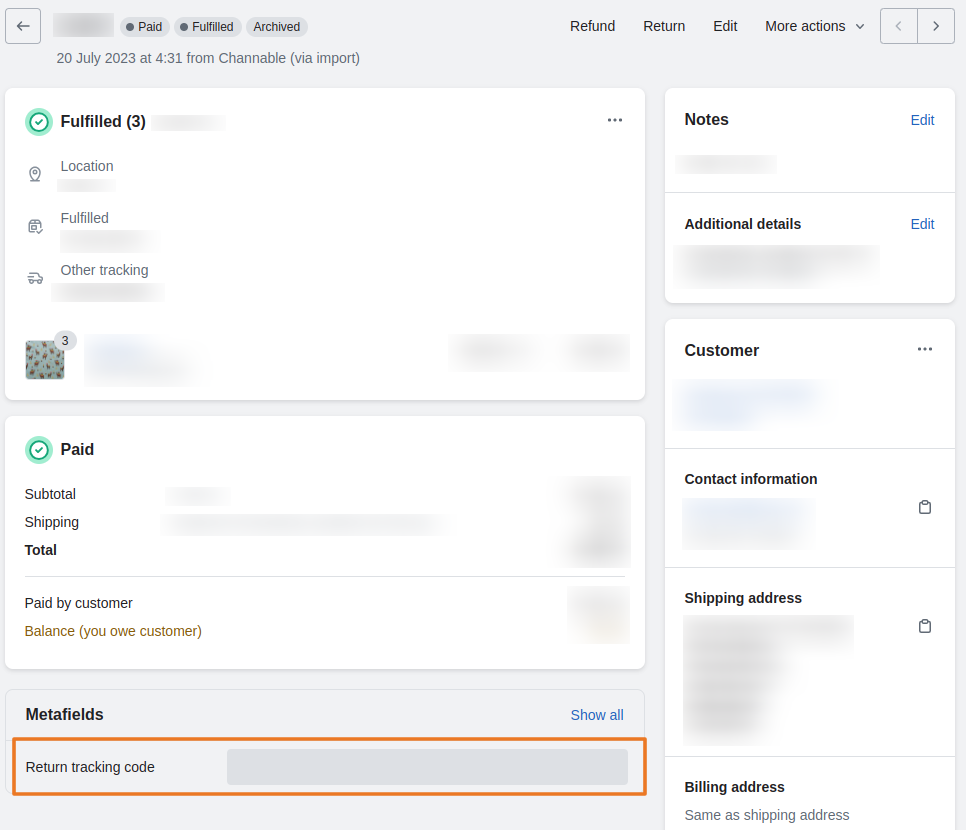
* Dit metafield is dan per order toegankelijk, zodat je de return tracking code kunt invoeren in de orderdetails.
* Om deze informatie programmatisch op te halen, doe een GET-request naar het orders/{order\_id}/metafields.json endpoint.
Opmerking: dit endpoint staat mogelijk niet in de officiële Shopify-documentatie, maar is geverifieerd als werkend voor het openen van ordermetafields, inclusief de return tracking code.
{% endstep %}
{% step %}
### Magento
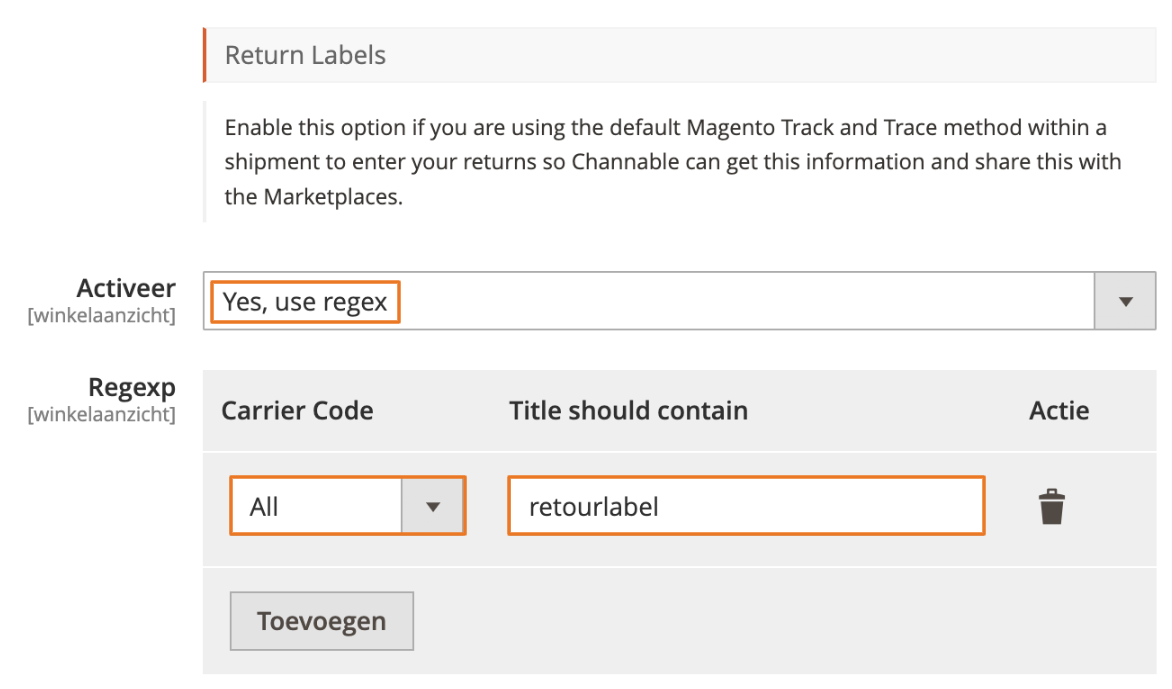
* Schakel Return Labels in de plugin in en configureer de Regexp zoals hieronder:
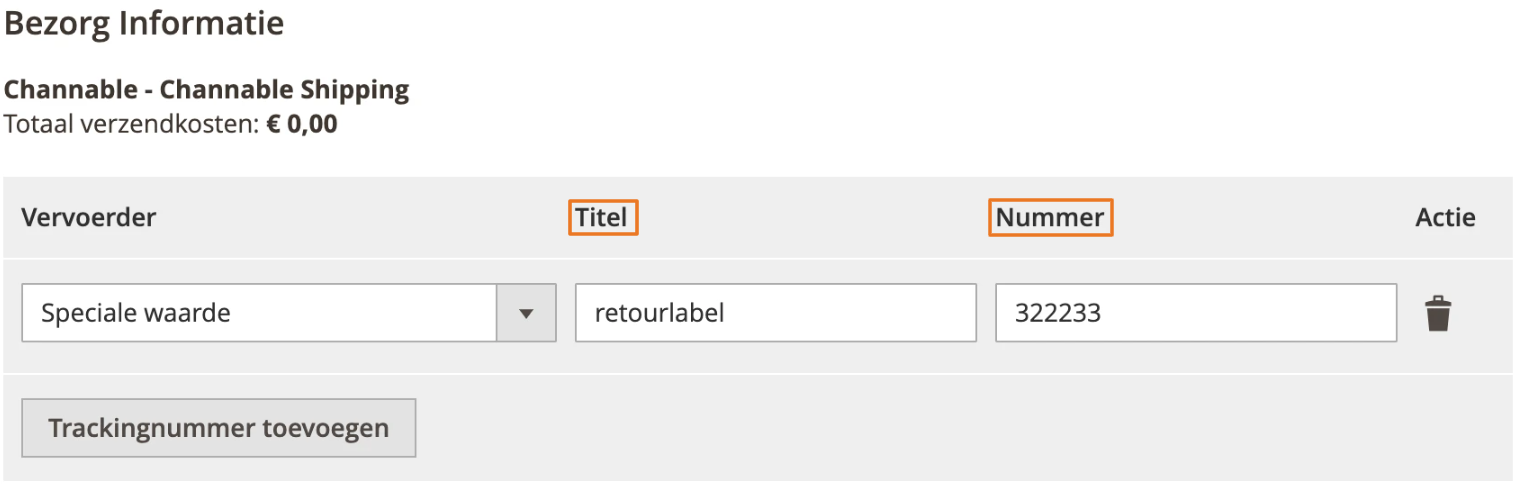
* Rond de orders als volgt af: zet de waarde uit het veld "Title should contain" (uit de Return Labels-configuratie) in het Title-veld en de return tracking key in het Number-veld.
{% endstep %}
{% endstepper %}
---
# Agent Instructions
This documentation is published with GitBook. GitBook is the documentation platform designed so that both humans and AI agents can read, navigate, and reason over technical content effectively. Learn more at gitbook.com.
## Querying This Documentation
If you need additional information that is not directly available in this page, you can query the documentation by asking a question.
Perform an HTTP GET request on the following URL with the `ask` and `goal` query parameters:
```
GET https://helpcenter.channable.com/list-advertise/list-and-advertise-nl/verkopen-op-marktplaatsen/zalando/hoe-automatiseer-ik-retourtrackingkeys-voor-otto-en-zalando-met-channable.md?ask=&goal=
```
`ask` is the immediate question: it should be specific, self-contained, and written in natural language.
`goal` is what the user is ultimately trying to achieve, the reason they need the answer. Sharing it helps GitBook give you a better, more relevant answer. A goal is most helpful when it describes the outcome the user wants rather than restating the question. For example, with `ask=how do I create an API token`, a goal like `automate deployments from our CI pipeline` lets GitBook tailor the answer to that use case.
The response will contain a direct answer to the question and relevant excerpts and sources from the documentation.
Use this mechanism when the answer is not explicitly present in the current page, you need clarification or additional context, or you want to retrieve related documentation sections.