> For the complete documentation index, see [llms.txt](https://helpcenter.channable.com/llms.txt). Markdown versions of documentation pages are available by appending `.md` to page URLs; this page is available as [Markdown](https://helpcenter.channable.com/list-advertise/orders/configure-order-setup/alternative-product-ids/using-alternative-product-ids-in-orders.md).
# Using alternative product IDs in orders
Learn how alternative ID mapping helps Channable match marketplace order items to the correct webshop products.
Use Alternative ID mapping when order items do not match products. This usually happens when marketplaces use a different identifier than your webshop.
### What is an order connection?
An order connection syncs marketplace orders into your e-commerce platform. To create an order line, Channable must match each order item to a product.
### Key terms (so the rest of this page makes sense)
* **Unique ID (webshop product identifier):** The identifier your e-commerce platform uses to reference a product (often a SKU, but not always).
* **Alternate ID:** Another identifier stored on the same product, like **EAN/GTIN** or **MPN**.
* **Marketplace item identifier:** The identifier that comes back in the order data. This is often `Seller SKU`.
### Why unique IDs matter
Unique IDs link the order item to the correct webshop product. If the identifier in the order does not exist in your webshop, order creation fails.
#### Set up a unique ID in Channable
* When configuring an API for a marketplace in Channable, you need to select the field that corresponds to the Unique ID during the Settings step of the API setup. This identifier is then sent to the marketplace and used for matching products.
* Specifically, when an order is placed on the marketplace, Channable uses this Unique ID to match the product in the order with the corresponding product in your e-commerce platform.
#### Challenges with incorrect or missing unique IDs
* Problems arise if your products were not originally listed on the marketplace through Channable, or if the Unique ID differs from the one used in your e-commerce platform. In such cases, Channable will not be able to match the products in the orders.
* This mismatch will result in an error stating that the product could not be found, preventing the order from being created.
That’s where **Alternative ID mapping** helps.
### How Alternative ID mapping works
When you import your products into Channable, we track both the primary identifiers from your main import source (your e-commerce platform) and commonly used alternative identifiers like EAN codes and SKU codes.
When processing an order, Channable can:
1. Read the identifier received from the marketplace order data.
2. Try to match that value against tracked alternate IDs (like EAN/GTIN).
3. If it finds a single match, create the webshop order line for that matched product.
This lets you process orders even when marketplace identifiers differ from your webshop’s main identifier.
Channable currently provides support for the following e-commerce platforms and their corresponding standard identifier fields:
| Platform | Identifier Fields |
| ------------------ | ---------------------------------------- |
| BigCommerce | `sku`, `GTIN` |
| CCVShop | `sku_number`, `ean`, `ean_number`, `mpn` |
| Lightspeed Eseries | `sku` |
| Lightspeed | `sku`, `article_code`, `ean` |
| Magento | `sku`, `ean` |
| MijnWebWinkel | `sku`, `uuid` |
| Prestashop | `ean13`, `GTIN`, `reference` |
| Shopify | `sku`, `GTIN` |
| Shoptrader | `sku`, `ean` |
| Shopware | `ean`, `article_number` |
| Squarespace | `sku` |
| WooCommerce | `sku` |
If you wish to use identifier fields that are not currently supported, feel free to reach out to our [Support team](/get-started/contact-support.md). We will evaluate your request and consider it for future updates if feasible.
{% hint style="info" %}
**Note:** If you add a second import (like a CSV) and overwrite an identifier value, orders can fail. Alternative ID mapping relies on identifiers recorded from your **main import source** when matching order items.
{% endhint %}
### When to use Alternative ID mapping
Alternative ID mapping is particularly useful in various scenarios to ensure accurate order processing. Common situations where this feature is beneficial:
* Multiple identifiers in use
* Scenario: Your product listings on marketplaces use a mix of EAN codes and SKU codes as the main identifier.
* Benefit: Alternative ID mapping helps ensure that orders are correctly matched with the corresponding products in your e-commerce platform, regardless of which identifier is used by the marketplace.
* Legacy systems with different ID structures
* Scenario: Your e-commerce platform or order management system uses a different ID structure than what is required by the marketplace.
* Benefit: With Alternative ID mapping, Channable can bridge the gap between different ID systems, ensuring that orders are linked to the correct products without requiring manual intervention.
* Transitioning between systems
* Scenario: You are transitioning to a new e-commerce platform or updating your ID system, and during this period, your products might have both old and new identifiers.
* Benefit: Alternative ID mapping allows you to seamlessly continue operations by recognizing both sets of identifiers, avoiding disruptions in order processing.
Before enabling the feature, review the recorded ID mapping of your project. See the next section for how to access these records.
### Accessing ID mapping records
There are two ways to view the ID mapping records.
{% stepper %}
{% step %}
### Viewing ID mapping for all items
This page allows you to verify the ID mappings that Channable is tracking before activating the feature. By reviewing these records, you can ensure that everything is mapped correctly. This step is crucial in preventing potential issues that could arise if the feature is activated without proper verification.
To get a full overview of past and current ID mapping records for all items (not just orders):
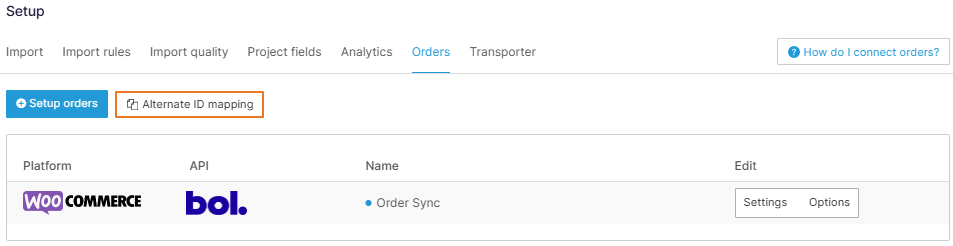
* Navigate to Setup > Orders in your project.
* Click the Alternative ID Mapping button. A pop-up will appear displaying all past and current records of mapped IDs for your products.
Alternative ID mapping overview (all items).
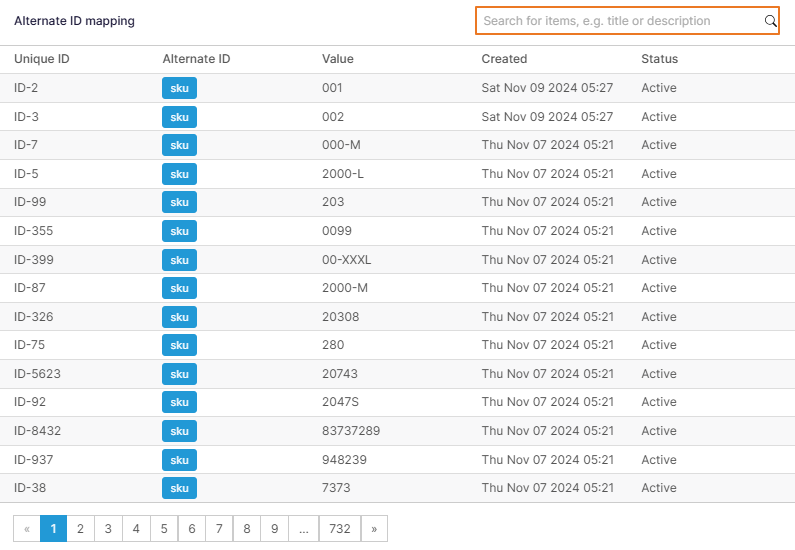
* Use the search box in the top-right corner of the pop-up to filter the records by ID, Title, or other criteria for easier navigation.
Filter mapping records by ID, title, or other fields.
{% endstep %}
{% step %}
### Viewing ID mapping for items used in orders
To get a view of past and current records for items used in orders:
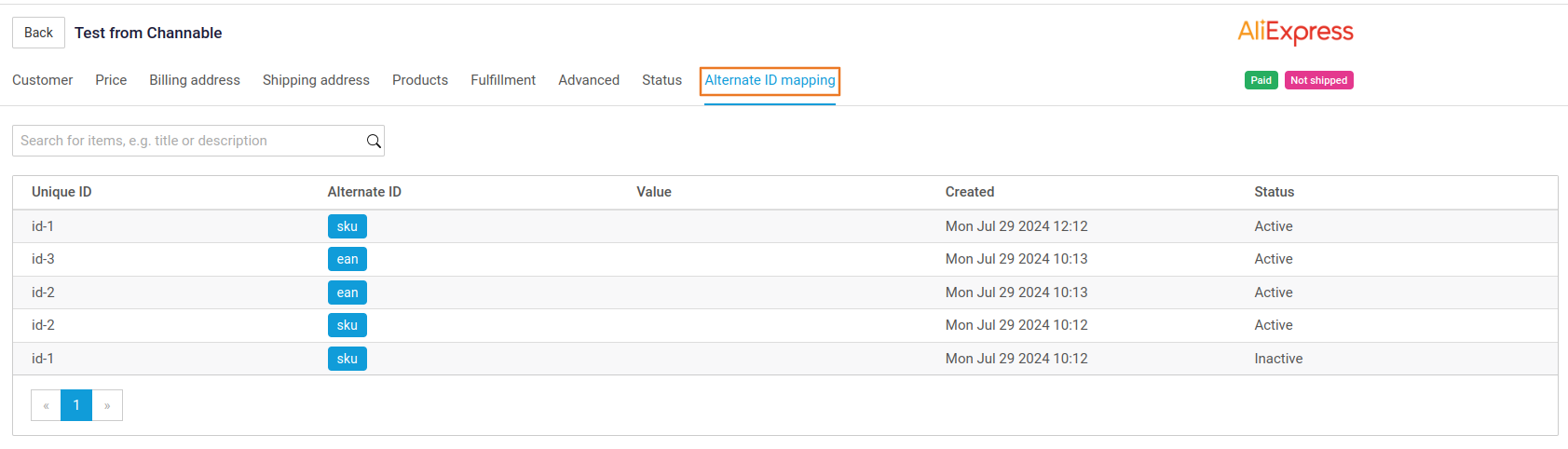
* Navigate to the Orders page in your project and click on Alternative ID Mapping.
* View both past and current ID mapping records for all items used in orders.
Alternative ID mapping records used in orders.
{% endstep %}
{% endstepper %}
#### Explanation of the columns in the ID Mapping interface
* Unique ID: The identifier used by your e-commerce platform to reference the product.
* Alternate ID: The identifier type that Channable is tracking, like SKU or EAN/GTIN.
* Value: The actual value of the alternate ID (e.g., the specific SKU or EAN code).
* Created: The date and time when the mapping record was created.
* Status: Indicates whether the mapping is currently active or inactive.
### Before you enable Alternative ID mapping
Check these points first. It saves time later.
* Confirm which identifier the marketplace returns in the order data (usually Seller SKU).
* Confirm that identifier value exists somewhere on the matching webshop product.
* Example: marketplace sends EAN, but your webshop product has EAN empty.
* Check for duplicates on alternate IDs.
* Example: two products share the same EAN/GTIN.
* Check whether a second import overwrites identifiers used for matching.
### Detailed setup checklist (recommended)
Use this checklist before you enable the setting. It prevents most “product not found” issues.
{% stepper %}
{% step %}
### 1) Choose your matching strategy
Pick one identifier that you want orders to match on.
Common choices:
* **SKU**: Best if every sellable item has a stable SKU.
* **EAN/GTIN**: Best if every sellable item has a valid barcode.
Avoid mixing identifiers across listings unless you must.
{% endstep %}
{% step %}
### 2) Verify the chosen ID exists on the sellable item (often variants)
Check your product catalog for the chosen ID:
* It should exist on the **variant** level if you sell variants.
* It should be filled for the products you sell on the marketplace.
Spot-check at least 10 items:
* 3 simple products
* 3 variant products (multiple sizes/colors)
* 2 bestsellers
* 2 “problem” products that failed before
{% endstep %}
{% step %}
### 3) Check formatting consistency
Matching is exact. Small differences break it.
Check for:
* Leading/trailing spaces
* Different casing (mostly relevant for SKUs)
* Leading zeros disappearing (common with CSV exports)
* Different separators (`SKU-001` vs `SKU001`)
Fix formatting in your source system first.
{% endstep %}
{% step %}
### 4) Eliminate duplicates for the chosen alternate ID
Duplicates cause the “multiple matches found” scenario. Then Channable can’t pick a product reliably.
Do a duplicate check in your catalog for the chosen ID:
* If two products share the same **EAN/GTIN**, fix or remove one value.
* If placeholder SKUs exist (`NA`, `0`, `DEFAULT`), replace them.
If you can’t de-duplicate, switch to a different matching strategy.
{% endstep %}
{% step %}
### 5) Confirm your main import is the source of truth
Alternative ID mapping relies on identifiers recorded from your **main import source**.
Before enabling:
* Ensure your main import contains the correct SKU/EAN values.
* Avoid overwriting those identifiers via a second import (like CSV enrichment).
If you must import identifiers via CSV, keep it consistent and expect a transition period.
{% endstep %}
{% step %}
### 6) Review Alternative ID mapping records
Open the mapping overview and verify what Channable recorded. See [Accessing ID mapping records](#accessing-id-mapping-records).
What to look for:
* Missing alternate IDs for products you sell
* Duplicate values across different products
* Old/outdated values after a migration
{% endstep %}
{% step %}
### 7) Enable and validate on a small sample
Enable **Use alternative IDs for order items** on the order connection.
Then validate with at least one:
* Previously failed order (ideal), or
* New incoming order
Check both:
* The order is created successfully.
* The **correct variant** is matched.
{% endstep %}
{% step %}
### 8) Roll out and monitor
Once matching is correct:
* Enable it on other order connections (if you have them).
* Monitor for “product not found” and “multiple matches found”.
If errors increase, fix catalog data first. Avoid workarounds that introduce more identifier inconsistency.
{% endstep %}
{% endstepper %}
### Enable Alternative ID mapping
{% stepper %}
{% step %}
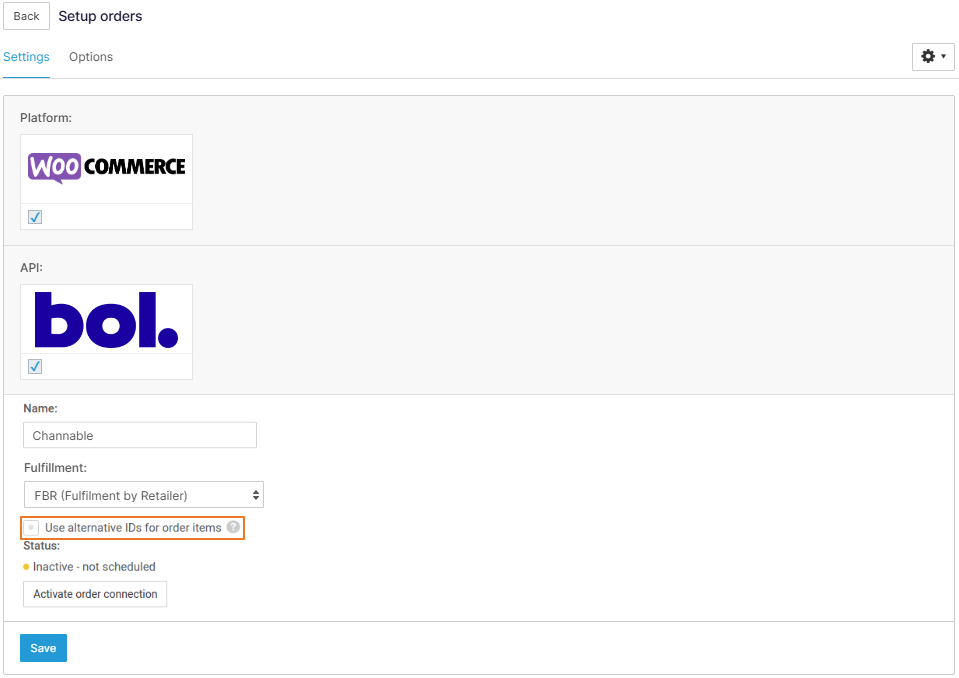
Select the checkbox **Use alternative IDs for order items** on the order connection you want to enable.
Enable alternative IDs for order items.
{% endstep %}
{% step %}
Click **Save**. You can then open **Alternative ID mapping** (Setup > Orders) to verify tracked mappings.
{% endstep %}
{% endstepper %}
### What this setting does not do
Alternative ID mapping helps match order items to existing webshop products. It does not:
* Change the identifier you send to a marketplace when listing products.
* Fix duplicate EAN/SKU values in your webshop catalog.
* Guarantee order creation when the marketplace sends unknown product identifiers.
### Alternative identifier matching scenarios
Alternative identifiers like EAN and SKU codes aren’t always unique. In your product catalog, you may have multiple products with the same EAN or products without an EAN at all. Channable matches the correct e-commerce platform database ID based on the alternative identifier received from the marketplace.
We verify whether any e-commerce platform database IDs correspond to the product ID from the order data across all alternative identifiers being monitored. Three scenarios may occur:
{% stepper %}
{% step %}
### No matches found
Channable can’t match the marketplace identifier to a webshop product. Channable will try to create the order using the marketplace identifier. This can fail if your webshop does not recognize that identifier.
Fix: add the missing alternate ID to the webshop product, or change what the marketplace sends.
{% endstep %}
{% step %}
### Exactly one match found
Channable finds one webshop product that matches the marketplace identifier. Channable creates the order line for that matched webshop product.
{% endstep %}
{% step %}
### Multiple matches found
* Identical values across identifiers: Channable may be tracking multiple alternative identifier values for your e-commerce platform (for example both SKU and EAN), and both have identical values for a product. In this case there is a single e-commerce platform database ID, and the order will be created using that single e-commerce platform database ID. Channable verifies that the e-commerce platform database ID linked to the matched SKU and EAN record is the same.
* Multiple products with the same identifier: Multiple distinct products in your e-commerce platform share the same value for an alternate ID. Channable can’t pick the right one. Channable will fall back to the marketplace identifier when creating the order. This can cause an order creation error in your webshop.
Fix: de-duplicate the identifier values in your webshop, or change which identifier the marketplace uses.
{% endstep %}
{% endstepper %}
### Troubleshooting quick checks
{% hint style="warning" %}
If you still see “product not found” after enabling the setting, it’s usually one of these.
{% endhint %}
* The alternate ID value is empty on the webshop product.
* The marketplace sends a different identifier than you expect.
* Example: you expected EAN, but it sends Seller SKU.
* The alternate ID value exists, but is duplicated across multiple products.
* A secondary import overwrote identifier values after they were recorded.
---
# Agent Instructions
This documentation is published with GitBook. GitBook is the documentation platform designed so that both humans and AI agents can read, navigate, and reason over technical content effectively. Learn more at gitbook.com.
## Querying This Documentation
If you need additional information that is not directly available in this page, you can query the documentation dynamically by asking a question.
Perform an HTTP GET request on the current page URL with the `ask` query parameter, and the optional `goal` query parameter:
```
GET https://helpcenter.channable.com/list-advertise/orders/configure-order-setup/alternative-product-ids/using-alternative-product-ids-in-orders.md?ask=&goal=
```
`ask` is the immediate question: it should be specific, self-contained, and written in natural language.
`goal` is optional and describes the broader end goal you are ultimately trying to accomplish on behalf of the user. GitBook uses it to tailor the answer towards what is most useful for that goal.
The response will contain a direct answer to the question and relevant excerpts and sources from the documentation.
Use this mechanism when the answer is not explicitly present in the current page, you need clarification or additional context, or you want to retrieve related documentation sections.