> For the complete documentation index, see [llms.txt](https://helpcenter.channable.com/llms.txt). Markdown versions of documentation pages are available by appending `.md` to page URLs; this page is available as [Markdown](https://helpcenter.channable.com/list-advertise/orders/order-connections/how-to-set-up-an-order-connection/how-do-i-set-up-a-wayfair-order-connection.md).
# How do I set up a Wayfair order connection?
Learn how to create a Wayfair order connection, enter the required credentials, and understand Wayfair-specific order handling.
Wayfair is one of the world's largest home retailers, known for offering a wide range of furniture, decor, and home essentials. With the implementation of the order connection in Channable, we can now fully automate the order processing for Wayfair, making it easier for sellers to manage inventory, track orders, and streamline their overall sales operations.
### Functionality
The Wayfair order connection functions similarly to other order connections in Channable (see this [help center article](/list-advertise/orders/order-connections/how-to-set-up-an-order-connection.md) on what our order connections can do). Here are some key details about the Wayfair order connection:
* **Returns are not supported**.
* Channable requests new orders from Wayfair **every 5 minutes**.
* Channable sends stock updates **every 5 minutes**.
* Channable updates shipments and cancellations **every 15 minutes**.
### Create a new application in Wayfair
{% stepper %}
{% step %}
### Navigate to Application Management
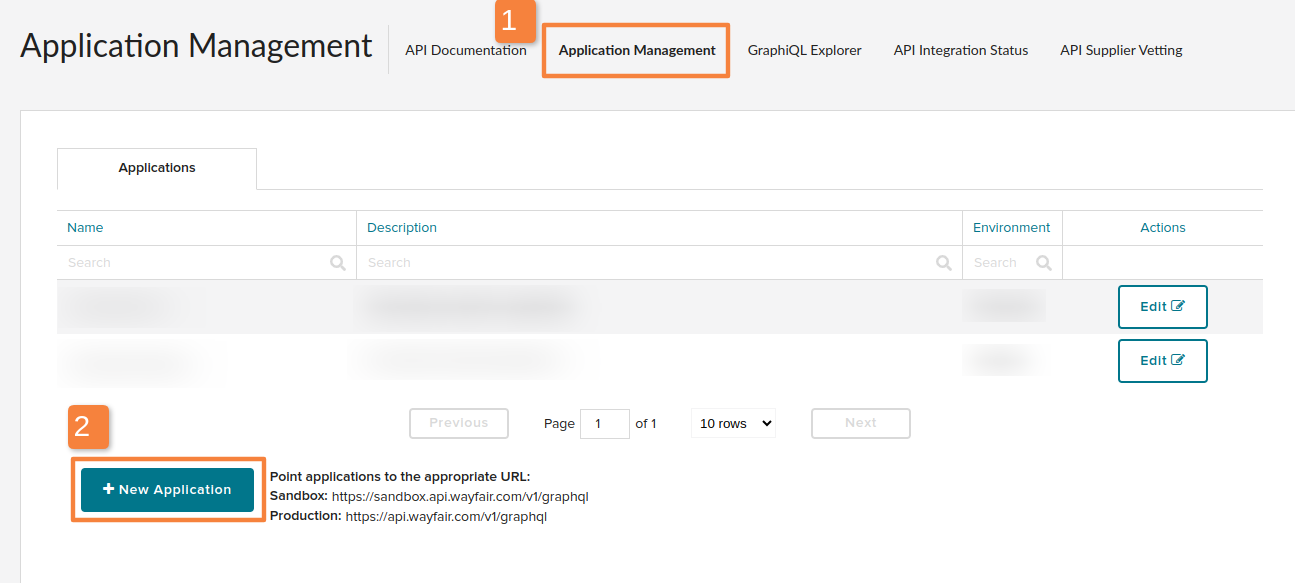
Go to the "Application Management" tab in your Wayfair dashboard.
{% endstep %}
{% step %}
### Create a new application
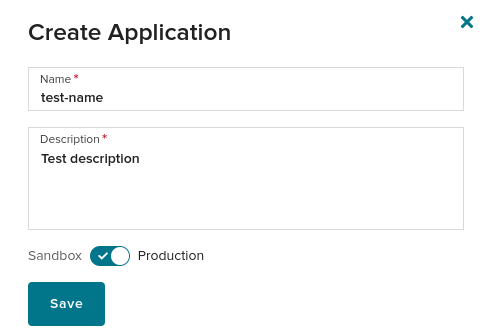
Click on **"New Application"** and fill in the required details:
* **Name**: Provide a name for the application.
* **Description**: Add a description.
* **Environment**: Make sure to select **Production**.
{% endstep %}
{% step %}
### Save the application
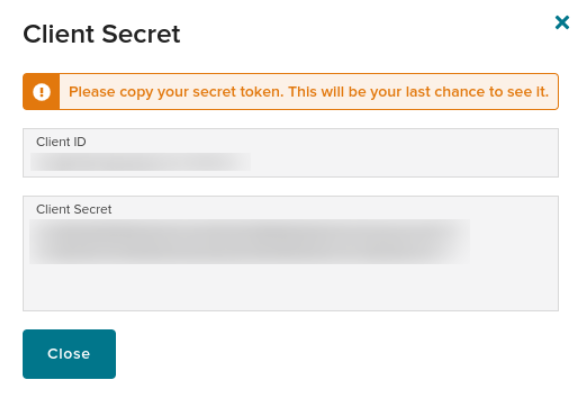
After clicking on the **"Save"** button, you will receive the **Client ID** and **Client Secret**. These values are needed to create the order connection in Channable.
After the application is created in Wayfair, you can continue by creating the connection in Channable.
{% endstep %}
{% endstepper %}
### Create a Wayfair connection in Channable
{% stepper %}
{% step %}
Go to **Setup > Setup Orders**, click on **+Setup orders**, and then click on **+Add a new connection**.
{% endstep %}
{% step %}
Select **Wayfair**.
{% endstep %}
{% step %}
Provide the following credentials:
* Give your connection a **label** to easily identify it.
* Enter the **Client ID** and **Client Secret** that you gathered from your Wayfair dashboard.
When the provided credentials are all filled in, click on **Create**. Now that the connection is created, go to the next step.
{% endstep %}
{% endstepper %}
### Creating a Wayfair order connection
To create an order connection for Wayfair in Channable, follow [the general steps outlined in our main article on creating order connections](broken://pages/ae2d9141823caba4f23da5e58752fe1dc07814d9). Below are additional Wayfair-specific fields and notes.
{% stepper %}
{% step %}
### Name
Choose a name for your order connection to make it easy to identify.
{% endstep %}
{% step %}
### Warehouse ID
Provide your Warehouse ID.
{% endstep %}
{% step %}
### Shipping Method
Optionally, add a Shipping method.
{% endstep %}
{% endstepper %}
#### Warehouse ID
If you are unsure about your Warehouse ID, visit the [**Wayfair Inventory Management** page](https://partners.wayfair.com/auth/realms/Partner_Home/protocol/openid-connect/auth?client_id=partner-home-monolith\&response_type=code\&scope=openid\&redirect_uri=https%3A%2F%2Fpartners.wayfair.com%2Fv%2Flogin%2Flogin\&state=096fbd2a8290a992985174efc9bd0bfb), click on **Import Inventory**, and expand the list to find your warehouses and their corresponding IDs. This information can also be found in Wayfair's help center.
#### Shipping Method
The **Shipping method** field is relevant for sellers who have a Supplier Ships on Own Account (SSOA) in Wayfair. In such cases, there is no shipping information in the Wayfair orders. To fully use the order management feature, particularly for pushing shipping updates from Channable to Wayfair, choose a default shipping method that will apply to all orders.
### Order cancellation flow
* Channable requests cancelled orders from Wayfair **every 10 minutes**.
* Shipments and cancellations are updated **every 15 minutes**.
* Cancellations can only be updated if they originate from Wayfair. Unlike our standard cancellation flow, which supports cancellations initiated by the seller, this integration **only supports cancellations that come directly from Wayfair**.
---
# Agent Instructions
This documentation is published with GitBook. GitBook is the documentation platform designed so that both humans and AI agents can read, navigate, and reason over technical content effectively. Learn more at gitbook.com.
## Querying This Documentation
If you need additional information that is not directly available in this page, you can query the documentation dynamically by asking a question.
Perform an HTTP GET request on the current page URL with the `ask` query parameter, and the optional `goal` query parameter:
```
GET https://helpcenter.channable.com/list-advertise/orders/order-connections/how-to-set-up-an-order-connection/how-do-i-set-up-a-wayfair-order-connection.md?ask=&goal=
```
`ask` is the immediate question: it should be specific, self-contained, and written in natural language.
`goal` is optional and describes the broader end goal you are ultimately trying to accomplish on behalf of the user. GitBook uses it to tailor the answer towards what is most useful for that goal.
The response will contain a direct answer to the question and relevant excerpts and sources from the documentation.
Use this mechanism when the answer is not explicitly present in the current page, you need clarification or additional context, or you want to retrieve related documentation sections.