> For the complete documentation index, see [llms.txt](https://helpcenter.channable.com/llms.txt). Markdown versions of documentation pages are available by appending `.md` to page URLs; this page is available as [Markdown](https://helpcenter.channable.com/manage-improve-product-data/generate-with-ai/set-up-your-ai-generation-connection/how-to-create-a-gemini-connection-for-ai-generation.md).
# How to create a Gemini connection for AI generation
Set up a Gemini API connection for AI text generation in Channable, including API key creation and billing.
Use your Gemini connection for [AI text generation](/manage-improve-product-data/generate-with-ai/ai-generated-text/how-to-create-and-use-ai-generated-text.md) in Channable. You pay for the tokens used through your Gemini account.
### :memo-circle-check: Before you start
**You'll need**
* Access to an Gemini account
* A Core Pro Channable plan
**Good to know**
* You may need **access permissions** if you use a corporate account. Contact your company's IT Support (or the team that owns AI Google Studio API access) to request the key or if you encounter an error when creating a project.
* Google AI Studio is available for all Google accounts without additional actions (except for some ages and corporate or regional restrictions).
* Google Billing works on a post-paid, pay-as-you-go model.
* Read [AI generation usage and costs](/manage-improve-product-data/generate-with-ai/ai-generation-usage-and-costs.md) before generating content at scale.
* Channable uses [Gemini 3.1 Flash-Lite](https://ai.google.dev/gemini-api/docs/pricing#gemini-3.1-flash-lite) for AI text generation.
***
{% stepper %}
{% step %}
### Create an API key in Google AI Studio
1. Go to [Google AI Studio > API Keys](https://aistudio.google.com/api-keys) and choose the account from which you can spend tokens. It can be a company’s, agency’s or a personal account.
2. Click **Create API Key**.
3. Select an existing project or click **Create project** to make a new project.
4. Click **Create key**.
5. Click on the key title in the table and copy the API key to your clipboard. Immediately make note of your key and put the information in a safe place, as you will need it in the next step.
{% hint style="success" %}
**Tip:** You can also copy it from the list in **Dashboard > API Keys** later when you need it.
{% endhint %}
{% endstep %}
{% step %}
### Set up billing (if needed)
In **API keys,** check the **Quota tier** for the key you created.
* If it's marked as a **Free tier**,[ you'll need to set up billing information](#user-content-fn-1)[^1].
* If you already have another tier for different tools in your organization, continue to the next step.
1. Click **Set up billing** and follow the instructions. After adding a credit card, make sure the **Quota tier** column is set to Tier 1 or higher. If so, continue to Step 3.
{% hint style="success" %}
**Tip:** New Gemini API users can get a $300[ free trial credit](https://support.google.com/cloud/answer/7006543?hl=en) for 3 months (as of March 2026).
{% endhint %}
2. Click **Activate bidding**.
How do I know how much I'll end up spending?
Spending on AI text generation depends on the amount of input data, prompt length, length of output data and a number of products in the list for generation.
The **Estimated generation cost** will be indicated in the prompting and finalizing steps of the feature you're using it with.
{% endstep %}
{% step %}
### Create a Gemini connection in Channable
1. Go to **\[your company] > \[your project] > Optimize**.
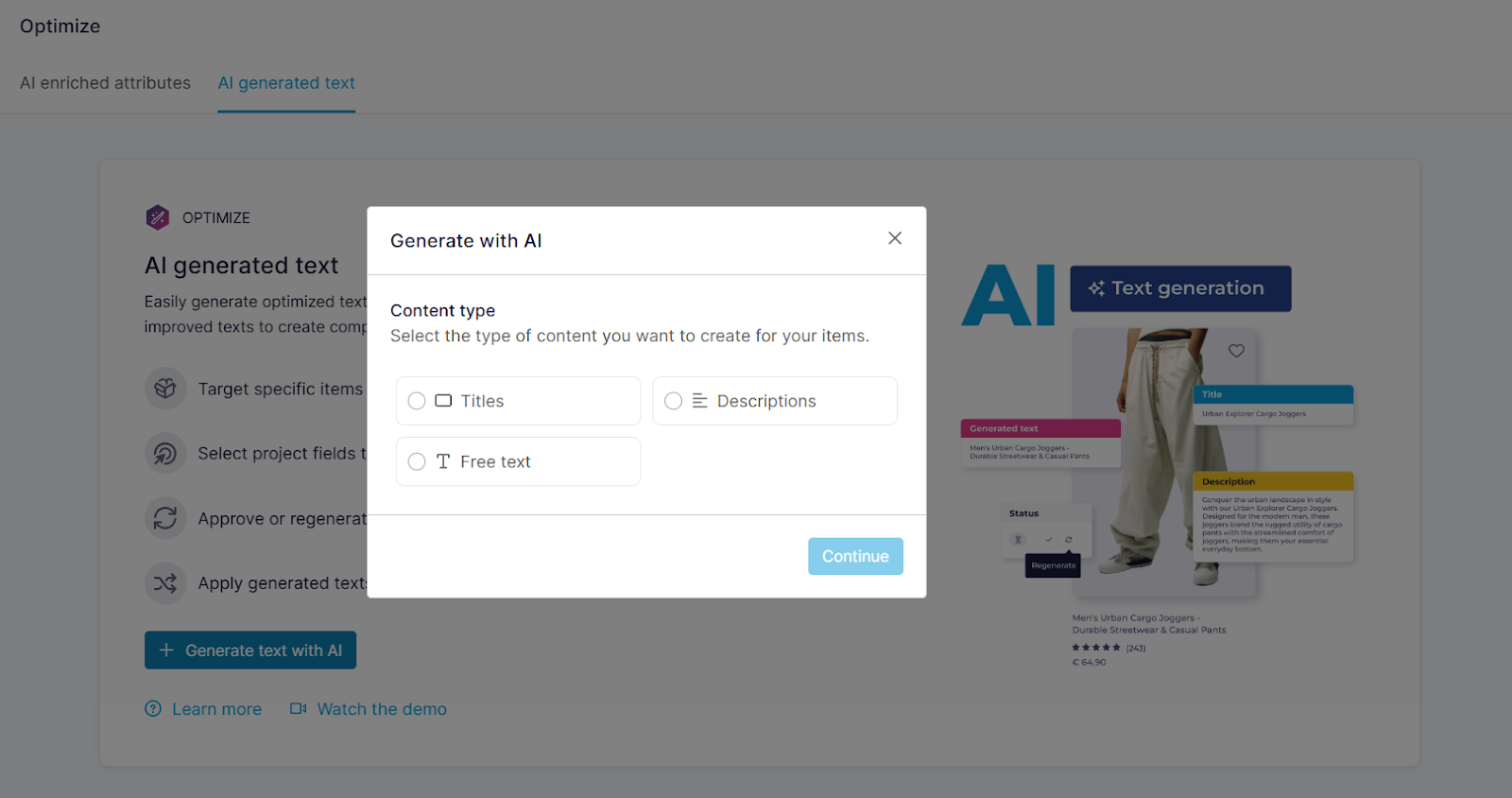
2. Click **Generate text with AI** to start the setup.
3. In the pop-up, select the content you want to create:
* **Text:** Select a text content type. Your selection defines the prompt template in the **Prompting** step.
* **Titles:** Generate AI text suggestions to improve product titles.
* **Descriptions:** Generate AI text suggestions to improve product descriptions.
* **Free text:** Generate AI text suggestions for specific text fields.
* **Question & answer:** Create short, bulleted selling points about key benefits and features.
* **Product detail:** Create technical specifications and structured key-value attributes. These can include material, dimensions, or battery life.
* **Product highlight:** Create frequently asked questions and answers from merchants or customers.
* [**Attributes**](/manage-improve-product-data/generate-with-ai/ai-enriched-attributes.md): Attributes don't require an LLM connection.
4. Click **Continue**.
5. In **Settings**, configure your generator:
1. At **Name**, enter a descriptive name. This helps you find the AI-generated content later.
2. At **AI connection**, select **Gemini** > **Connect**.
6. In the pop-up, complete the connection details:
1. At **Connection type**, select **Gemini**.
2. At **Label**, enter a descriptive connection name, such as `Gemini connection`.
3. At **API key**, paste the API key from Step 1.
4. Click **Connect with Gemini**.
7. Click **Save**.
{% hint style="success" %}
#### **Success**
Your Gemini connection is ready to use. Set up [AI text generation](/manage-improve-product-data/generate-with-ai/ai-generated-text/how-to-create-and-use-ai-generated-text.md).
{% endhint %}
{% endstep %}
{% endstepper %}
### Continue setting up a generator
{% content-ref url="/pages/Rbvmo4oRgwc42C3YHF2R" %}
[AI generated text](/manage-improve-product-data/generate-with-ai/ai-generated-text.md)
{% endcontent-ref %}
[^1]: The free tier is unsuitable for content generation due to strict limitations and lack of data confidentiality.
---
# Agent Instructions
This documentation is published with GitBook. GitBook is the documentation platform designed so that both humans and AI agents can read, navigate, and reason over technical content effectively. Learn more at gitbook.com.
## Querying This Documentation
If you need additional information that is not directly available in this page, you can query the documentation by asking a question.
Perform an HTTP GET request on the following URL with the `ask` and `goal` query parameters:
```
GET https://helpcenter.channable.com/manage-improve-product-data/generate-with-ai/set-up-your-ai-generation-connection/how-to-create-a-gemini-connection-for-ai-generation.md?ask=&goal=
```
`ask` is the immediate question: it should be specific, self-contained, and written in natural language.
`goal` is what the user is ultimately trying to achieve, the reason they need the answer. Sharing it helps GitBook give you a better, more relevant answer. A goal is most helpful when it describes the outcome the user wants rather than restating the question. For example, with `ask=how do I create an API token`, a goal like `automate deployments from our CI pipeline` lets GitBook tailor the answer to that use case.
The response will contain a direct answer to the question and relevant excerpts and sources from the documentation.
Use this mechanism when the answer is not explicitly present in the current page, you need clarification or additional context, or you want to retrieve related documentation sections.