> For the complete documentation index, see [llms.txt](https://helpcenter.channable.com/llms.txt). Markdown versions of documentation pages are available by appending `.md` to page URLs; this page is available as [Markdown](https://helpcenter.channable.com/manage-improve-product-data/insights/channable-analytics/use-analytics-data-in-rules.md).
# Use Analytics data in rules
Use website traffic and conversion data from Google Analytics in channel rules, exports, and supported APIs.
> #### **Who can use this feature**
>
> You need the **Core Pro** plan in your [Channable subscription](/account-billing/manage-your-subscription/channables-pricing-plans.md) to use this feature.
You can use your imported Google Analytics data to create rules tailored around metrics like website traffic and conversion performance.
### :memo-circle-check: Before you start
**Good to know**
* Analytics data only works with APIs that create ads linking to your website. Marketplaces, such as Amazon, do not link to your website, so Analytics cannot track that traffic.
{% hint style="info" %}
Use [Insights data in rules](/manage-improve-product-data/insights/use-insights-in-rules.md) for ad, marketplace, cost, and profit performance.
{% endhint %}
### Use Analytics data in rules
By default, a channel uses Analytics data from ads created through that channel. For example, a Google Shopping feed uses revenue from its Google Shopping ads.
{% stepper %}
{% step %}
### Link in your channel settings
1. Go to **Channels** and select the **Settings** step in the channel you want to use Analytics data in.
2. Click **Advanced settings**.
3. For **Analytics**, click the dropdown and select which analytics data you want to use to make comparisons and optimize your feed.
4. Click **Save**.
{% endstep %}
{% step %}
### Create rules using Analytics data
In the **Rules** step of your channel, create a new rule.
When selecting a condition (IF) or action (THEN), you'll see :list-ul: **Analytics** among other options like :file: **Project fields** and :gear-complex: **Internal fields**.
Click on :list-ul: **Analytics** to see an overview of analytics connected to the analytics data you selected in your channel settings, like `bounce _rate` and `transactions` .
Click on the fields to use them. You can use these fields as a [condition](/manage-improve-product-data/rules-bulk-edit-and-enrich/how-to-use-conditions-if-in-rules.md) to filter products and/or an [action](/manage-improve-product-data/rules-bulk-edit-and-enrich/how-to-use-actions-then-in-rules.md) to determine what happens to the item(s).
{% hint style="info" %}
#### **Example: *****Exclude items with low conversion rate***
Create a rule that excludes items with a conversion rate lower than 10.
1. Create an `IF` condition where `conversion_rate` is less than `10`.
2. Add a `THEN` action that takes `all` and `exclude`.
3. Click **Save rule**.
4. Click **Items after** to see which items remain.
5. Click **Run now** to run your channel.
Your channel will now only send items that have a conversion rate the same as or higher than 10.
{% endhint %}
{% endstep %}
{% endstepper %}
{% hint style="info" %}
#### Example: calculate profit in an export
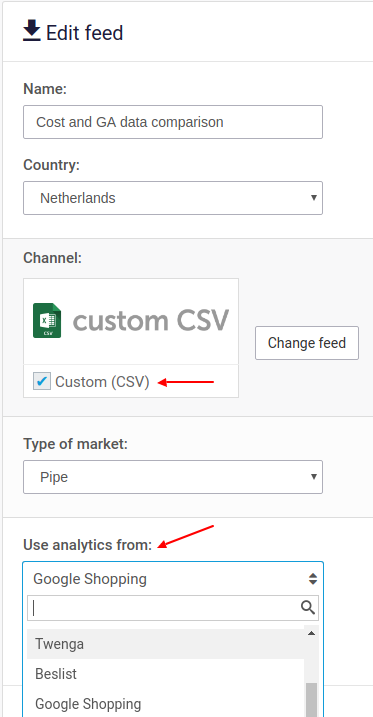
Use a custom CSV export to compare cost data with Analytics revenue:
1. In the **Settings** step, select the Analytics data source.
2. In the **Rules** step, subtract costs from revenue to calculate profit.
3. In the **Finalize** step, map the Analytics fields into your export.
 {% endhint %}
{% hint style="warning" %}
{% endhint %}
### Next steps
* [Set up Google Analytics](/manage-improve-product-data/insights/channable-analytics/set-up-google-analytics-in-channable.md)
* [Review Google Analytics performance](/manage-improve-product-data/insights/channable-analytics/review-google-analytics-performance.md)
* [Use Insights data in rules](/manage-improve-product-data/insights/use-insights-in-rules.md)
---
# Agent Instructions
This documentation is published with GitBook. GitBook is the documentation platform designed so that both humans and AI agents can read, navigate, and reason over technical content effectively. Learn more at gitbook.com.
## Querying This Documentation
If you need additional information that is not directly available in this page, you can query the documentation dynamically by asking a question.
Perform an HTTP GET request on the current page URL with the `ask` query parameter, and the optional `goal` query parameter:
```
GET https://helpcenter.channable.com/manage-improve-product-data/insights/channable-analytics/use-analytics-data-in-rules.md?ask=&goal=
```
`ask` is the immediate question: it should be specific, self-contained, and written in natural language.
`goal` is optional and describes the broader end goal you are ultimately trying to accomplish on behalf of the user. GitBook uses it to tailor the answer towards what is most useful for that goal.
The response will contain a direct answer to the question and relevant excerpts and sources from the documentation.
Use this mechanism when the answer is not explicitly present in the current page, you need clarification or additional context, or you want to retrieve related documentation sections.
{% endhint %}
{% hint style="warning" %}
{% endhint %}
### Next steps
* [Set up Google Analytics](/manage-improve-product-data/insights/channable-analytics/set-up-google-analytics-in-channable.md)
* [Review Google Analytics performance](/manage-improve-product-data/insights/channable-analytics/review-google-analytics-performance.md)
* [Use Insights data in rules](/manage-improve-product-data/insights/use-insights-in-rules.md)
---
# Agent Instructions
This documentation is published with GitBook. GitBook is the documentation platform designed so that both humans and AI agents can read, navigate, and reason over technical content effectively. Learn more at gitbook.com.
## Querying This Documentation
If you need additional information that is not directly available in this page, you can query the documentation dynamically by asking a question.
Perform an HTTP GET request on the current page URL with the `ask` query parameter, and the optional `goal` query parameter:
```
GET https://helpcenter.channable.com/manage-improve-product-data/insights/channable-analytics/use-analytics-data-in-rules.md?ask=&goal=
```
`ask` is the immediate question: it should be specific, self-contained, and written in natural language.
`goal` is optional and describes the broader end goal you are ultimately trying to accomplish on behalf of the user. GitBook uses it to tailor the answer towards what is most useful for that goal.
The response will contain a direct answer to the question and relevant excerpts and sources from the documentation.
Use this mechanism when the answer is not explicitly present in the current page, you need clarification or additional context, or you want to retrieve related documentation sections.