> For the complete documentation index, see [llms.txt](https://helpcenter.channable.com/llms.txt). Markdown versions of documentation pages are available by appending `.md` to page URLs; this page is available as [Markdown](https://helpcenter.channable.com/manage-improve-product-data/insights/profit-on-ad-spend/set-up-profit-on-ad-spend.md).
# Set up Profit on Ad Spend
Set up [Profit on Ad Spend (POAS)](/manage-improve-product-data/insights/profit-on-ad-spend.md) cost fields and use the metrics in Insights.
### :memo-circle-check: Before you start
**Good to know**
* POAS only appears in Google Ads Insights dashboards.
* Insights can automatically detect a product cost field for some projects. POAS metrics then appear immediately.
* You can select one or more POAS cost fields. Set the related option for each field.
{% stepper %}
{% step %}
### Mark your POAS cost field
Mark the project field that contains your POAS costs. POAS fields are managed at project level.
1. In your Channable project, go to **Setup > Project fields**.
2. Find the field containing your POAS costs.
3. Click **Edit**.
4. At **POAS**, select the checkbox.
5. Click **Save & import**.
The Profit on Ad Spend cost column shows a check mark for the field. Your Insights dashboard displays POAS metrics.
{% endstep %}
{% step %}
### Change an automatically detected cost field
If Insights detects a product cost field that you do not want to use:
1. In **Setup > Project fields**, find the field.
2. Click **Edit**.
3. Clear the **POAS** checkbox.
4. Click **Save & import**.
{% endstep %}
{% endstepper %}
### View POAS metrics
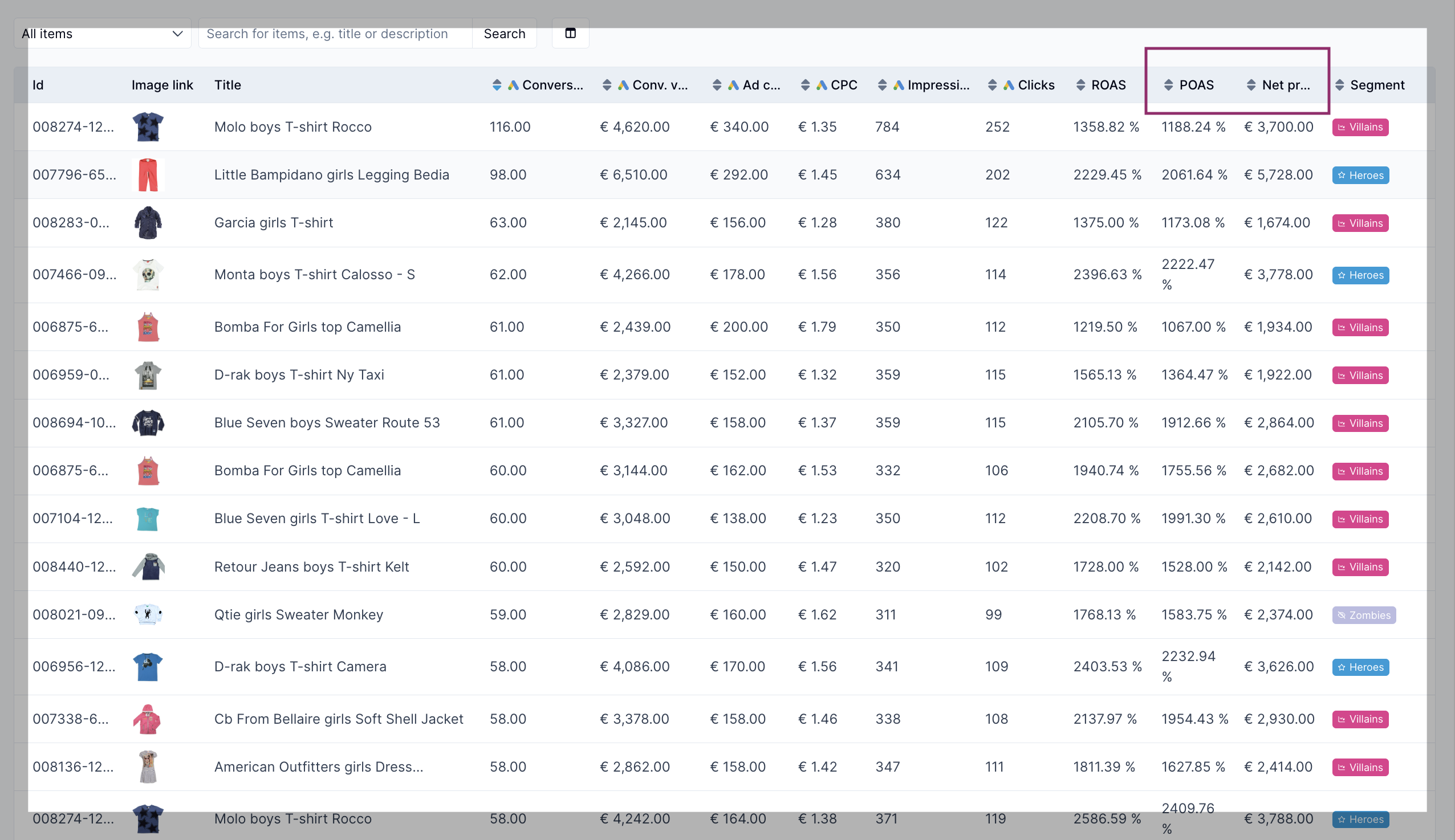
The Profit on Ad Spend section in your Google Ads Insights dashboard shows summarized metrics for items with valid numeric cost-field values.
In the **Segmentation** section, at the **Today's segment performance** table, the Items, POAS, and Net profit columns will be on the right-hand side.
### Use POAS in segmentation
In your Insights dashboard, select **Segmentation**. Select **Profit on Ad Spend (POAS)** as the segmentation threshold metric.
The segmentation graph replaces **Conversion Value** with a **Net Profit** pie chart.
### Use POAS metrics in rules
Use **Profit on Ad Spend (POAS)**, **Gross Profit**, and **Net Profit** in channel rules. See [Use Insights in rules](/manage-improve-product-data/insights/use-insights-in-rules.md).
---
# Agent Instructions
This documentation is published with GitBook. GitBook is the documentation platform designed so that both humans and AI agents can read, navigate, and reason over technical content effectively. Learn more at gitbook.com.
## Querying This Documentation
If you need additional information that is not directly available in this page, you can query the documentation dynamically by asking a question.
Perform an HTTP GET request on the current page URL with the `ask` query parameter, and the optional `goal` query parameter:
```
GET https://helpcenter.channable.com/manage-improve-product-data/insights/profit-on-ad-spend/set-up-profit-on-ad-spend.md?ask=&goal=
```
`ask` is the immediate question: it should be specific, self-contained, and written in natural language.
`goal` is optional and describes the broader end goal you are ultimately trying to accomplish on behalf of the user. GitBook uses it to tailor the answer towards what is most useful for that goal.
The response will contain a direct answer to the question and relevant excerpts and sources from the documentation.
Use this mechanism when the answer is not explicitly present in the current page, you need clarification or additional context, or you want to retrieve related documentation sections.