> For the complete documentation index, see [llms.txt](https://helpcenter.channable.com/llms.txt). Markdown versions of documentation pages are available by appending `.md` to page URLs; this page is available as [Markdown](https://helpcenter.channable.com/manage-improve-product-data/manage-product-and-improve-data-de/regeln-massenbearbeitung-und-anreicherung/so-verwendest-du-aktionen-dann-in-regeln/regelaktion-teile-text.md).
# Regelaktion: teile Text
{% hint style="info" %}
Wird verwendet für: das Aufteilen des Inhalts eines Felds an einem bestimmten Zeichen oder Wort und anschließend die Nutzung eines oder mehrerer Teile des aufgeteilten Inhalts.
Verwendet in: "DANN"-Anweisungen und "SONST"-Anweisungen.
{% endhint %}
Die Regel „split text“ teilt ein Feld immer dann, wenn ein von dir gewähltes Zeichen oder Wort in diesem Feld vorkommt. Mit der Split-Text-Regel zerteilst du ein Feld im Grunde in mehrere Teile. Anschließend kannst du einen oder mehrere dieser Teile auswählen, um ein gewünschtes Feld zu befüllen.
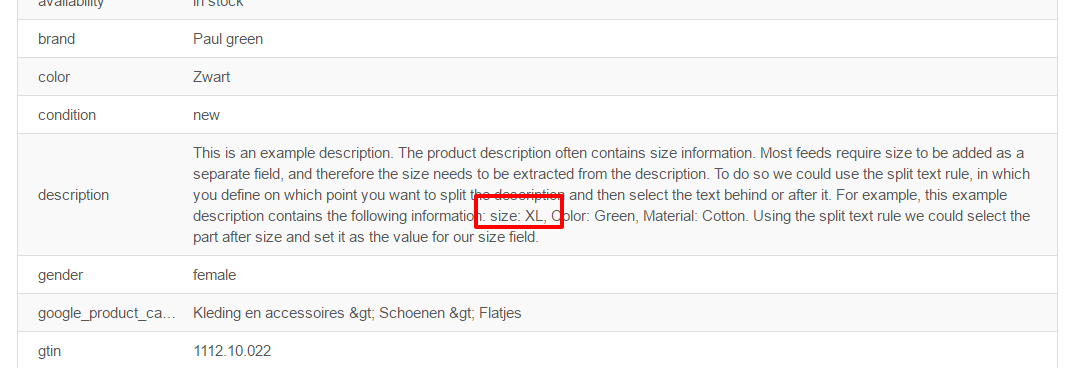
Ein Beispiel: Angenommen, deine Beschreibungen enthalten die Größe deiner Produkte. Du kannst die Split-Text-Regel verwenden, um das Feld „size“ mit dem Teil zu befüllen, der in der Beschreibung nach dem Wort „size:“ kommt.
{% stepper %}
{% step %}
### Schritt: Erstes Aufteilen — alles nach „size:“ extrahieren
Verwende die Regel „split text“, um die Beschreibung beim Wort „size:“ aufzuteilen, und wähle dann den folgenden Teil aus, um das Feld „size“ zu befüllen.
Das setzt das Feld size auf den gesamten zweiten Teil (alles nach „size:“).

{% endstep %}
{% step %}
### Schritt: Zweites Aufteilen — auf „XL“ eingrenzen
Wenn der zweite Teil noch zusätzlichen Text enthält (z. B. „XL, weitere Infos“), füge auf dem neu befüllten Feld „size“ eine weitere Regel „split text“ hinzu. Teile am Komma und wähle den Teil vor dem Komma (erster Teil), um nur „XL“ zu erhalten.
Dieser zusätzliche Schritt verfeinert das Feld size auf den exakten gewünschten Wert.

{% endstep %}
{% endstepper %}
---
# Agent Instructions
This documentation is published with GitBook. GitBook is the documentation platform designed so that both humans and AI agents can read, navigate, and reason over technical content effectively. Learn more at gitbook.com.
## Querying This Documentation
If you need additional information that is not directly available in this page, you can query the documentation dynamically by asking a question.
Perform an HTTP GET request on the current page URL with the `ask` query parameter, and the optional `goal` query parameter:
```
GET https://helpcenter.channable.com/manage-improve-product-data/manage-product-and-improve-data-de/regeln-massenbearbeitung-und-anreicherung/so-verwendest-du-aktionen-dann-in-regeln/regelaktion-teile-text.md?ask=&goal=
```
`ask` is the immediate question: it should be specific, self-contained, and written in natural language.
`goal` is optional and describes the broader end goal you are ultimately trying to accomplish on behalf of the user. GitBook uses it to tailor the answer towards what is most useful for that goal.
The response will contain a direct answer to the question and relevant excerpts and sources from the documentation.
Use this mechanism when the answer is not explicitly present in the current page, you need clarification or additional context, or you want to retrieve related documentation sections.