> For the complete documentation index, see [llms.txt](https://helpcenter.channable.com/llms.txt). Markdown versions of documentation pages are available by appending `.md` to page URLs; this page is available as [Markdown](https://helpcenter.channable.com/manage-improve-product-data/generate-with-ai/set-up-your-ai-generation-connection/how-to-create-an-openai-connection-for-ai-generation.md).
# How to create an OpenAI connection for AI generation
Set up an OpenAI API connection for AI text generation in Channable, including API key creation and billing.
Use your OpenAI connection for [AI text generation](/manage-improve-product-data/generate-with-ai/ai-generated-text/how-to-create-and-use-ai-generated-text.md) in Channable. You pay for the tokens used through your OpenAI account.
### :memo-circle-check: Before you start
**You'll need**
* Access to an OpenAI account
* A Core Pro Channable plan
**Good to know**
* You may need **access permissions** if you use a corporate account. Contact your company's IT Support (or the team that owns OpenAI API Platform access) to request the key or if you encounter an error when creating a project.
* Read [AI generation usage and costs](/manage-improve-product-data/generate-with-ai/ai-generation-usage-and-costs.md) before generating content at scale.
* Channable uses [OpenAI GPT-5.4 Nano](https://developers.openai.com/api/docs/pricing) for text generation.
***
{% stepper %}
{% step %}
### Step 1: Create an API key in OpenAI platform
1. Go to [**OpenAI Platform** > **API Keys**](https://platform.openai.com/api-keys) and choose the account from which you can spend tokens. It can be a company’s, agency’s or a personal account.
2. Click **+ Create new secret key**.
3. Fill in your Secret key details:
1. For **Name**, give your key a descriptive name (e.g. 'OpenAI Channable').
2. For **Project**, select the project you want to use.
3. For **Permissions**, set to **All**.
4. Click **Create secret key**.
5. A pop-up will appear with your new key information. Click :copy: **Copy** to copy the key to your clipboard. Immediately make note of your key and put the information in a safe place, as you will need it in the next step.
{% hint style="danger" %}
**Important:** For safety reasons, OpenAI only allows you to only copy the same secret key once. If you lose your secret key, you'll need to [create a new one](#step-1-create-an-api-key-in-openai-platform).
{% endhint %}
{% endstep %}
{% step %}
### Set up billing (if needed)
1. In the sidebar, go to **Billing**.
{% hint style="info" %}
**Note:** You may already have another tier if it is used for other tools in your organization. In this case, no additional action is needed.
{% endhint %}
2. Click **Add payment details** and follow the instructions. This involves adding credits (minimum $5) that you'll use for tokens.
{% hint style="warning" %}
**Important:** OpenAI billing works on a pre-paid model. Credits are bought upfront, giving you control over your spending. You can optionally turn on auto-recharge if preferred.
{% endhint %}
How do I know how much I will end up spending?
Spending on AI text generation depends on the amount of input data, prompt length, length of output data and a number of products in the list for generation.
An estimated cost based on average character limits is: \~€0.20 per 1000 titles; \~€0.70 per 1000 descriptions.
The **Estimated generation cost** will be indicated in the prompting and finalizing steps of the feature you're using it with.
{% endstep %}
{% step %}
### Create an OpenAI connection in Channable
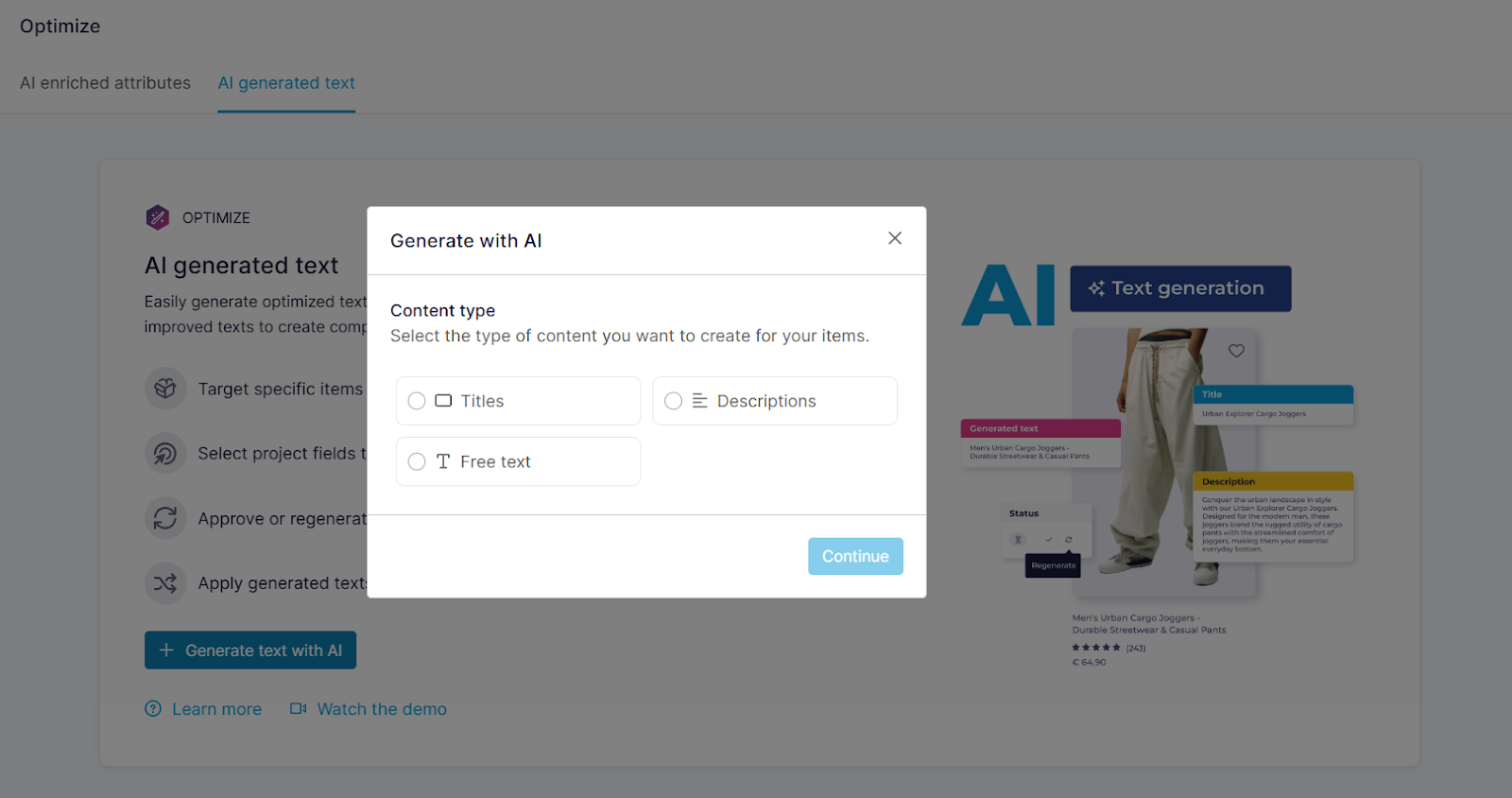
1. Go to **\[your company] > \[your project] > Optimize**.
2. Click **Generate text with AI** to start the setup.
3. In the pop-up, select the content you want to create:
* **Text:** Select a text content type. Your selection defines the prompt template in the **Prompting** step.
* **Titles:** Generate AI text suggestions to improve product titles.
* **Descriptions:** Generate AI text suggestions to improve product descriptions.
* **Free text:** Generate AI text suggestions for specific text fields.
* **Question & answer:** Create short, bulleted selling points about key benefits and features.
* **Product detail:** Create technical specifications and structured key-value attributes. These can include material, dimensions, or battery life.
* **Product highlight:** Create frequently asked questions and answers from merchants or customers.
* [**Attributes**](/manage-improve-product-data/generate-with-ai/ai-enriched-attributes.md): Attributes don't require an LLM connection.
4. Click **Continue**.
5. You will be directed to the **Settings** step to configure your generator. Fill in these details:
1. At **Name**, add a descriptive name so it's easier to find your AI generated text set later.
2. At **AI connection**, select **OpenAI** > **Connect**. A pop-up will appear.
1. For **Connection type**, click the dropdown and select **OpenAI**.
2. For **Label**, give your connection a descriptive name (like 'OpenAI connection')
3. For **API key**, paste the key you noted from Step 1.
4. Click **Connect with OpenAI**.
6. Click **Save**.
{% hint style="success" %}
#### **Success**
Your OpenAI connection is ready to use. Set up [AI text generation](/manage-improve-product-data/generate-with-ai/ai-generated-text/how-to-create-and-use-ai-generated-text.md).
{% endhint %}
{% endstep %}
{% step %}
### Continue setting up a generator
{% content-ref url="/pages/Rbvmo4oRgwc42C3YHF2R" %}
[AI generated text](/manage-improve-product-data/generate-with-ai/ai-generated-text.md)
{% endcontent-ref %}
{% endstep %}
{% endstepper %}
---
# Agent Instructions
This documentation is published with GitBook. GitBook is the documentation platform designed so that both humans and AI agents can read, navigate, and reason over technical content effectively. Learn more at gitbook.com.
## Querying This Documentation
If you need additional information that is not directly available in this page, you can query the documentation by asking a question.
Perform an HTTP GET request on the following URL with the `ask` and `goal` query parameters:
```
GET https://helpcenter.channable.com/manage-improve-product-data/generate-with-ai/set-up-your-ai-generation-connection/how-to-create-an-openai-connection-for-ai-generation.md?ask=&goal=
```
`ask` is the immediate question: it should be specific, self-contained, and written in natural language.
`goal` is what the user is ultimately trying to achieve, the reason they need the answer. Sharing it helps GitBook give you a better, more relevant answer. A goal is most helpful when it describes the outcome the user wants rather than restating the question. For example, with `ask=how do I create an API token`, a goal like `automate deployments from our CI pipeline` lets GitBook tailor the answer to that use case.
The response will contain a direct answer to the question and relevant excerpts and sources from the documentation.
Use this mechanism when the answer is not explicitly present in the current page, you need clarification or additional context, or you want to retrieve related documentation sections.