usersManage user roles in a Channable account

User role management (Core Standard and Core Plus)

You can specify these user roles:

  • Owner

  • Employee

  • Collaborator

Custom user role management (Core Pro)

You can specify these user roles:

  • Owner

  • Employee

  • Collaborator

  • Read-only

  • Setup-only

User roles in Channable

Owner
Employee
Collaborator
Read-only
Setup-only

Company Settings > Contact Details

View & Edit

View & Edit

View & Edit

View Only

View Only

Company Settings > Billing

View & Edit

View & Edit

Limited View*

Limited View*

Limited View*

Company Settings > Manage Access

View & Edit

View

None

View Only

View Only

Plans & Pricing

View & Edit

View & Edit

View & Edit

View Only

View Only

*Can view invoice details but it is not the payment profile.

**Read-only: Can view all information and settings, but is not able to change them.

***Setup-only: Can set up new channels. The user is not allowed to activate or deactivate any channels. They are also not able to run an active channel, change any of its settings, delete channels, create projects, modify imports, or change settings/pricing.

Manage access

circle-exclamation

Invite a user

circle-info

Note: When you invite a new user to your Channable company, they will receive an email.

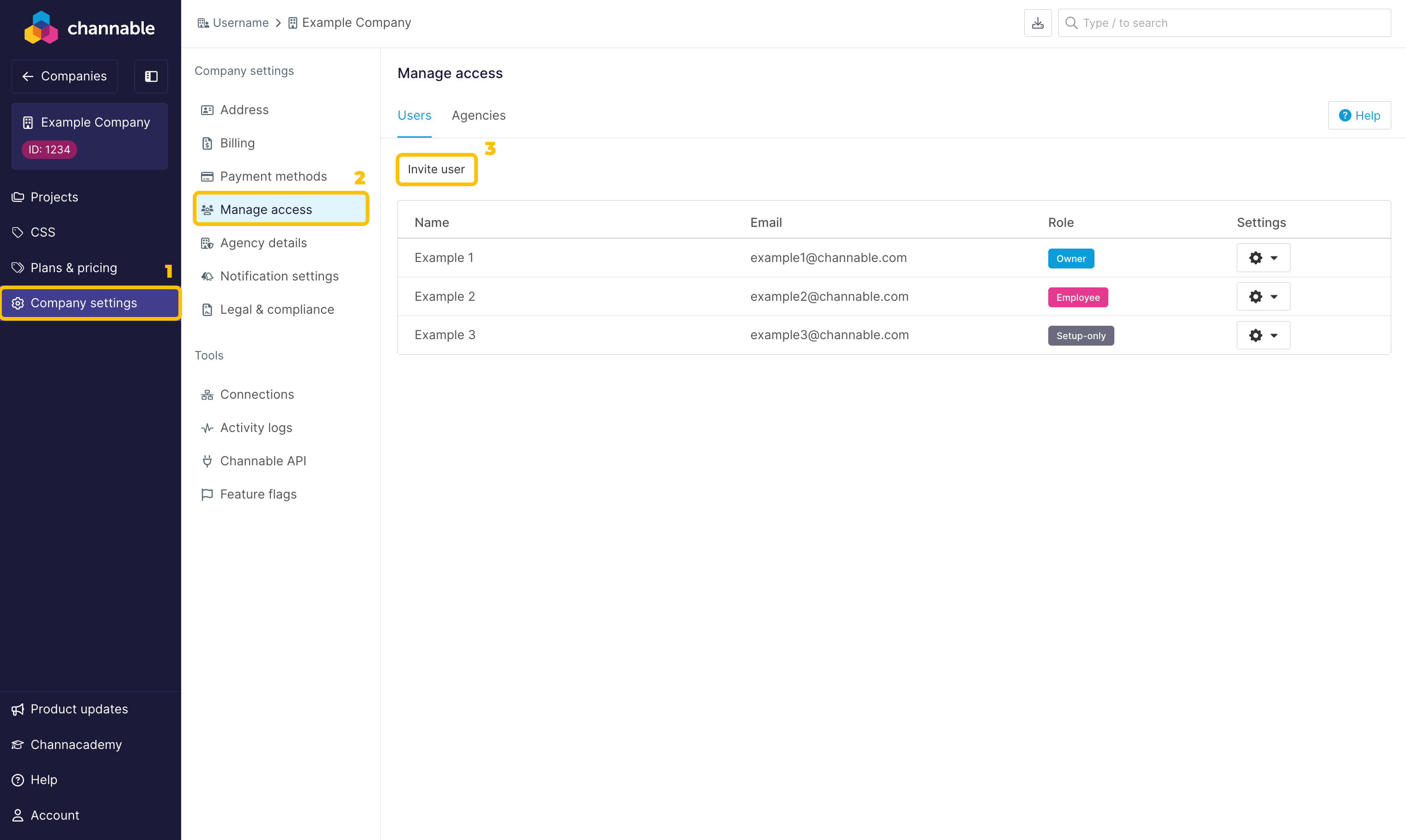
  1. Go to [your company] > Company settings > Manage access.

  2. Click Invite user.

    1. At Invite email, add the email address of the new user.

    2. At Role, select the role for the new user.

    3. Click Invite user.

  3. You then have to specify a role for the user. The rights of these roles are described in the table at the top of this article.

Delete a user

  1. Go to [your company] > Company settings.

  2. Locate the user you want to delete.

    1. In the Settings column, click the cog dropdown.

    2. Select Delete user

Last updated

Was this helpful?