

Keywords URLs for Google Text Ads
Important: Keyword URLs are only available for Text Ads.
Keywords URLs feature
Channable has released a new feature for Google Text Ads, URLs at keyword level! This will change the landing page of your ads based on the keywords & URLs you set up. In Channable, you can quickly generate keywords and negative keywords in the Ad group setup stage. To read more about adding (negative) keywords, check this helpcenter article.
Before going into how you can start using keyword URLs, let's consider what this feature actually does. Using keyword URLs is an option Google offers to make sure your ads take people to pages on your website related to particular keywords. For example, if you have the keyword "Nike Air Max shoes" you could define a keyword landing page that sends people to the part of your website where you are selling Nike Air Max shoes. See this Google Support article if you want to know more.
There are different reasons why this may come in useful, but in general it helps you specifying landing page URLs for campaigns that have ad groups with multiple keywords linked to them (see screenshot below).
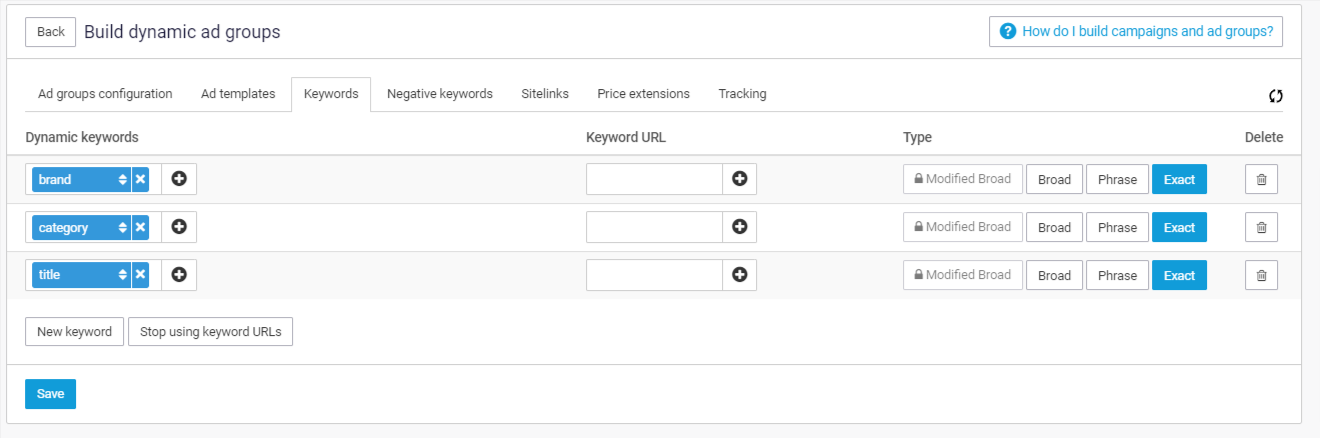
You set up the final URL for your ads in the ad template itself. This means that ads within an ad group will lead to this landing page. With URLs on keyword level, you can override this default URL you have set up in the ad template. It can, obviously, be that the landing pages are built dynamically but they will still lead to a similar page, for example the product-specific page. With URLs on keyword level, you can make sure that every keyword leads to its own landing page.
For example, you have built a static campaign ('Campaign 1') and created ad groups on category level. The landing page of your ads (their final URL) will now refer to the category page of that ad on your website, for example an ad advertising that your T-shirts are on sale will lead to the T-shirts page. Now, your keywords are more specific: you have set up keywords that lets customers find your ad on things like 'Boys T-shirts', 'Big sizes T-shirts', etc. If people search on these terms, your ad should be tailored to their search. With Keyword URLs, you can do exactly this. Now, you can lead them to a landing page for 'Boys T-shirts', 'Big sizes T-shirts', and all your other keywords.
How do I set this up?
Read the warning and implications
Note the warning shown when enabling this. In short: with this feature activated, every keyword URL in the ad group needs to be managed through Channable or the URL linked to it will potentially be removed from Google.
This setting is ad group–specific, meaning that we only send keyword URLs for those ad groups that you have manually activated this for. You can deactivate it at any moment by clicking Stop using keyword URLs.
Note I: If you have set up a Text Ads generator with multiple ad group generators where multiple ad group generators create the same ad group(s), and there is a keyword that is equal for those ad groups, the keyword URL setting needs to be enabled in both cases and the URL must match exactly.
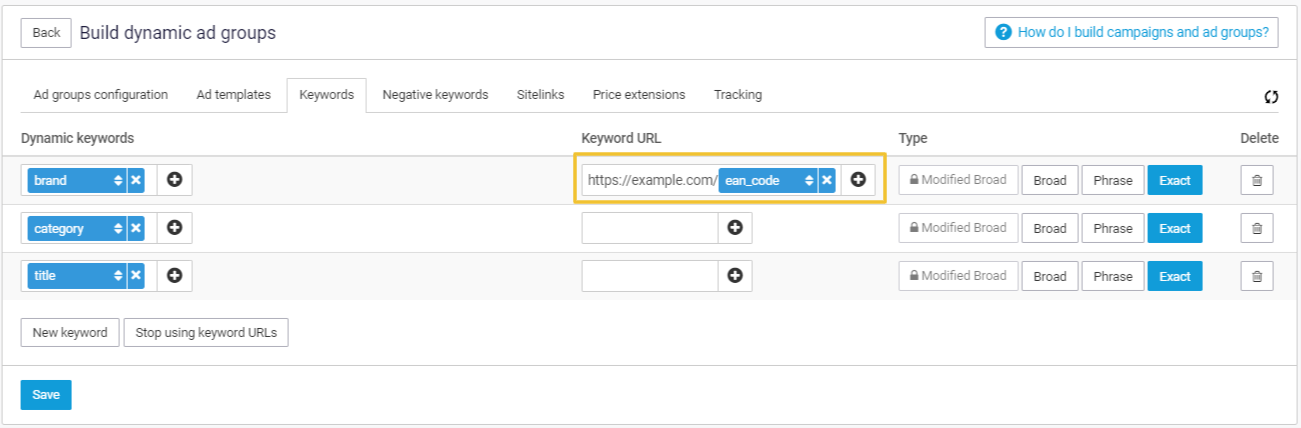
Note II: Right now, we expect one URL per keyword, so if you are using dynamic fields to create your keywords (like 'brand' in the screenshot above), you may get more than one URL per keyword. If this happens, we will show you an error and block the generator so you can fix this. Please contact us if you have a use-case where this needs to be handled differently, as we are still looking to change this.
Last updated
Was this helpful?