

Setting up a Responsive Ad template
Creating your Google Ads is done in the campaigns and Ad groups steps of your generator. To set up the main part of your ad navigate to the Ad templates tab within the Ad groups step.
What are Responsive Ads?
Responsive ads are ads that are created by Google Ads using the information provided by you. Instead of setting up an entire ad you setup multiple assets such as headlines and descriptions. Google Ads then uses these assets to create different versions of your ads by mixing the headlines and descriptions. Google Ads also tests the different versions of your ads to learn which ones perform best. In other words, your ads are automatically adapted to the consumer's search terms.
Setting up main templates
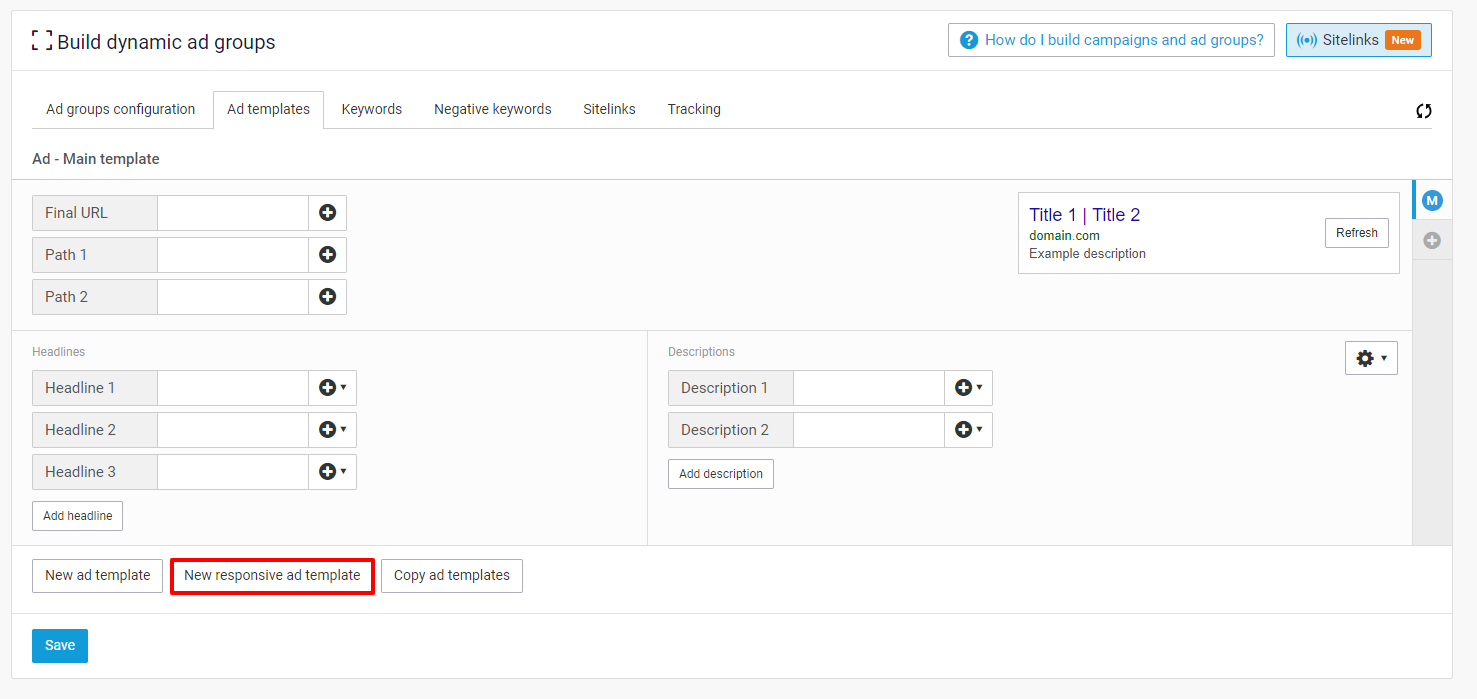
In the Ad templates tab you can click on the "New responsive ad template" button which will create a new main template. You can create a maximum of 3 main responsive ad templates.
Add headlines and descriptions
It is mandatory to provide at least 3 headlines and 2 descriptions.
You can add up to 15 headlines and 4 descriptions by clicking "Add headline" and "Add description".
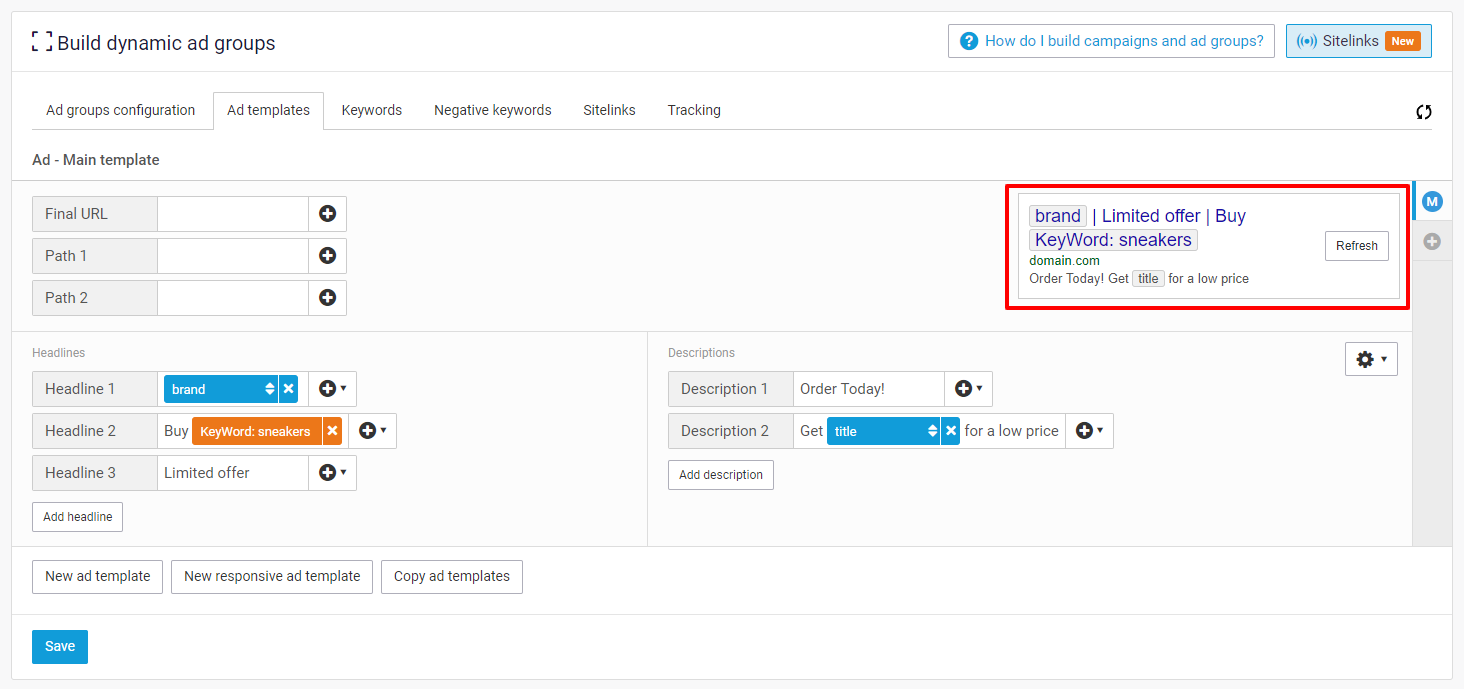
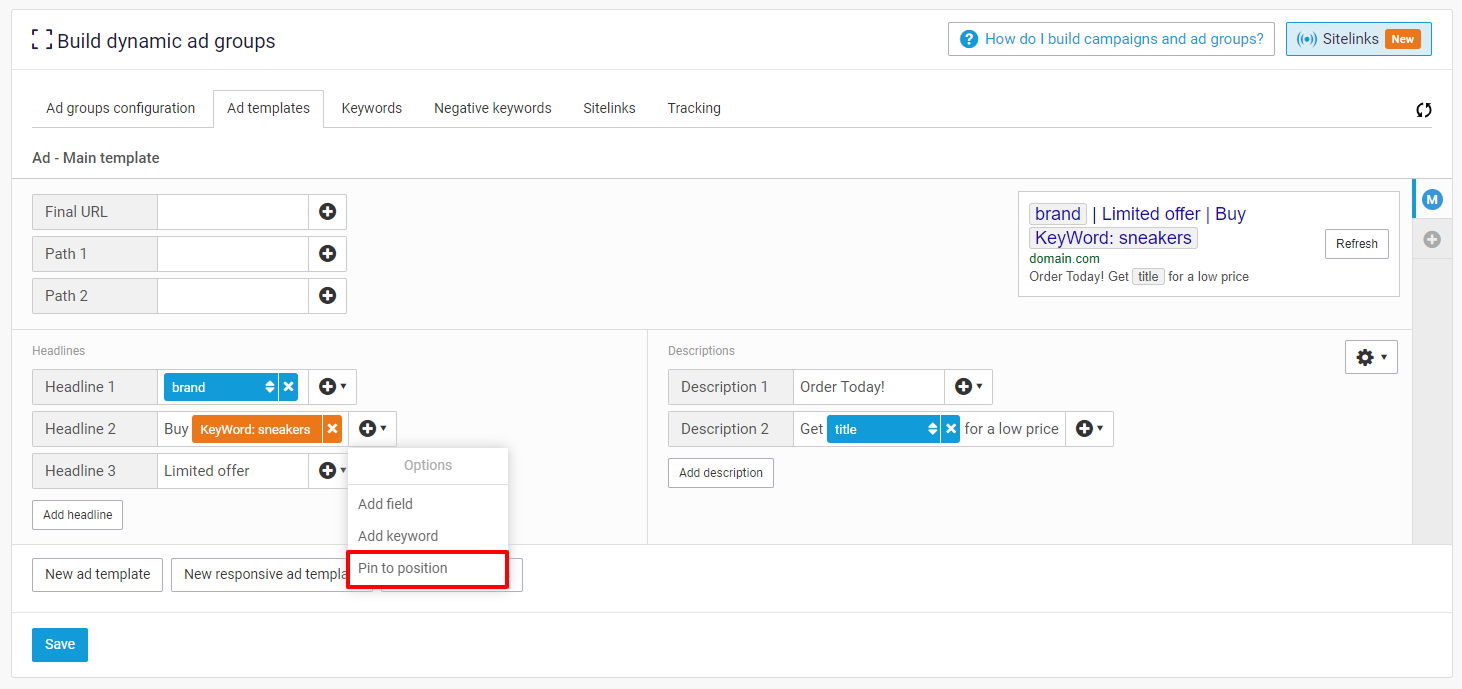
While filling in assets you can use dynamic fields and keyword insertion to use item information and further customize ads. For keyword insertion details see: How do I use keyword insertion in an Ad template?
Setting up backup templates
If you add dynamic fields to your Google Ads templates it might happen that the maximum number of characters of some fields is reached. For instance, the maximum length of 'Headline 1' is 30 characters. For other limits of the main templates, see What kind of ads do you create?
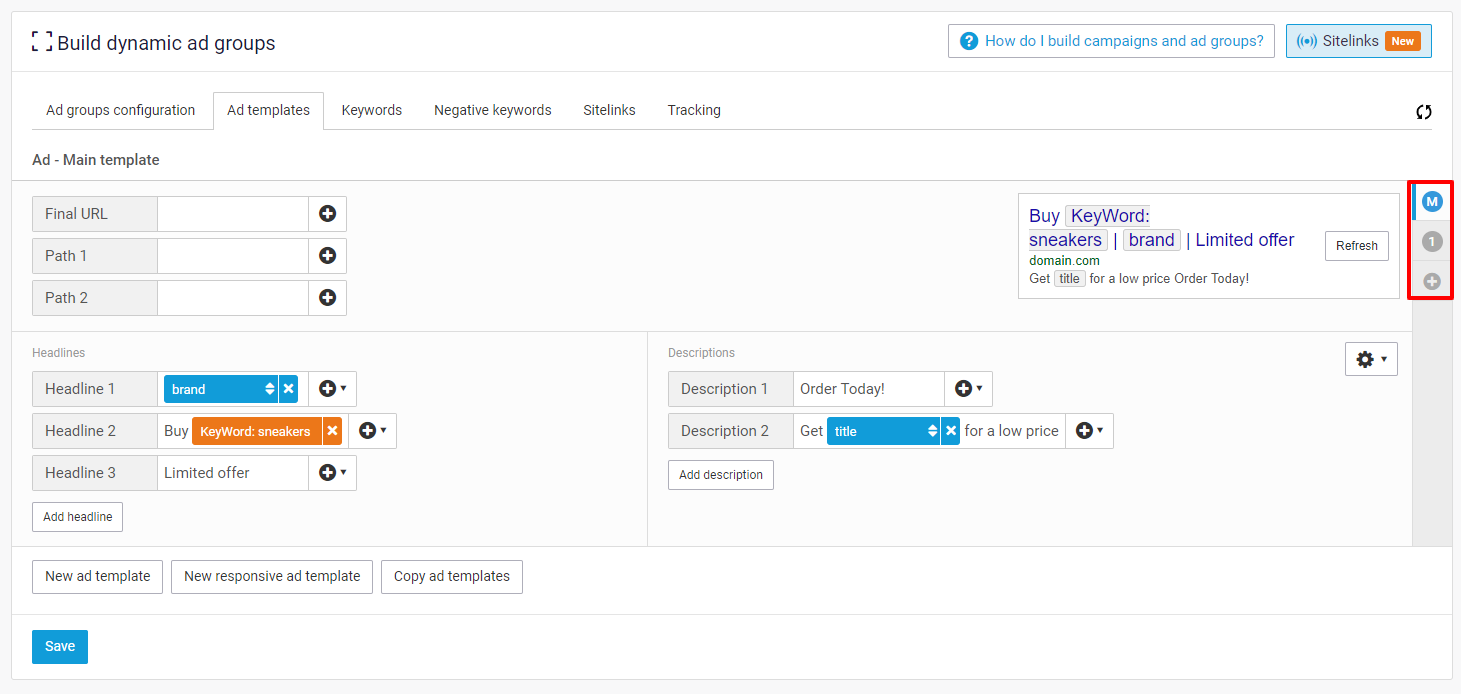
To circumvent errors for these limits you can add Backup templates to your main templates. These backup templates function as a backup in case fields in primary templates exceed their maximum length. You can add up to four backup templates per main template and use these backup templates to ensure that you send correct ads to Google Ads every time.
Last updated
Was this helpful?