> For the complete documentation index, see [llms.txt](https://helpcenter.channable.com/llms.txt). Markdown versions of documentation pages are available by appending `.md` to page URLs; this page is available as [Markdown](https://helpcenter.channable.com/list-advertise/bol/bol-repricer/configuring-the-bol-repricer.md).
# Configuring the Bol Repricer
What to know before you start
#### Set minimum and maximum prices
Before you start, determine a minimum and maximum price for every product. You can use the general rules engine and dynamic fields for this. The Repricer does not run on products that do not have a minimum and maximum price set up.
In general, Channable sets the maximum price for all products that do not have any competition. This also happens when you are directly competing with Bol.com and using the Buy Box strategy. The reason is that it is almost impossible to win the buy box if you are directly competing with Bol.com.
The minimum price determines your repricing threshold. Your products are never repriced below this price.
{% stepper %}
{% step %}
### Add the Bol.com Repricer to your subscription
As the Repricer is a paid add-on, you need to add it to your current subscription before you can access and set up the Repricer. [This article](https://channable-test.gitbook.io/channable-test-docs/account-billing/manage-your-subscription/manage-your-channable-subscription/channable-subscription-add-ons) explains how you can add this add-on to your subscription. The costs are €49 per Repricer per country.
{% hint style="info" %}
This is a paid add-on. You need to add this add-on to your subscription yourself. To learn how to do so, read [this article](/account-billing/manage-your-subscription/manage-your-channable-subscription/channable-subscription-add-ons.md). After adding the add-on to your subscription, you can access the repricer settings you see below.
{% endhint %}
{% hint style="warning" %}
Important note on volume discount & commission reduction: As a general rule, the Repricer overrules the ['regular' volume discount](/list-advertise/bol/list-items-on-bol/configure-volume-discounts-for-bol.md) and ['regular' commission reduction](https://channable-test.gitbook.io/channable-test-docs/list-advertise/bol/configuring-automatic-price-reduction-for-bol) for all products included in your Repricer rules. Therefore, if you want to apply volume discount or commission reduction to products included in your Repricer you need to configure the Volume discount and commission reduction in the **Repricer rules** instead of the Build step. For more information about the volume discount, read [this article](/list-advertise/bol/bol-repricer/how-does-volume-discount-work-for-products-included-in-my-bol-repricer.md) and for the commission reduction, read [this article](/list-advertise/bol/bol-repricer/can-i-use-bols-automatic-reduced-commission-in-combination-with-the-repricer.md).
{% endhint %}
{% endstep %}
{% step %}
### Repricer settings
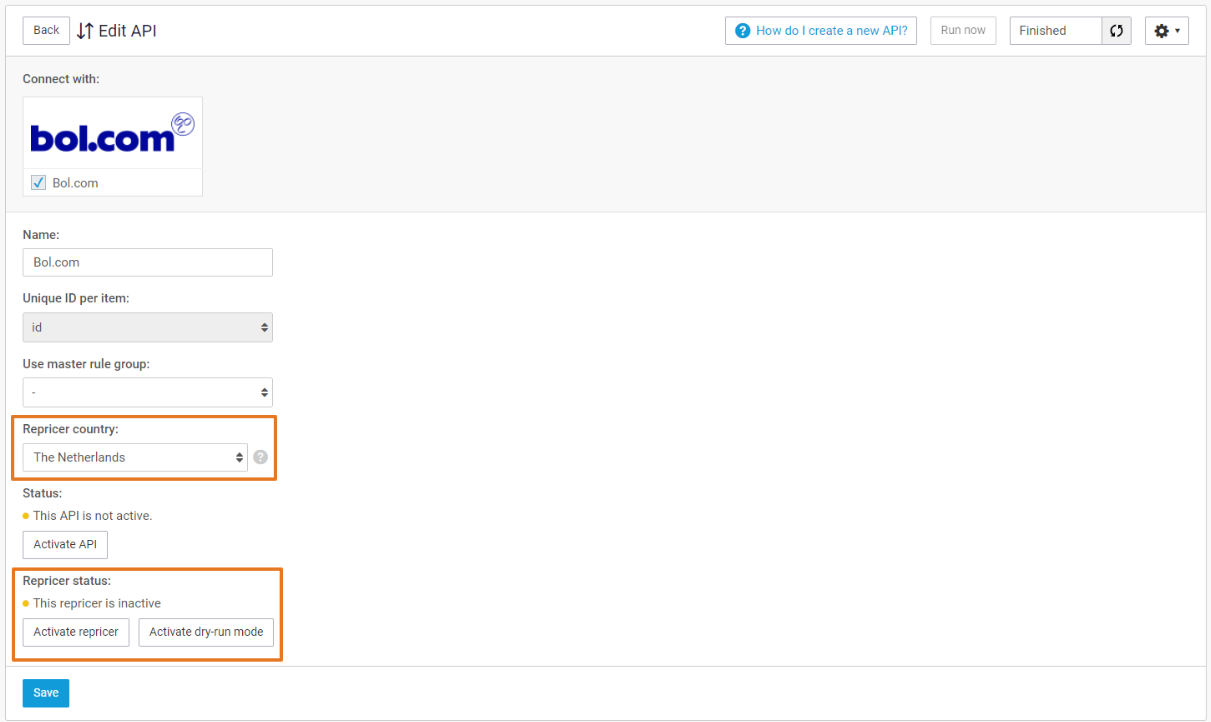
After adding the Repricer to your subscription, navigate to *API's > \[your Bol API].* You can access the Repricer settings in the *Settings* tab.
* **Repricer country** — To select the country market in the repricer, go to the repricer country setting and select The Netherlands or Belgium in the repricer country dropdown. You can only select one country. Choose the country for the repricer that matches the country in your product listing API. If your product listing API is connected to a Bol NL account, select the Netherlands in your country setting for the repricer. Failure to do so will cause the repricer to reprice against the wrong sellers. For example: If the API is connected to Bol NL, but the repricer is set to Belgium we will reprice the Bol NL offers against the sellers on Bol BE.
* **Repricer status** — Here, you can select if you want the repricer to be active, inactive or on Dry-run. With the **Dry-run** status, you can preview all the price updates that the repricer would perform without actually implementing the price changes on Bol.com. When you are happy with your configuration and the previewed results, you can switch the repricer to **active**. The repricer updates will then be sent live to Bol.com.
{% endstep %}
{% step %}
### Reprice Rules
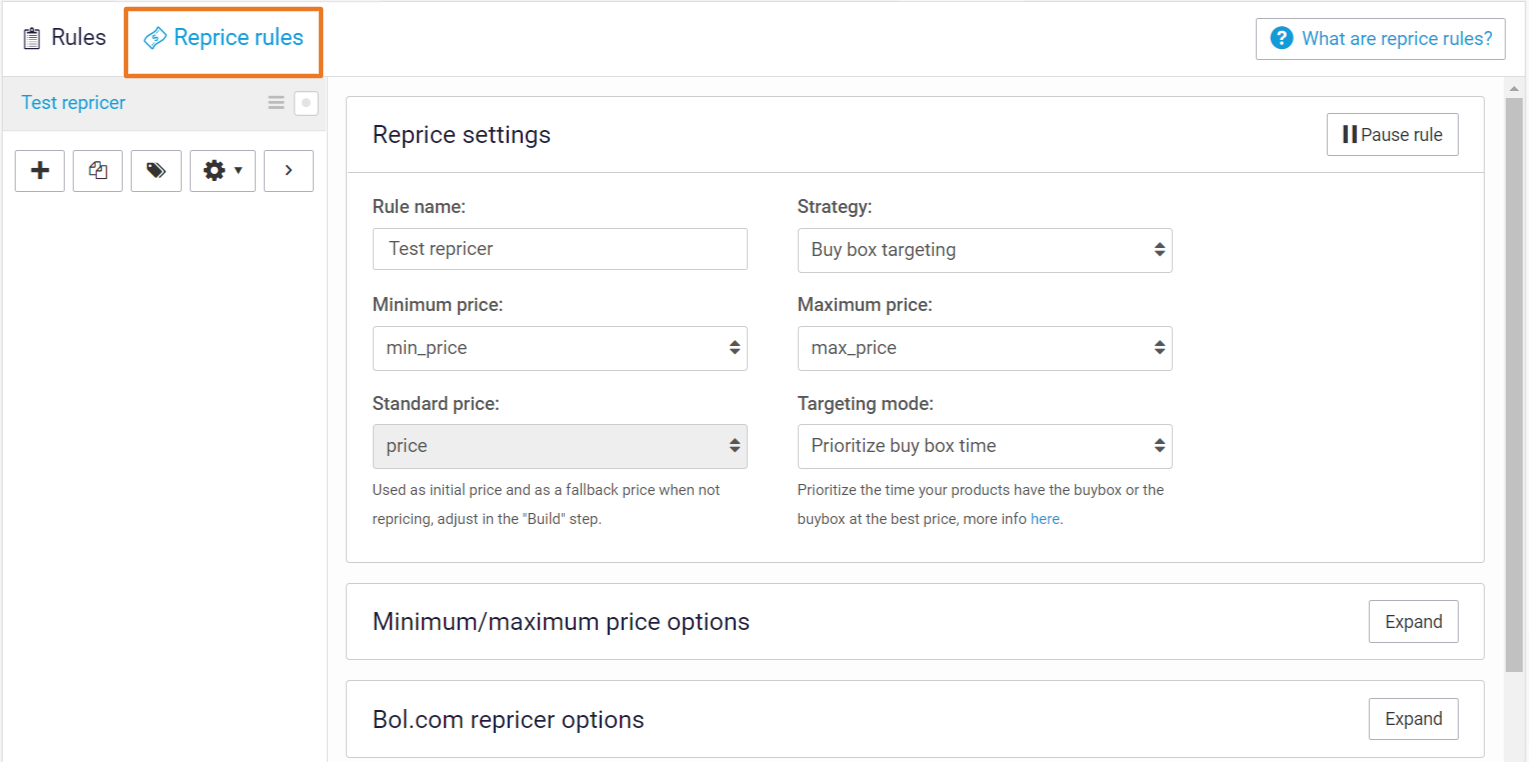
In the *Rules* step of the Bol.com API, there is a separate tab for your **Reprice rules**:
Here, you can configure the parameters and strategy of the Repricer. Depending on the strategy, you can configure the following in a Reprice rule:
{% stepper %}
{% step %}
#### Reprice settings
In the **Reprice settings** part of a reprice rule, you can configure:
* **Rule name:** The name that will show in the rule overview.
* **Strategy:** Pick from 'Buy box targeting' and 'Competitor targeting'. To learn more about these strategies, read [this article](https://channable-test.gitbook.io/channable-test-docs/list-advertise/bol/bol-repricer).
* **Minimum price:** The lowest price the repricer can set. You can select a field of your choice (for example a calculated 'minimum\_price' field).
* **Maximum price:** The highest price the repricer can set.
{% hint style="info" %}
We always try to undercut the price of the competitor with the lowest price offer. If the lowest price among competing offers changes (e.g., competitor stops selling or increases price), we will increase your price accordingly up to the value of your maximum price.
{% endhint %}
* **Price difference for undercut** (Competitor targeting only): Indicate the price difference used to undercut competitors with a static amount.
* Note: for the Buy box targeting strategy, the price difference to undercut is 10 cents and cannot be changed.
* **Wait time before price increase** (Buy box targeting with margin targeting mode only): After you win the buy box, the repricer will start to increase the price once you have kept the buy box for a certain time. Default wait time is 72 hours; you can change this (must be a whole number > 0 and < 505 hours). Increasing the price risks losing the buy box.
{% endstep %}
{% step %}
#### Minimum / maximum price options
With these options, you can choose what happens in the repricer when:
* there is no competition,
* the price of the competition is below your minimum (Competitor targeting), or
* the intended price update is below your minimum price (Buy box targeting).
Options:
* **Go to standard price:** The repricer will not reprice the item and the standard price will be sent.
* **Go to minimum:** The repricer will use the minimum price set in the Reprice settings.
* **Go to maximum:** The repricer will use the maximum price set in the Reprice settings.
Specifically for the Competitor targeting strategy, there is an extra option for when competition is below your minimum:
* **Compete with next bestseller:** The repricer will disregard competitors with prices below your minimum and undercut the rest.
{% endstep %}
{% step %}
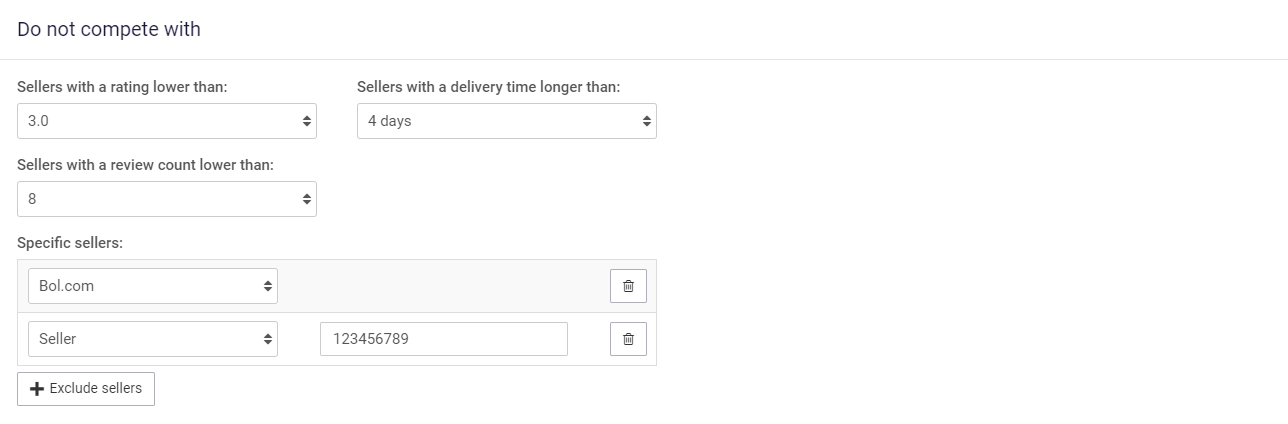
#### Do not compete with (Competitor targeting only)
Configure parameters to indicate sellers you do **not** want to compete with:
* **Sellers with a rating lower than:** Do not compete with sellers below this rating.
* **Sellers with a delivery time longer than:** Do not compete with sellers with delivery times longer than this.
* **Sellers with a review count lower than:** Do not compete with sellers with fewer reviews than this.
* **Specific sellers:** Add specific sellers you do not want to compete with. Choose between 'Bol.com' and 'Seller'. For a specific seller, provide their Bol.com seller ID (useful if you run a second seller account selling the same products).
Example: You will **not** compete with sellers that have a rating lower than 3.0, a delivery time longer than 4 days, a review count lower than 8, and specific sellers 'Bol.com' and Bol.com seller with ID '123456789'.
{% endstep %}
{% step %}
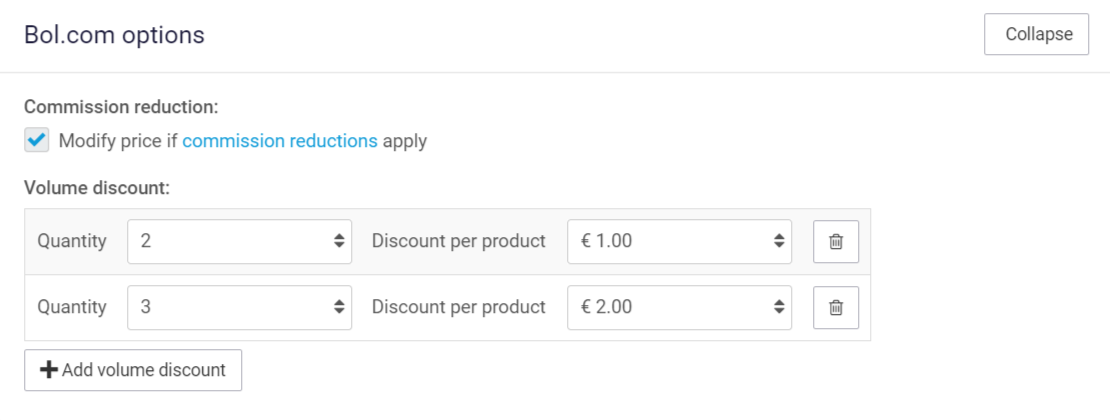
#### Bol.com options
Select Bol.com specific options: **Commission reduction** or **Volume discount**. These options are also available in the Build step of the regular Bol API, but the repricer will overrule those settings — therefore you can include them in your repricer rules if desired.
* For Commission reduction in the repricer, read [this article](https://channable-test.gitbook.io/channable-test-docs/list-advertise/bol/bol-repricer/can-i-use-bols-automatic-reduced-commission-in-combination-with-the-repricer).
* For Volume discount in the repricer, read [this article](https://channable-test.gitbook.io/channable-test-docs/list-advertise/bol/bol-repricer/how-does-volume-discount-work-for-products-included-in-my-bol-repricer).
{% endstep %}
{% step %}
#### Conditions
In the last part of the Repricer rule, set **conditions** to control which products are included in this specific rule. This works similarly to the 'IF' condition in a regular rule.
* By default, the repricer will include all products if you do not set any conditions.
* Use multiple Repricer rules to configure different strategies, prices, or parameters for groups of products — include relevant products in each rule and exclude the rest.
{% hint style="info" %}
Note: Rules are executed from top to bottom. If a product is included in your first Repricer rule, it will not be considered for subsequent Repricer rules even if it meets their conditions.
{% endhint %}
{% endstep %}
{% endstepper %}
{% endstep %}
{% step %}
### Step 4 — Check the results
#### Individual items
When configuring the Reprice rules, you can check how a rule affects individual items. To do this, go to the desired Reprice rule, click **Save rule**, and then click **Selected items** on the right-hand side. You will see a list of all the items impacted by this rule. Clicking a single item shows the item overview including the Competitors, the Repricer settings, the 'Do not compete with' settings (if using Competitor targeting), and the event history.
|  |  |  |
| ------------------------------------------------------------------------------------------------------------------------------------------------- | ------------------------------------------------------------------------------------------------------------------------------------------------- | ------------------------------------------------------------------------------------------------------------------------------------------------- |
* The **Competitors** tab shows prices of different sellers on Bol.com (including you) and whether you compete with each seller.
* The **Reprice settings** show how the Reprice rule configures the parameters for this product: minimum and maximum price, strategy, and price difference for undercut.
* The **Do not compete with** section shows parameters of sellers you do not want to compete with (Competitor targeting only).
* The **Event history** shows price changes for the product. Click 'info' for more details on reasons for a price change.
EAN is not known to Channable — more information
If you encounter the 'EAN is not known to Channable' error in the product preview, please read [this article](https://helpcenter.channable.com/hc/en-us/articles/360020575919) for more information about this error.
{% hint style="info" %}
Note on Errors in the Price preview: It can happen that there is an unusual amount of errors in the price preview that shows the buy-box status and competing prices per product. If this is the case and your project is currently running an export: please wait for the export to complete and check the errors again. They should be gone afterwards. If the high amount of errors persists, please contact Channable support.
{% endhint %}
#### Repricer updates
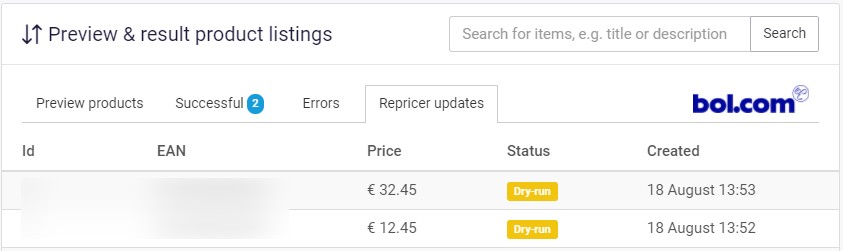
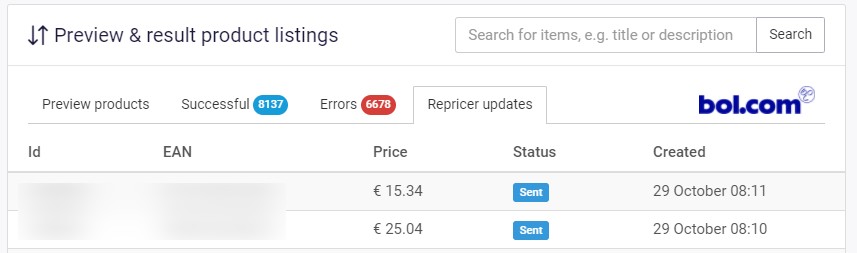
You can also check what the **Repricer updates** will do in the *Results* step under **Repricer updates**. This overview shows all recent price changes triggered by the Repricer and their statuses:
* **Dry Run:** Repricer status is Dry-run — updates are previews only.
* **Sent:** Price was sent to Bol.com.
* **Error:** Channable encountered an error sending the price update to Bol.com.
#### Dashboard overview
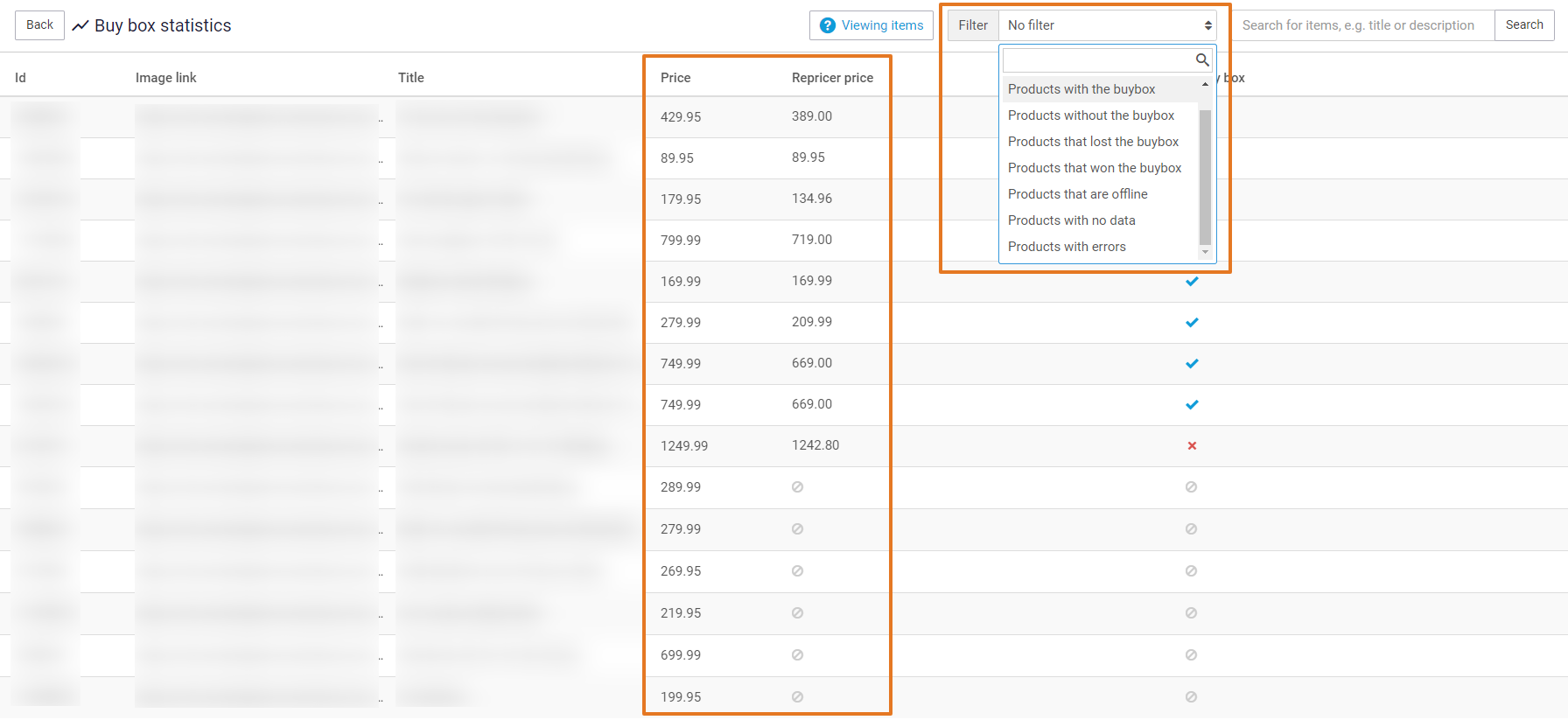
Navigate to *Dashboard > Repricer* to see an overview of repricer statistics. You can download this overview as CSV by clicking **Download as CSV**. If you have multiple repricers or want a detailed overview, click the repricer under channel to see and download statistics for that channel only.
Filters available for repricer previews (statistics and price rule previews):
* No filter
* Products with the buy box
* Products without the buy box
* Products that lost the buy box
* Products that won the buy box
* Products that are offline
* Products with no data
* Products with errors
* **Products with no data**: Products that have no repricer information (e.g., out of stock / not live on Bol.com, or not matched by any price rule).
* **Products with errors**: Currently supports errors where the product EAN does not match the EAN Bol.com uses. The repricer cannot be used on such products until the EAN is corrected. More info: [this article](/list-advertise/bol/bol-repricer/bol-repricer-ean-is-not-known-troubleshooter.md).
You can also see the "repricer price" in these previews to compare your prices with repricer prices quickly and optimize your setup.
{% hint style="info" %}
It will take some time before all data properly shows after activating the repricer. Updates may be incomplete shortly after activation.
{% endhint %}
{% endstep %}
{% endstepper %}
---
# Agent Instructions
This documentation is published with GitBook. GitBook is the documentation platform designed so that both humans and AI agents can read, navigate, and reason over technical content effectively. Learn more at gitbook.com.
## Querying This Documentation
If you need additional information that is not directly available in this page, you can query the documentation by asking a question.
Perform an HTTP GET request on the following URL with the `ask` and `goal` query parameters:
```
GET https://helpcenter.channable.com/list-advertise/bol/bol-repricer/configuring-the-bol-repricer.md?ask=&goal=
```
`ask` is the immediate question: it should be specific, self-contained, and written in natural language.
`goal` is what the user is ultimately trying to achieve, the reason they need the answer. Sharing it helps GitBook give you a better, more relevant answer. A goal is most helpful when it describes the outcome the user wants rather than restating the question. For example, with `ask=how do I create an API token`, a goal like `automate deployments from our CI pipeline` lets GitBook tailor the answer to that use case.
The response will contain a direct answer to the question and relevant excerpts and sources from the documentation.
Use this mechanism when the answer is not explicitly present in the current page, you need clarification or additional context, or you want to retrieve related documentation sections.
%20(1).png?alt=media&token=2bfe950d-28ff-4a00-82fe-28fc493227b4)
.png?alt=media&token=0ff66970-39fe-4f3e-b414-4f8fcefb3775)
.png?alt=media&token=6e146dde-ad0b-4b17-83c8-026128ca590a)