> For the complete documentation index, see [llms.txt](https://helpcenter.channable.com/llms.txt). Markdown versions of documentation pages are available by appending `.md` to page URLs; this page is available as [Markdown](https://helpcenter.channable.com/list-advertise/amazon/list-items-on-amazon/how-to-set-up-an-amazon-channel/add-offers-to-products-already-selling-on-amazon.md).
# Add offers to products already selling on Amazon
Learn how to set up an Amazon channel in Channable to add offers to items already in Amazon’s catalog.
This article explains how to set up your Amazon channel in Channable to add offers to items already in Amazon’s catalog.
{% hint style="warning" %}
This guide is dependent on all your items already existing in Amazon’s catalog. If you’re not sure whether all your items are in Amazon’s catalog, visit our [Catalog matching guide](/list-advertise/amazon/list-items-on-amazon/how-to-use-catalog-matching-for-amazon.md).
{% endhint %}
***
### :memo-circle-check: Before you start
**You’ll need**
* [ASINs of your items](broken://pages/6609e7ee7ca5ad897f2319bdc5d238d92165cc35)
* An Amazon account
**Good to know**
* If an item is part of a brand enrolled in [Amazon Brand Registry](https://sell.amazon.com/brand-registry), you need to be a [Brand Representative](https://sell.amazon.com/blog/brand-registry-roles) or[ Authorized reseller](https://sell.amazon.com/blog/brand-registry-roles) list it
* Items from [certain categories require approval from Amazon to list](https://sell.amazon.com/blog/brand-registry-roles).
{% stepper %}
{% step %}
### Create your Amazon channel
1. Open your channel overview:
{% tabs %}
{% tab title="Modern version" %}
In Channable, go to **All projects > \[Your project] > Channels**.
{% endtab %}
{% tab title="Legacy version" %}
In Channable, go to **Projects > \[Your project] > Channels**.
{% endtab %}
{% endtabs %}
2. Click **+ Create Channel** and select **Amazon**.
3. Fill in your channel settings:
1. **Name:** Choose a name for your channel. This is for your reference only.
2. **Unique ID per item:** Select the field containing your product IDs (often id).
3. **Amazon country:** Select the country (Amazon Marketplace) you want to advertise your listings in.
4. **Listing requirement level:** Select **Add offers to Amazon listings**.
5. **Amazon error language:** Select your preferred error language.
6. For **Catalog item matching**, click the toggle to enable it. This allows us to scan your product IDs against Amazon's catalog to see which of your items are already listed.
{% hint style="info" %}
Enabling catalog matching adjusts your setup. Continue following the steps in our [Catalog Matching article](/list-advertise/amazon/list-items-on-amazon/how-to-use-catalog-matching-for-amazon.md).
{% endhint %}
4. Click **Continue**.
{% endstep %}
{% step %}
### Categorize your products using rules
For your setup, you can skip the **Categorization** step and instead categorize using rules.
1. Go to the **Rules** step.
2. Click **Create rule**.
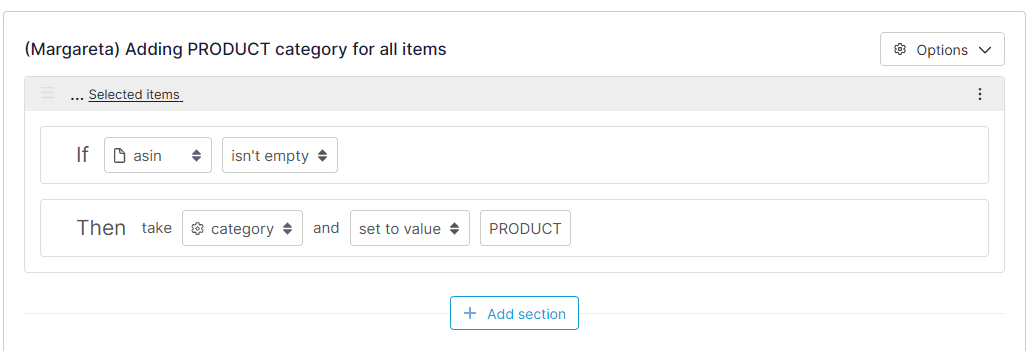
3. Create the following rule:
**If** `[FIELD CONTAINING ASINS]` `isn’t empty`
**Then** take `category` and `set to value` "PRODUCT".
4. Click **Save**.
{% endstep %}
{% step %}
### Create rules to enrich, filter, and refine your product data
Use rules to prepare product data for Amazon. If later steps show missing data, create project fields and populate them with rules. You can also adjust existing fields to meet Amazon's requirements.
* [Rule templates](/manage-improve-product-data/rules-bulk-edit-and-enrich/using-rules/rule-templates.md): Use common rules that you can adjust for your needs.
* [Rules](/manage-improve-product-data/rules-bulk-edit-and-enrich/using-rules.md): Set up rules to filter, modify, or enhance data fields for marketplace requirements.
{% endstep %}
{% step %}
### Map shared attributes
1. In **\[your Amazon channel]**, go to the **Build** step and click the **Shared attributes** tab.
2. For **Merchant Suggested ASIN**, select the field containing your [product ASIN](https://sellercentral.amazon.nl/product-search/bulk/generate/add-offer).
3. For **External product ID**, click **+ Add.**
4. Map the following fields:
1. For **Type**, click the dropdown > **Supported value** and select the ID format used (e.g. ean, gtin, upc)
2. For **ID**, map the corresponding field in your import containing your product IDs (this is often `id`).
{% hint style="warning" %}
Fill both **External Product ID** and **ASIN** to improve the chance of your items being listed on Amazon.
{% endhint %}
{% hint style="info" %}
If you have a mix of import id types, map the project field containing them. If the import field uses uppercase (EAN/GTIN/UPC), create a rule to convert it to lowercase.
**Example rule:**
**If** `all`
**Then** take `id_type` and `modify text` `lowercase all words`
{% endhint %}
4. For **Purchasable offers** (Standard and Business price):
* For **Standard**: Click **+ Add** to map attributes under Purchasable offer (Standard) for Offer information and Discount price as needed.
* For **Business price**: Click **+ Add** to map attributes under Purchasable offer (Business price) for Offer information and Quantity discount as needed.
* If you don’t want to send pricing information, ignore this section.
{% hint style="info" %}
#### **Note for Repricer users**
* The Repricer only reprices the Standard offer.
* You need to be enrolled in the Amazon Business program to set Business price
{% endhint %}
5. Click **Save**.
{% endstep %}
{% step %}
### Map category attributes
Category attributes are specific fields attributed to items belonging to certain categories.
If you skipped the **Categorization** step as outlined in Step 2, or followed our [catalog matching guide](/list-advertise/amazon/list-items-on-amazon/how-to-use-catalog-matching-for-amazon.md), you should only see the `PRODUCT` category.
{% hint style="warning" %}
#### **Important disclaimer**
Amazon updates its listing requirements often, and there are thousands of product categories. This means we can't tell you exactly which attributes you need to map to successfully list your products.
We recommend mapping at least the following attributes:
* **Quantity** (in Fulfilment Availability section)
* **Item Condition**
* **Country of Origin**
* **Fulfilment availability**
To find out what information Amazon requires for your specific products, [download Amazon's inventory template](https://helpcenter.channable.com/hc/en-us/articles/360014280220-How-to-identify-required-attributes-for-your-Amazon-channel).
{% endhint %}
For specific instructions, select your fulfillment use case (MFN / AFN/FBA):
I ship my products myself (MFN - Merchant Fulfilled Network)
{% hint style="warning" %}
**Important:** If using the[ repricer (add-on)](https://www.channable.com/products/marketplace-integrator/repricer), set **Fulfillment channel code** to `DEFAULT` and map **Quantity** to your stock. Failing to do so can feed the repricer incorrect data and block repricing.
{% endhint %}
1. In **Build**, click **Attributes per category**.
2. Select the `PRODUCT` category and scroll to the **Offer** section.
3. Next to **Fulfillment availability**, click **+ Add**:
1. For **Fulfillment channel code**: **Supported values** > `DEFAULT`
2. For **Quantity**: select your stock field
3. For **Handling time**: if it takes longer than 2 days to ship, fill in the number of days (e.g., 5). If under 2 days, leave empty.
4. For **Merchant Shipping Group**: map your[ shipping template ID](https://channable-test.gitbook.io/channable-test-docs/list-advertise/amazon/list-items-on-amazon/how-to-configure-shipping-templates-for-amazon) if used.
5. Map any remaining mandatory[ fields to corresponding fields from your data](https://channable-test.gitbook.io/channable-test-docs/list-advertise/list-on-marketplaces/get-started-with-marketplaces/marketplaces-build-step).
1. If selling on Amazon US and **Item Type Keyword** appears in “Information to uniquely identify your product”, choose **Internal fields** > `recommended_browse_nodes`.
6. Go to the **Quality** step and resolve any flagged[ errors](https://channable-test.gitbook.io/channable-test-docs/list-advertise/list-on-marketplaces/get-started-with-marketplaces/marketplaces-quality-step).
{% hint style="success" %}
Click **Auto-map fields** to automatically map using information using information from your other channels or other similar setups.[ Learn more](https://channable-test.gitbook.io/channable-test-docs/list-advertise/list-on-marketplaces/auto-map-fields-for-marketplaces-apis).
{% endhint %}
Amazon ships my products (AFN / FBA)
{% hint style="warning" %}
If using the[ repricer (add-on)](https://www.channable.com/products/marketplace-integrator/repricer), set the correct Amazon warehouse code in Fulfillment channel code (e.g., `AMAZON_EU`). Do not map **Quantity**. Failing to do so can block repricing.
{% endhint %}
1. In **Build**, click **Attributes per category**.
2. In the **Offer** section, next to **Fulfillment availability**, click **+ Add**:
1. Set **Fulfillment channel code** to the Amazon warehouse code (**Supported values** > `[your relevant Amazon code]`).
2. If selling on Amazon US and **Item Type Keyword** appears, set **Internal fields** > `recommended_browse_nodes`.
3. Map any remaining mandatory[ fields](https://channable-test.gitbook.io/channable-test-docs/list-advertise/list-on-marketplaces/get-started-with-marketplaces/marketplaces-build-step).
4. Repeat for each category.
5. Go to **Quality** and resolve any flagged[ errors](https://channable-test.gitbook.io/channable-test-docs/list-advertise/list-on-marketplaces/get-started-with-marketplaces/marketplaces-quality-step).
{% hint style="info" %}
Some attributes are required by Amazon even if they don’t make sense for your product. In such cases, choose a relevant supported value or map a project field containing the most relevant data for that attribute.
{% endhint %}
{% hint style="success" %}
Click **Auto-map fields** to automatically map using information using information from your other channels or other similar setups.[ Learn more](https://channable-test.gitbook.io/channable-test-docs/list-advertise/list-on-marketplaces/auto-map-fields-for-marketplaces-apis).
{% endhint %}
{% endstep %}
{% step %}
### Connect to Amazon
1. Return to the **Settings** step.
2. For **Linked seller account**, click **Select seller account**.
3. Click **Amazon** and fill in the requested information:
1. For **Label**, name your connection
2. For **Region**, choose Europe (for EU countries and UK) or North America (for US, Canada and Mexico), Australia, UAE or Turkey
4. Click **Connect with Amazon**. You’ll be redirected to your Amazon Seller account to finalize the connection.
{% endstep %}
{% step %}
### Test your channel setup
Testing your channel setup helps you check your channel setup and listings with Amazon before you publish them.
To test your setup, click **Test channel setup**.
{% hint style="info" %}
You can test your setup as many times as needed.
{% endhint %}
{% endstep %}
{% step %}
### Activate your channel
{% hint style="warning" %}
Amazon processes data more slowly between 12:00–17:00 UTC. Change your[ schedule settings](https://channable-test.gitbook.io/channable-test-docs/get-started/getting-started/create-a-new-project/project-settings) to run outside this window. Runs that take longer than 2 hours will auto-stop and need to be restarted.
{% endhint %}
1. In **\[your Amazon channel]**, go to the **Settings** step.
2. Click **Activate API**.
3. Click **Save**.
4. Click **Run now** to send product listings to Amazon.
Your channel will start creating/adding new listings and/or offers to Amazon. How long this takes depends on the amount of product data sent.
{% endstep %}
{% step %}
### Review and fix listing errors
Amazon enforces strict data requirements. The **Feedback** tab shows issues (errors and warnings).
1. Go to the **Result** step of your Amazon channel and open the **Feedback** tab for an overview of all possible errors and warnings.
2. Return to the **Overview** tab to view product listing statuses and filter by:
* **Active listings:** successfully listed
* **Inactive listings**: listed but inactive
* **Incomplete listings**: missing required info
* **No match found**: not in Amazon’s catalog
3. In **Feedback**, start resolving issues, prioritizing submission errors:
1. Click the red error code in **Description** to see details.
2. Note the attribute causing the error (e.g., Item Weight) and click **Go to attribute** to jump to it.
3. Re-map the attribute: choose a recommended value, a project field, or a manual value.
4. Click **Save**.
4. Repeat for any other errors.
5. Click **Run now** to resend your products to Amazon.
I see 8541 or 13013 errors
Check the whether your channel meets the right conditions:
* You only have one category - `PRODUCT` . You can check this in the **Attributes per category** tab in the **Build** step.
* The **Quantity** attribute has a relevant field or value mapped to it.
* The **Condition** attribute has a relevant field or value mapped to it.
If your channel meets the above conditions persist after 48 hours, there may be listing restrictions on the ASIN. If you aren't sure, [contact our Support team](/get-started/contact-support.md).
{% endstep %}
{% endstepper %}
### Error types explained
Errors indicate an issue occurred which prevented the submission from processing. (e.g. a validation error.)
We detail all the possible error types you can encounter below. For information on how to solve a specific error, refer to our [Amazon error troubleshooting guide](https://channable-test.gitbook.io/channable-test-docs/list-advertise/amazon/list-items-on-amazon/how-to-solve-common-amazon-errors).
Submission errors (important)
Submission errors happen when Amazon encounters issues processing your product data after you send your listings.
{% hint style="warning" %}
**Important:** If one of your products has a submission error, it can have a cascading effect and prevent other products from processing. Because of this, prioritize fixing submission errors before addressing other errors.
{% endhint %}
Listing errors
Listing state errors are additional errors we request from Amazon to make sure you have all the information you need to go live and optimize your listing. Because we pull all possible errors, some listing state errors aren’t relevant to and can't be resolved within Channable.
{% hint style="info" %}
**Note:** If you notice a product with a listing error is updating as it should on Amazon, you can ignore the error, but fixing listing state errors can improve your listing quality.
{% endhint %}
Warnings
Warnings indicate an issue occurred that should be reviewed but hasn't prevented the submission from processing.
{% hint style="info" %}
#### **Note**
* Dry runs clear submission errors (useful for testing) but only normal runs keep full feedback history.
* Some listing state errors stem from older Amazon API versions (V1) and cannot be resolved via standard API use on V2. Amazon is working on fixes.
If you encounter this, try deleting listings with the error by removing their SKUs from your channel. Wait 24 hours, then resubmit the listing.
{% endhint %}
---
# Agent Instructions
This documentation is published with GitBook. GitBook is the documentation platform designed so that both humans and AI agents can read, navigate, and reason over technical content effectively. Learn more at gitbook.com.
## Querying This Documentation
If you need additional information that is not directly available in this page, you can query the documentation by asking a question.
Perform an HTTP GET request on the following URL with the `ask` and `goal` query parameters:
```
GET https://helpcenter.channable.com/list-advertise/amazon/list-items-on-amazon/how-to-set-up-an-amazon-channel/add-offers-to-products-already-selling-on-amazon.md?ask=&goal=
```
`ask` is the immediate question: it should be specific, self-contained, and written in natural language.
`goal` is what the user is ultimately trying to achieve, the reason they need the answer. Sharing it helps GitBook give you a better, more relevant answer. A goal is most helpful when it describes the outcome the user wants rather than restating the question. For example, with `ask=how do I create an API token`, a goal like `automate deployments from our CI pipeline` lets GitBook tailor the answer to that use case.
The response will contain a direct answer to the question and relevant excerpts and sources from the documentation.
Use this mechanism when the answer is not explicitly present in the current page, you need clarification or additional context, or you want to retrieve related documentation sections.