> For the complete documentation index, see [llms.txt](https://helpcenter.channable.com/llms.txt). Markdown versions of documentation pages are available by appending `.md` to page URLs; this page is available as [Markdown](https://helpcenter.channable.com/list-advertise/amazon/list-items-on-amazon/how-to-set-up-an-amazon-channel/migrate-an-amazon-api-from-another-integrator-to-channable.md).
# Migrate an Amazon API from another integrator to Channable
If you’re currently using another integrator to list on Amazon, but want to switch to Channable, you don’t need to completely delete and relist your listings.
Follow these steps to migrate your existing listings from another integrator/API without losing any data (e.g. reviews) from your Amazon account.
***
### :memo-circle-check: Before you start
**You’ll need**
* An Amazon account
* Existing offers and/or listings on Amazon
**Good to know**
* If an item is part of a brand enrolled in [Amazon Brand Registry](https://sell.amazon.com/brand-registry), you need to be a [Brand Representative](https://sell.amazon.com/blog/brand-registry-roles) or[ Authorized reseller](https://sell.amazon.com/blog/brand-registry-roles) list it
* Items from [certain categories require approval from Amazon to list](https://sell.amazon.com/blog/brand-registry-roles).
{% stepper %}
{% step %}
### Create your Amazon channel in Channable
1. Open your channel overview:
{% tabs %}
{% tab title="Modern version" %}
In Channable, go to **All projects > \[Your project] > Channels**.
{% endtab %}
{% tab title="Legacy version" %}
In Channable, go to **Projects > \[Your project] > Channels**.
{% endtab %}
{% endtabs %}
2. Click **+ Create Channel** and select **Amazon**.
3. Fill in your channel settings:
1. **Name**: Choose a name for your channel. This is for your reference only.
2. **Unique ID per item**: Select the field containing your product IDs (often id).
3. **Amazon Country**: Select the country you want to advertise your listings in.
4. **Listing requirement level**: Select the level that matches the information you sent with your current integrator:
1. If you send both product and offer information, select **List and sell new items**.
2. If you only send offer information (e.g. price, stock), select **Add offers to Amazon listings**.
5. **Amazon error language**: Select your preferred error language.
6. **Use master rule group (optional)**: Add a[ master rule group](https://channable-test.gitbook.io/channable-test-docs/manage-improve-product-data/rules-bulk-edit-and-enrich/rules-in-channable/create-master-rule-groups) or leave this empty.
4. Click **Continue**.
{% endstep %}
{% step %}
### Connect to Amazon
1. Return to the **Settings** step.
2. For **Linked seller account**, click **Select seller account**.
3. Click **Amazon** and fill in the requested information:
1. For Label: Name your connection
2. For Region, select the country you’re listing in.
* **EU countries and the UK:** select Europe
* **US, Canada, Mexico:** select North America
* Australia
* UAE
* Turkey
4. Click **Connect with Amazon**. You’ll be redirected to your Amazon Seller account to finalize the connection.
{% endstep %}
{% step %}
### Pull your Amazon Account Data into Channable
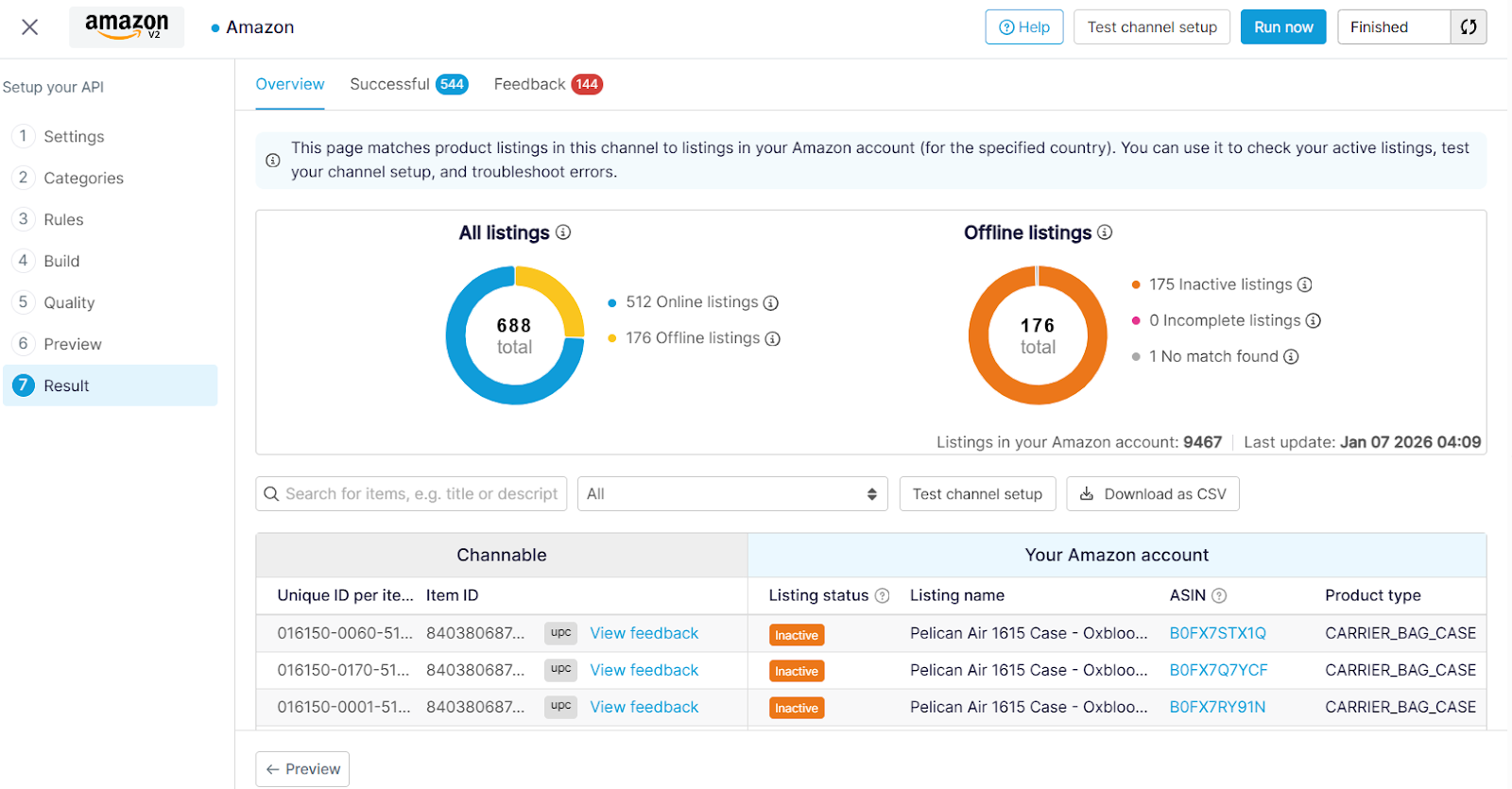
Testing your channel setup shows the data from your Amazon seller account in Channable.
1. Click **Test channel setup**.
2. In the **Results** step, go to the **Overview** tab and review the information pulled from Amazon.
* The **All listings** chart shows how many of the items you imported are online vs offline.
* The **Offline listings** chart provides an overview of possible reasons why your listings are offline (intentional or otherwise).
* The Channable - Your Amazon account table shows how items you imported to Channable connect to items in your Amazon account, and their current listing status.
{% endstep %}
{% step %}
### Categorize your items
To make any changes to your old setup, you need to import your categories from Amazon.
#### Import your category data
1. On the **Overview** page in the **Result** step, click **Download as CSV** to download your product data.
2. Open a new tab in your browser and go to [Google sheets](https://docs.google.com/spreadsheets/).
3. Select **Blank spreadsheet**.
4. Import your CSV file into the spreadsheet (Go to **File** > **Import** > **\[your CSV file]**).
5. Publish your Google spreadsheet to make it publicly available. (Go to **File** > **Import** and select \[your downloaded CSV file]). Copy the generated link.
6. Back in Channable, go to **Setup** > **+ Combine imports**.
7. Select **Google spreadsheet** and fill in the following:
1. For **Name**, provide a descriptive name (e.g. “Amazon categories”)
2. For **Google spreadsheet URL**, paste the URL you copied earlier.
8. Click **Start import** to import the file.
9. Click **Edit mapping** and map `channable.client_id` to `id`.
10. For Merge options, select **Combine on field** and choose `id`.
11. Return to **\[your Amazon channel]** and go to the **Rules** step.
12. Create the following rule:
**If** `amazonlisting_product_type` `isn’t empty`
**Then** take `category` and `copy value` from `amazon_listing_product_type`
13. Click **Save**.
#### Categorize the rest of your items
{% hint style="info" %}
**Note:** If you only want to manage existing products in your account in this channel, you can skip this step.
{% endhint %}
To list the rest of the products in your import, you need to categorize them.
1. In **\[your Amazon channel]**, go to the **Categories** step.
2. Map (assign) categories for all items.
You can use[ AI categorization](https://channable-test.gitbook.io/channable-test-docs/manage-improve-product-data/categorize-products/create-product-categories/ai-product-categorization) to automatically match items to Amazon categories,[ generate categories from a category field](https://channable-test.gitbook.io/channable-test-docs/manage-improve-product-data/categorize-products/create-product-categories/use-the-generate-categories-function), or create categories manually.
{% endstep %}
{% step %}
Create rules to enrich, filter, and refine your product data (optional)
When product data is incomplete or doesn’t match Amazon’s required format, use[ rules in Channable](https://channable-test.gitbook.io/channable-test-docs/manage-improve-product-data/rules-bulk-edit-and-enrich/rules-in-channable) to transform and optimize your data. See[ Create rules](https://channable-test.gitbook.io/channable-test-docs/manage-improve-product-data/rules-bulk-edit-and-enrich/using-rules).
If you only want to manage existing products in this channel, create a rule to filter out items that are not in your account. If not, you can skip this step.
Example rule:
**If** `amazonlisting_product_type` `is empty`
**Then** `take all fields` and `exclude`
{% endstep %}
{% endstepper %}
After completing these steps, your items are ready to be managed by Channable.
### Adjusting your setup
You can freely adjust your shared and category-specific attribute mapping in the **Build** step. After saving your changes, run your channel to apply them.
{% hint style="info" %}
If you want your attributes to stay as they are, you can leave their mapping empty - even if they’re marked by our system as mandatory.
{% endhint %}
### What’s next?
**Set up an order connection**
Setting up an Amazon order connection requires the order connection add-on and the Quantity attribute mapped in your channel setup.
To find the quantity field:
1. In the **Build** step of your Amazon channel, go to **Attributes per category**.
2. Scroll to the **Offer** section.
3. At **Fulfillment availability**, click **+ Add**.
4. Map the field containing your quantity information for the **Quantity** attribute.
5. Click **Save**.
After providing quantity information, continue [setting up an order connection](https://channable-test.gitbook.io/channable-test-docs/list-advertise/orders/get-started-with-orders/how-to-set-up-an-order-connection).
---
# Agent Instructions
This documentation is published with GitBook. GitBook is the documentation platform designed so that both humans and AI agents can read, navigate, and reason over technical content effectively. Learn more at gitbook.com.
## Querying This Documentation
If you need additional information that is not directly available in this page, you can query the documentation by asking a question.
Perform an HTTP GET request on the following URL with the `ask` and `goal` query parameters:
```
GET https://helpcenter.channable.com/list-advertise/amazon/list-items-on-amazon/how-to-set-up-an-amazon-channel/migrate-an-amazon-api-from-another-integrator-to-channable.md?ask=&goal=
```
`ask` is the immediate question: it should be specific, self-contained, and written in natural language.
`goal` is what the user is ultimately trying to achieve, the reason they need the answer. Sharing it helps GitBook give you a better, more relevant answer. A goal is most helpful when it describes the outcome the user wants rather than restating the question. For example, with `ask=how do I create an API token`, a goal like `automate deployments from our CI pipeline` lets GitBook tailor the answer to that use case.
The response will contain a direct answer to the question and relevant excerpts and sources from the documentation.
Use this mechanism when the answer is not explicitly present in the current page, you need clarification or additional context, or you want to retrieve related documentation sections.