> For the complete documentation index, see [llms.txt](https://helpcenter.channable.com/llms.txt). Markdown versions of documentation pages are available by appending `.md` to page URLs; this page is available as [Markdown](https://helpcenter.channable.com/list-advertise/amazon/manage-and-optimize-amazon-ads/setting-up-an-amazon-ads-campaign.md).
# Setting up an Amazon Ads Campaign
With our Amazon Ads connection, you can create dynamic Sponsored Products ad campaigns for Amazon easily. Sponsored Ads target shopping queries or products and occupy high-visibility placements on Amazon. This article will help you get started setting up your Amazon Ads campaign in Channable.
{% stepper %}
{% step %}
### Setting up the Amazon connection
#### Creating an Amazon Ads connection
If you haven't created an Amazon Ads connection yet, please follow the instructions in [this article](/list-advertise/amazon/manage-and-optimize-amazon-ads/creating-an-amazon-ads-connection.md) to create a connection with Amazon Ads.
#### Configure the Amazon Ads channel
Set up your Amazon Sales Channel configuration. Please follow the steps on [this page](/list-advertise/amazon/manage-and-optimize-amazon-ads/how-do-i-set-up-my-amazon-ads-channel.md) to set up the Amazon Ads configuration for the sales channel.
{% endstep %}
{% step %}
### Setting up rules
After creating a connection and setting up the Amazon Ads configuration, set up rules to modify your product information, add extra [rules for filtering out products](/manage-improve-product-data/rules-bulk-edit-and-enrich/using-rules.md), or [use insights data](/manage-improve-product-data/insights/channable-insights.md).
{% endstep %}
{% step %}
### Setting up the campaign generator
#### Create an Amazon Ads generator
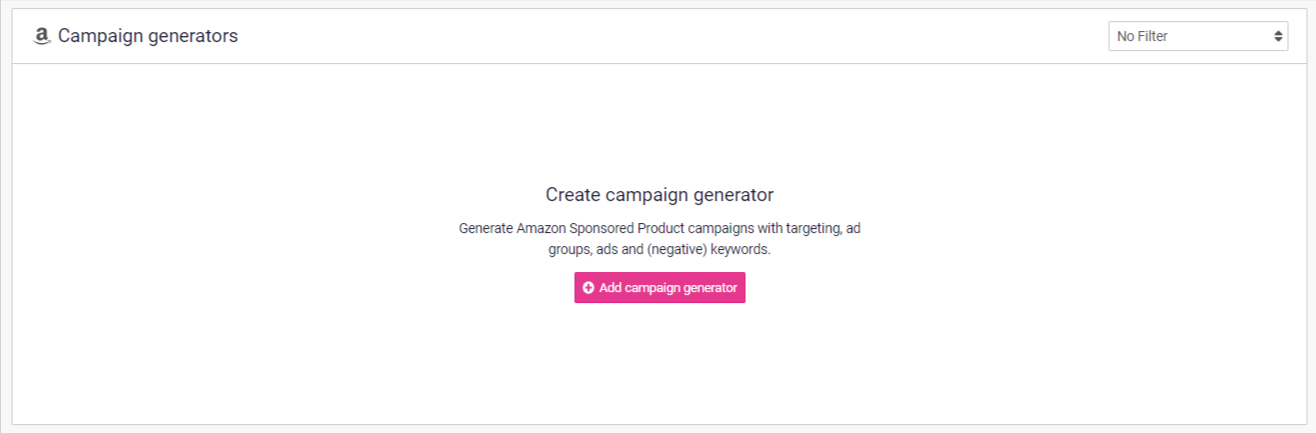
In the Campaign section, click Add campaign generator to create your first campaign generator.
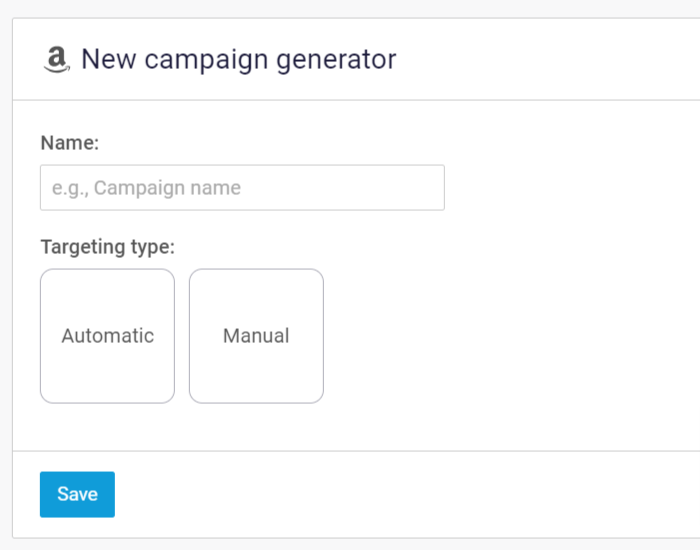
Give the generator a clear name in case you are going to set up multiple generators.
#### Set the Campaign Targeting Type
Choose an automatic or a manual campaign. An automatic campaign has less control, as Amazon manages all the (positive) targets for automatic targeting campaigns. In campaigns with manual targeting, targets are completely managed by the user in our tool.
More information about campaign types can be found in [this article](/list-advertise/amazon/manage-and-optimize-amazon-ads/amazon-ads-campaign-generator-settings.md).
{% endstep %}
{% step %}
### Build the Amazon Ads campaign
#### The Campaign Template
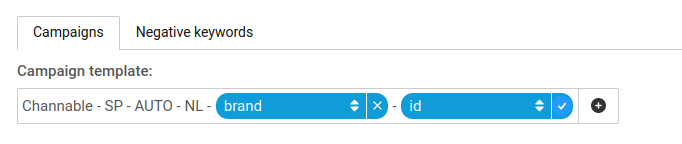
Create a campaign template using a combination of static and dynamic field names. This template name needs to be unique—avoid using fields with identical values.
Channable will use the same name for campaigns as ad groups since we currently use only one ad group per campaign. The group name can be changed on Amazon if desired.
Note: It is possible to synchronize with already existing Amazon Ads campaigns by using the same name in the campaign template. Existing campaigns will then be managed by Channable.
#### Daily Budget
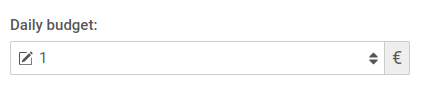
Set your daily budget — the maximum spend per day in the currency of that specific channel.
#### Bidding Strategy
Select a campaign bidding strategy. There are three bidding strategies available: fixed bids, dynamic bids - down only, or dynamic bids - up and down. More information about bidding strategies can be found in [this article](/list-advertise/amazon/manage-and-optimize-amazon-ads/amazon-ads-budget-and-bidding-settings.md).
#### Bid Placement Adjustments
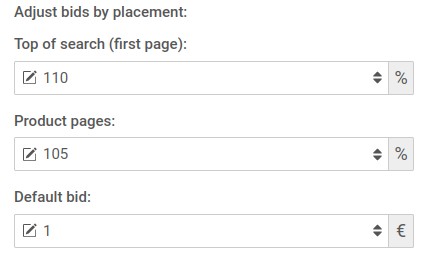
Configure bidding placement adjustments: set your default bid per ad and adjustments for Top-of-search or Product page placements to enable higher bids for premium locations.
More details are available in [this article](/list-advertise/amazon/manage-and-optimize-amazon-ads/amazon-ads-budget-and-bidding-settings.md).
#### Keywords
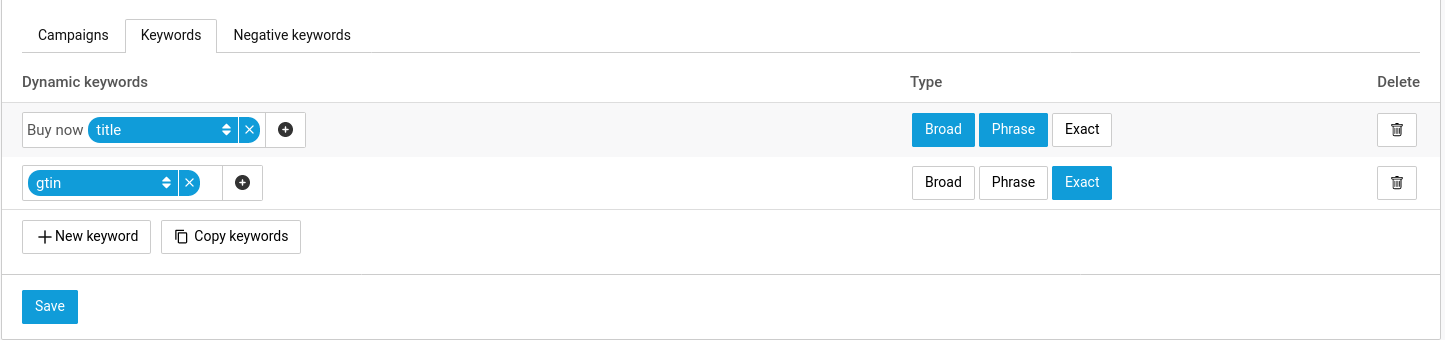
Set targeting keywords. Keywords represent search terms and are divided into two tabs: keywords and negative keywords.
* Keywords have three match types and need at least one type (Broad, Phrase, and/or Exact). Keywords can contain more than one word and Amazon will match them differently to the actual search term used in the marketplace.
{% hint style="warning" %}
**Important:** Keywords are only available in manual campaigns and can contain dynamic fields. These are keywords or phrases that your ad will be shown for.
{% endhint %}
* Negative Keywords are available in both manual and automatic campaigns and can contain dynamic fields. These keywords prevent your ad from being shown when the search term matches them.
{% hint style="info" %}
Important: Dynamic fields used for keywords can only contain a single value. A split rule must be added in advance if you currently have a list of values you want to turn into keywords.
{% endhint %}
More information about Amazon Ads Keywords can be found on [this page](/list-advertise/amazon/manage-and-optimize-amazon-ads/amazon-ads-keyword-targeting.md).
{% endstep %}
{% step %}
### Preview your results
Before sending your ads to Amazon, use the preview step to generate all ads without actually creating them on Amazon. This lets you check if your configuration produces the desired results. Reload the preview after each adjustment to see the actual effects of your changes.
When you are satisfied with the results, activate the generator and send your ads to Amazon!
More information about the preview tab can be found on [this page](/list-advertise/amazon/manage-and-optimize-amazon-ads/amazon-ads-preview.md).
{% endstep %}
{% step %}
### Automation rules
In the automation step, set up automation rules to change, pause, or move keywords based on performance data from Amazon. The performance data comes from the sales channel selected when setting up your campaign.
Use automation to, for example, move high-performing keywords from automated campaigns to manual campaigns with bigger budgets. Automation rules take effect as the last part of the process after some performance data has been collected.
For full details on automation rules and how to set them up, see [this article](/list-advertise/amazon/manage-and-optimize-amazon-ads/automation-rules-for-amazon-ads.md).
{% endstep %}
{% endstepper %}
Questions and errors
If you are running into errors or have any questions, check our [Amazon Ads Errors](/list-advertise/amazon/manage-and-optimize-amazon-ads/amazon-ads-common-errors.md) page and [FAQ](/list-advertise/amazon/manage-and-optimize-amazon-ads/amazon-ads-frequently-asked-questions.md). If you still have problems, contact our support department.
---
# Agent Instructions
This documentation is published with GitBook. GitBook is the documentation platform designed so that both humans and AI agents can read, navigate, and reason over technical content effectively. Learn more at gitbook.com.
## Querying This Documentation
If you need additional information that is not directly available in this page, you can query the documentation dynamically by asking a question.
Perform an HTTP GET request on the current page URL with the `ask` query parameter, and the optional `goal` query parameter:
```
GET https://helpcenter.channable.com/list-advertise/amazon/manage-and-optimize-amazon-ads/setting-up-an-amazon-ads-campaign.md?ask=&goal=
```
`ask` is the immediate question: it should be specific, self-contained, and written in natural language.
`goal` is optional and describes the broader end goal you are ultimately trying to accomplish on behalf of the user. GitBook uses it to tailor the answer towards what is most useful for that goal.
The response will contain a direct answer to the question and relevant excerpts and sources from the documentation.
Use this mechanism when the answer is not explicitly present in the current page, you need clarification or additional context, or you want to retrieve related documentation sections.